
AI Agents
Status: Alpha (AI Pro)
AI Agents are autonomous AI assistants that can be configured to take actions within ChartHop on behalf of your organization. Rather than simply answering questions, agents can be given a specific identity, set of instructions, and a defined scope of permissions — enabling them to perform multi-step tasks, answer questions using live org data, and execute automated workflows.
Agents are managed from Admin > Agents.
Enabling AI Agents
- Navigate to Admin > AI
- Ensure AI Features is toggled on
- In the AI Pro section, toggle on AI Agents
- Click Save Settings
Once enabled, a Default Agent selector appears, letting you choose which agent users see by default when they open the AI chat.
Creating an Agent
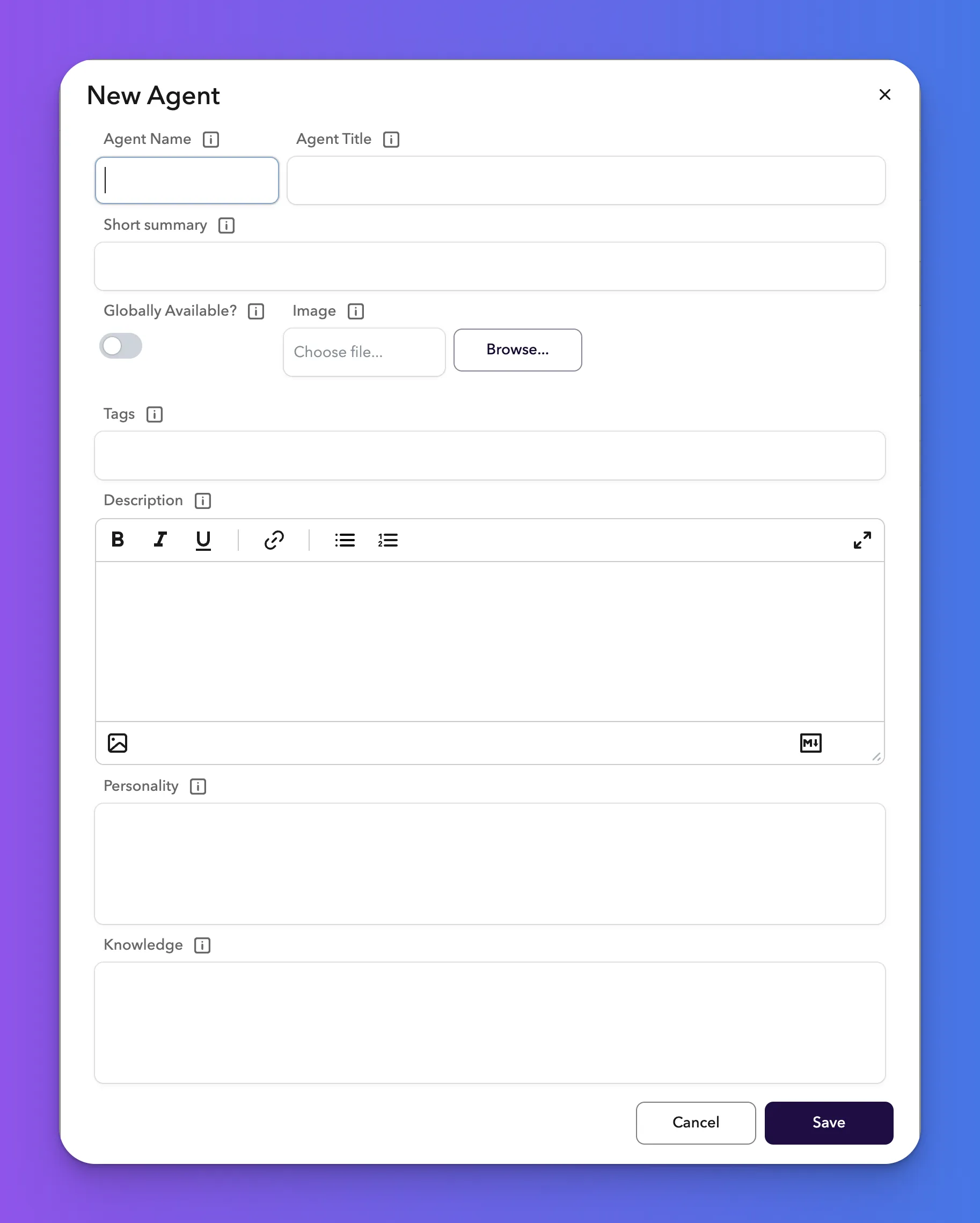
Agents are created from Admin > Agents using the New Agent button. The create/edit dialog contains the following fields:
Identity
Field | Description |
|---|---|
Name | A unique internal identifier for the agent (required). Used in URLs and API references. |
Title | The display name shown to users (required). |
Short Summary | A one-line description of what the agent does (required). Shown in agent listings. |
Image | An optional avatar image for the agent. |
Tags | Comma-separated tags to help categorize or filter agents. |
Description | A rich-text longer description of the agent's purpose, shown on the agent's detail page. |
Behavior
Field | Description |
|---|---|
Personality | Defines the agent's tone, communication style, and persona (required). For example: "You are a friendly, concise HR assistant who specializes in compensation questions." |
Knowledge | Background information the agent should have — facts about the organization, common terminology, or domain-specific context it should apply when answering questions. |
Instructions | Step-by-step or rule-based directives that tell the agent how to behave, what workflows to follow, and what actions to take in specific situations. This is the primary way to define the agent's operational behavior. |
Guardrails | Constraints on what the agent should not do. Use this to prevent the agent from discussing off-topic subjects, making certain kinds of recommendations, or overstepping its intended scope. |
Enable Memory | When toggled on, the agent will remember context from previous conversations with each user. See AI Memory for more detail. |
Slack Configuration
Agents can optionally be connected to a Slack workspace, allowing the agent to be messaged directly in Slack. The following credentials from your Slack App configuration are required:
Field | Description |
|---|---|
Slack App ID | The unique identifier for your Slack app (e.g. A012345678). Found in your Slack app's Basic Information page. |
Slack Client ID | The OAuth client ID for your Slack app. |
Slack Client Secret | The OAuth client secret. Stored securely and not displayed after saving. |
Slack Signing Secret | Used to verify that incoming requests come from Slack. Stored securely. |
After saving, the agent must be connected to a Slack workspace from the Messaging tab (see below).
Managing an Agent
Once created and installed, the agent detail page has four tabs: Configure, Tools & Permissions, Actions, and Messaging.
Sharing an Agent
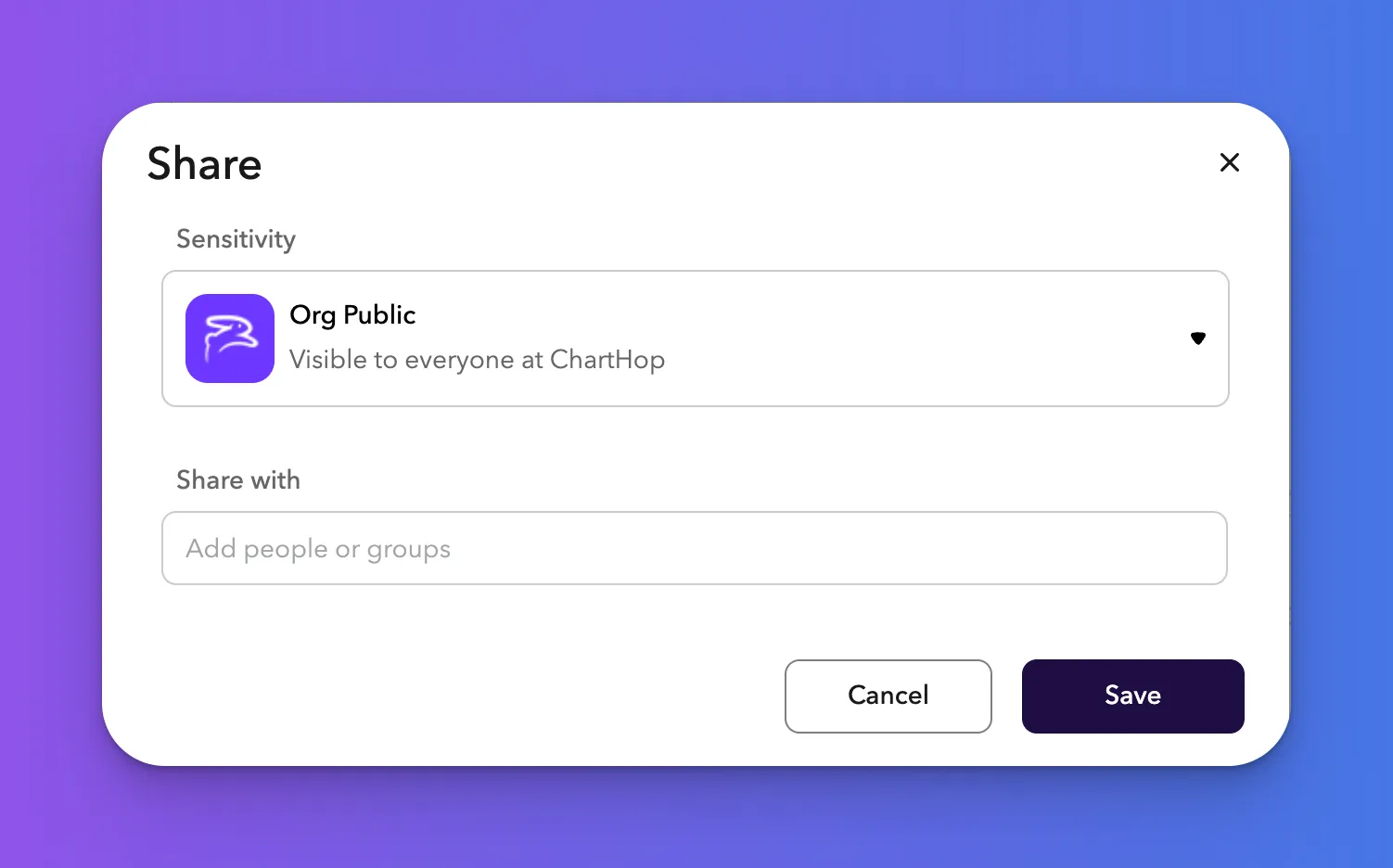
Installed agents can be shared with other users in your organization using the sharing controls in the agent header. You can:
- Grant access to specific users or groups
- Set the agent's sensitivity level (Org-wide or High sensitivity) to control who can view and interact with it
Sharing is managed via the standard ChartHop sharing interface on the agent detail page.
Configure Tab
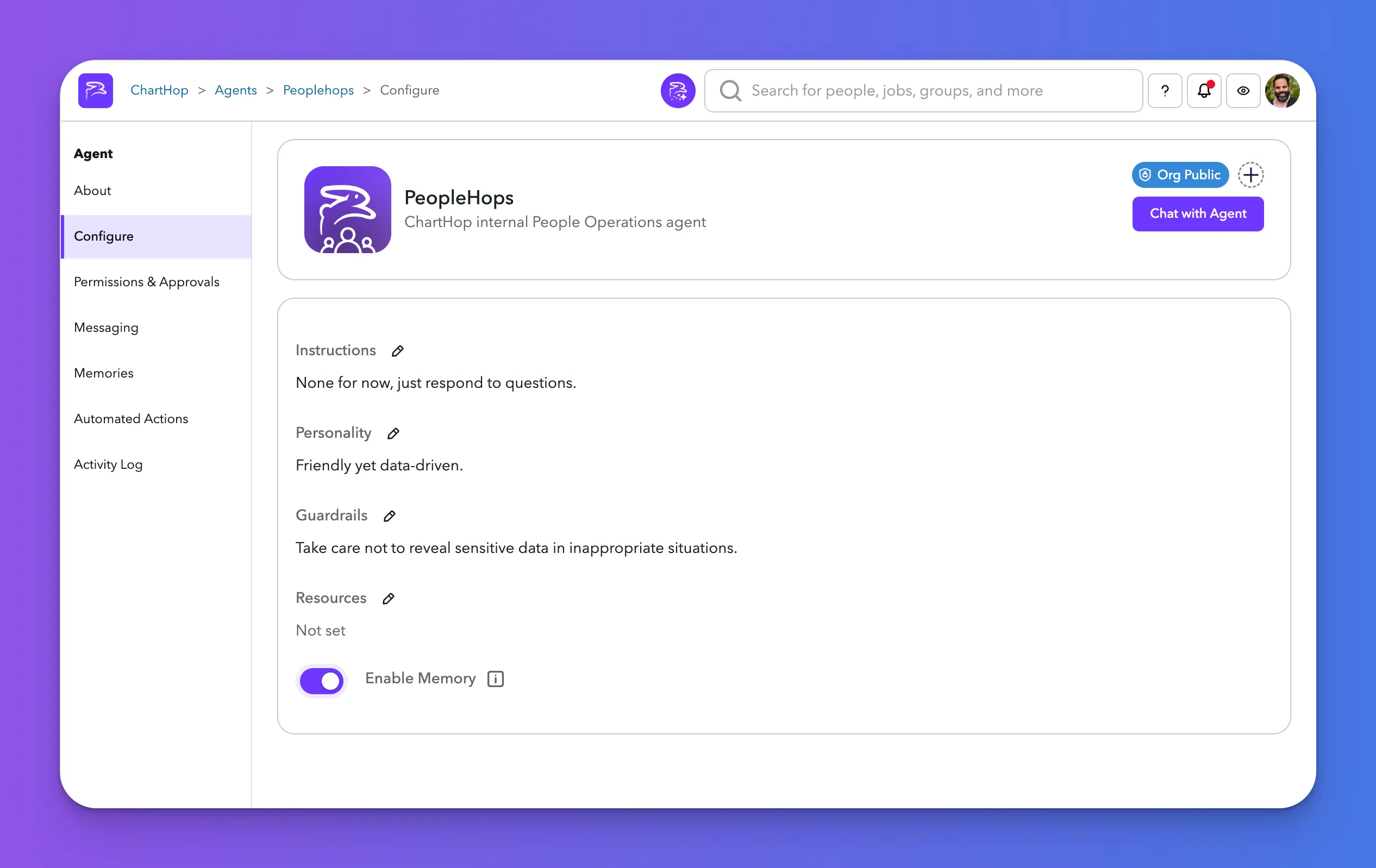
The Configure tab lets you adjust the agent's core behavioral settings after creation. These fields mirror the behavior fields from the create dialog, and can be edited inline:
Field | Description |
|---|---|
Instructions | The agent's operational directives. Edit to refine how the agent responds and what tasks it performs. |
Personality | The agent's tone and communication style. |
Guardrails | Constraints on what the agent should avoid doing or saying. |
Resources | One or more ChartHop Resource pages (from the Resources section) that the agent should use as a knowledge base. Attaching resources gives the agent grounded, org-specific context to draw from when answering questions. |
Enable Memory | Toggle to enable or disable cross-session memory for this agent. |
Permissions & Approvals Tab
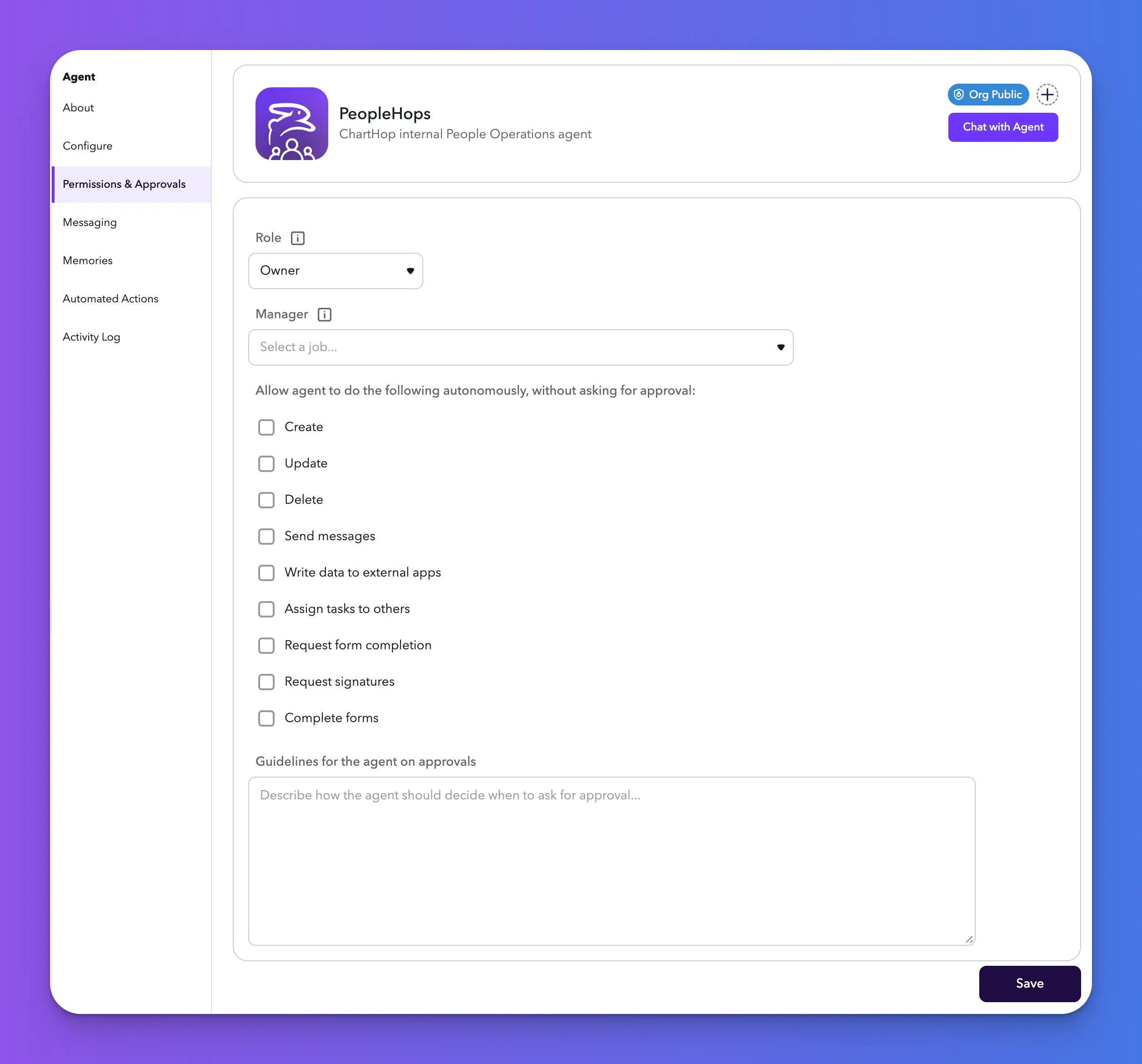
This tab controls what the agent is allowed to do within ChartHop — its identity in the system, who oversees it, and which actions it can take autonomously.
Field | Description |
|---|---|
Role | The ChartHop role assigned to this agent. This determines what data the agent can read and what changes it is permitted to make. Choose the minimum role required for the agent's intended tasks. |
Manager | An optional job in the org chart designated as the agent's "manager" — the person responsible for overseeing and approving the agent's actions. |
Autonomous Actions | A list of policy rules defining which actions the agent is permitted to take without requiring human approval. Each rule specifies a type of action (e.g. reading a field, creating a record) and the scope it applies to. Actions not covered by these rules will require approval before execution. |
Approval Guidelines | Free-text instructions that help the agent understand how to seek approval when it needs to take an action outside its autonomous permissions. For example: "When uncertain, always message the manager for approval before proceeding." |
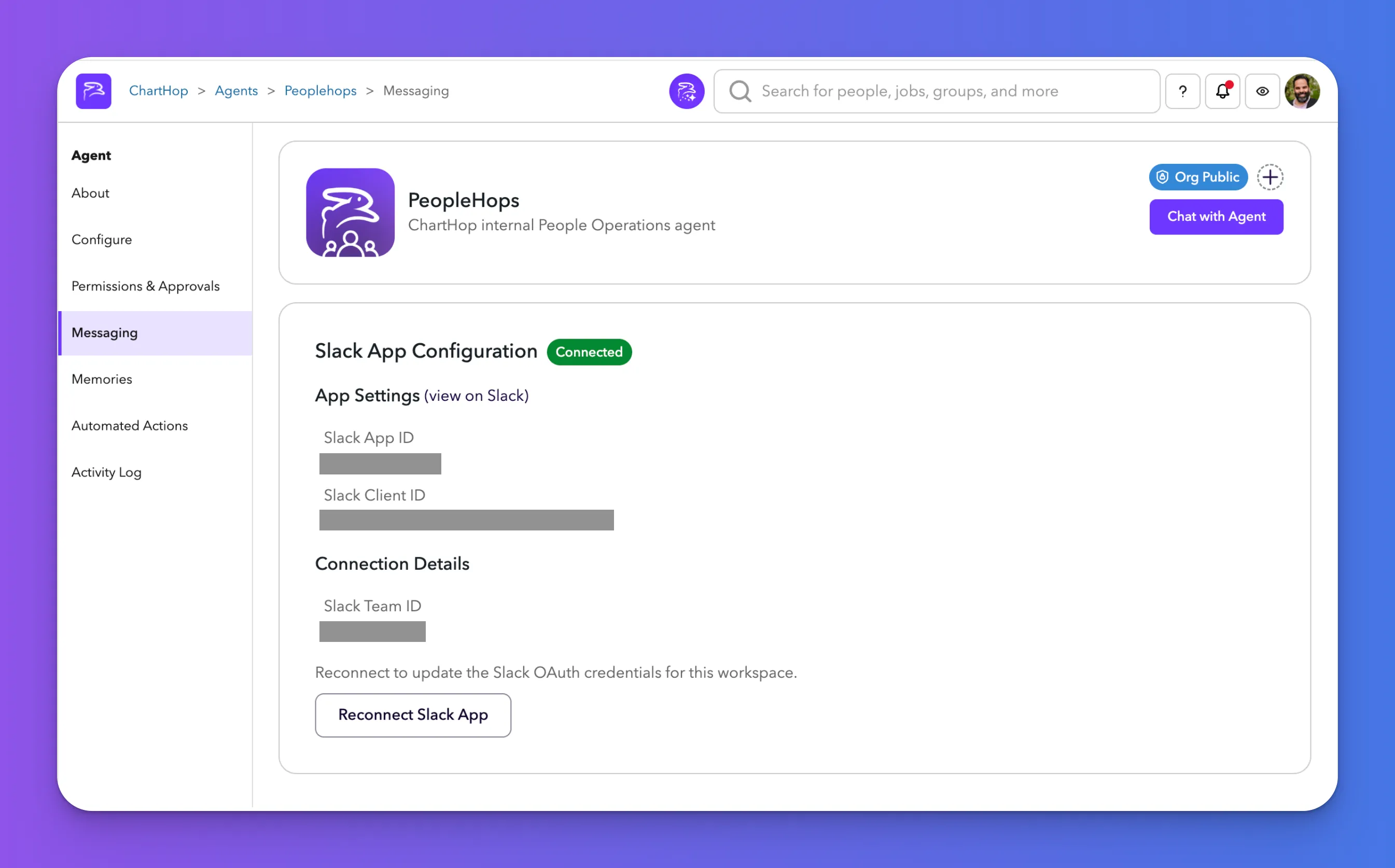
Messaging Tab
The Messaging tab shows the agent's Slack integration status and connection details.
Section | Description |
|---|---|
Slack Config | Displays the Slack App ID and Client ID configured for this agent. A link to the app's settings page on api.slack.com is provided if an App ID is set. |
Connection Status | Shows whether the agent is currently Connected or Not Connected to a Slack workspace. |
Connection Details | When connected, displays the Slack Team ID and Bot User ID for the active connection. |
Connect / Reconnect | An OAuth button to initiate or re-authorize the Slack connection for this agent. |
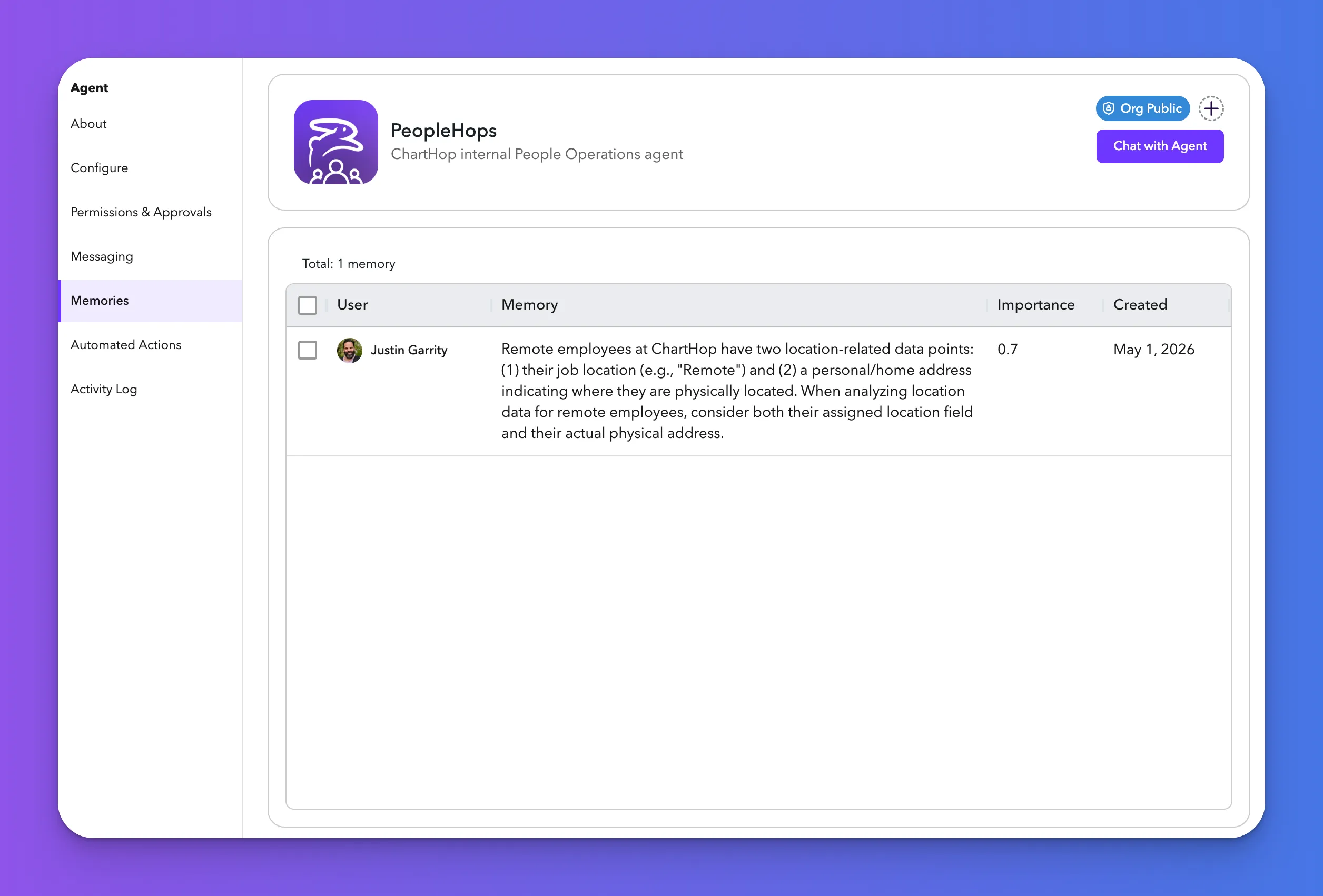
Memories Tab
The Memories tab shows the list of memories that have been saved to the agent, who made the change, how important it is scored, and when the memory was created. Selecting a Memory allows you to delete it.
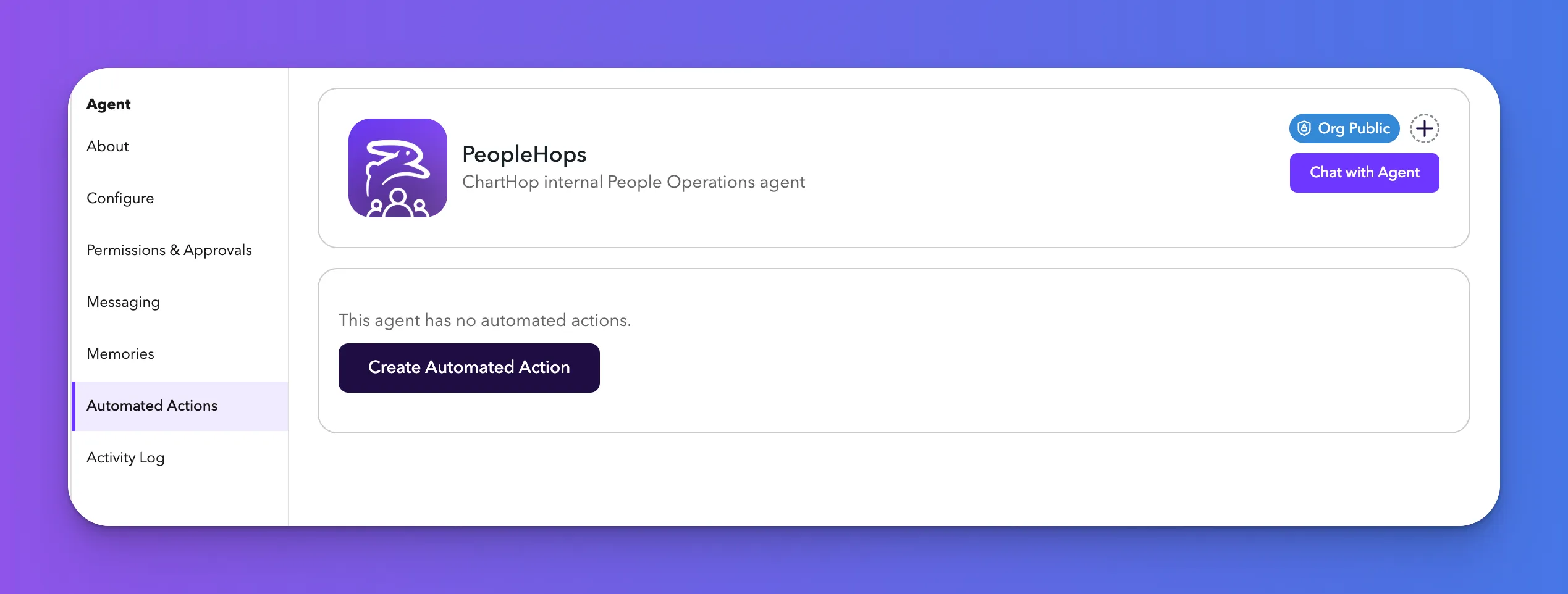
Automated Actions Tab
The Actions tab shows all ChartHop Actions that have been associated with this agent. These are automated workflows the agent can trigger as part of its responses.
Each action in the list shows:
- Active toggle — Enable or disable the action without deleting it
- Description — A link to the action's detail/edit view
- Trigger — The event or schedule that fires the action
- Run As — The user identity under which the action executes
- Last Updated — When the action was last modified
From this tab you can create new actions, edit existing ones, duplicate an action, run an action manually for testing, or delete actions.
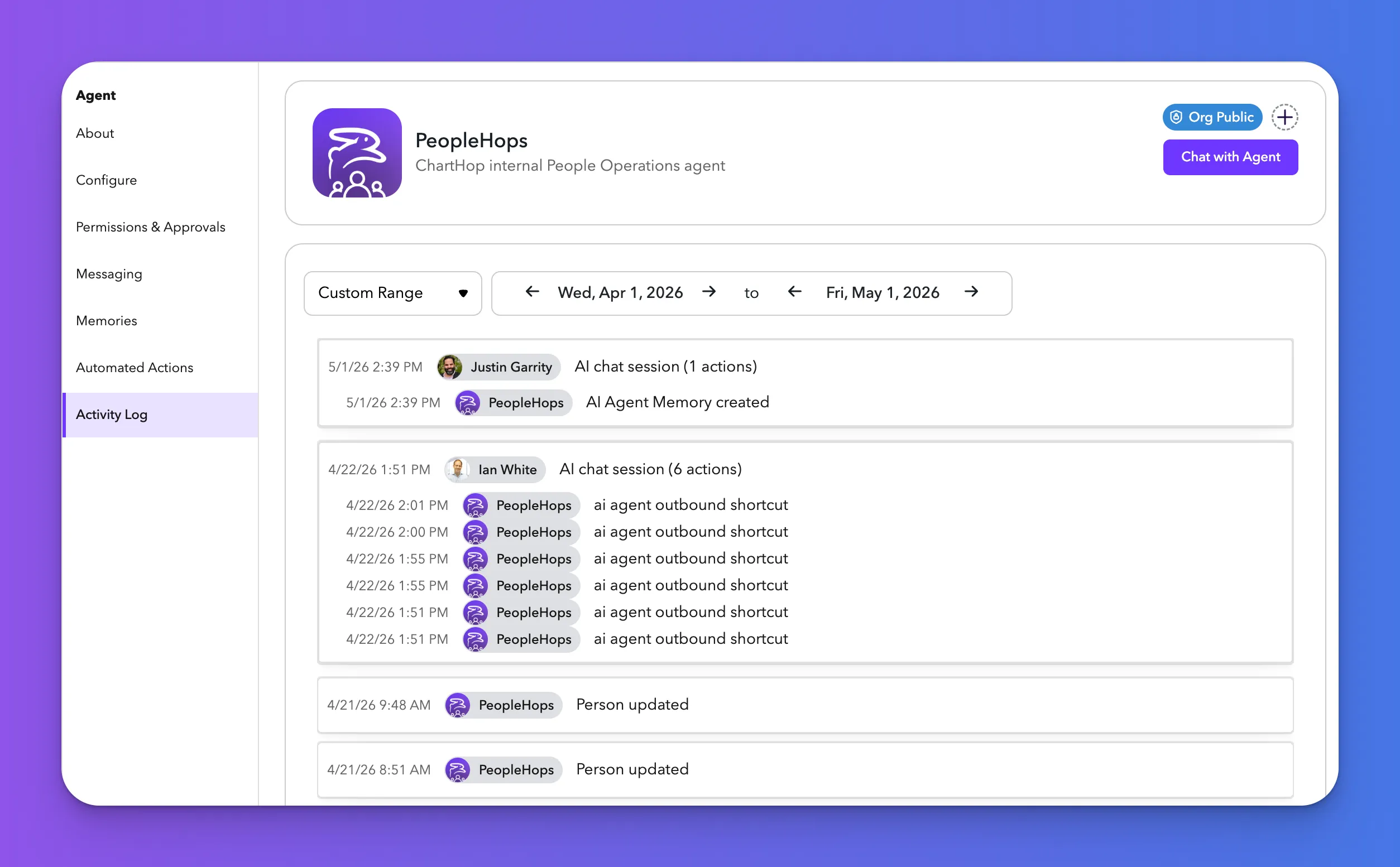
Activity Log Tab
The Activity Log shows all the activity related to the agent in reverse chronological order.