
Goals Detail View
The goal detail view is where a single goal comes fully into focus. It brings together context, ownership, progress, and evidence so teams understand not just what the goal is, but how it's doing and why.
Header
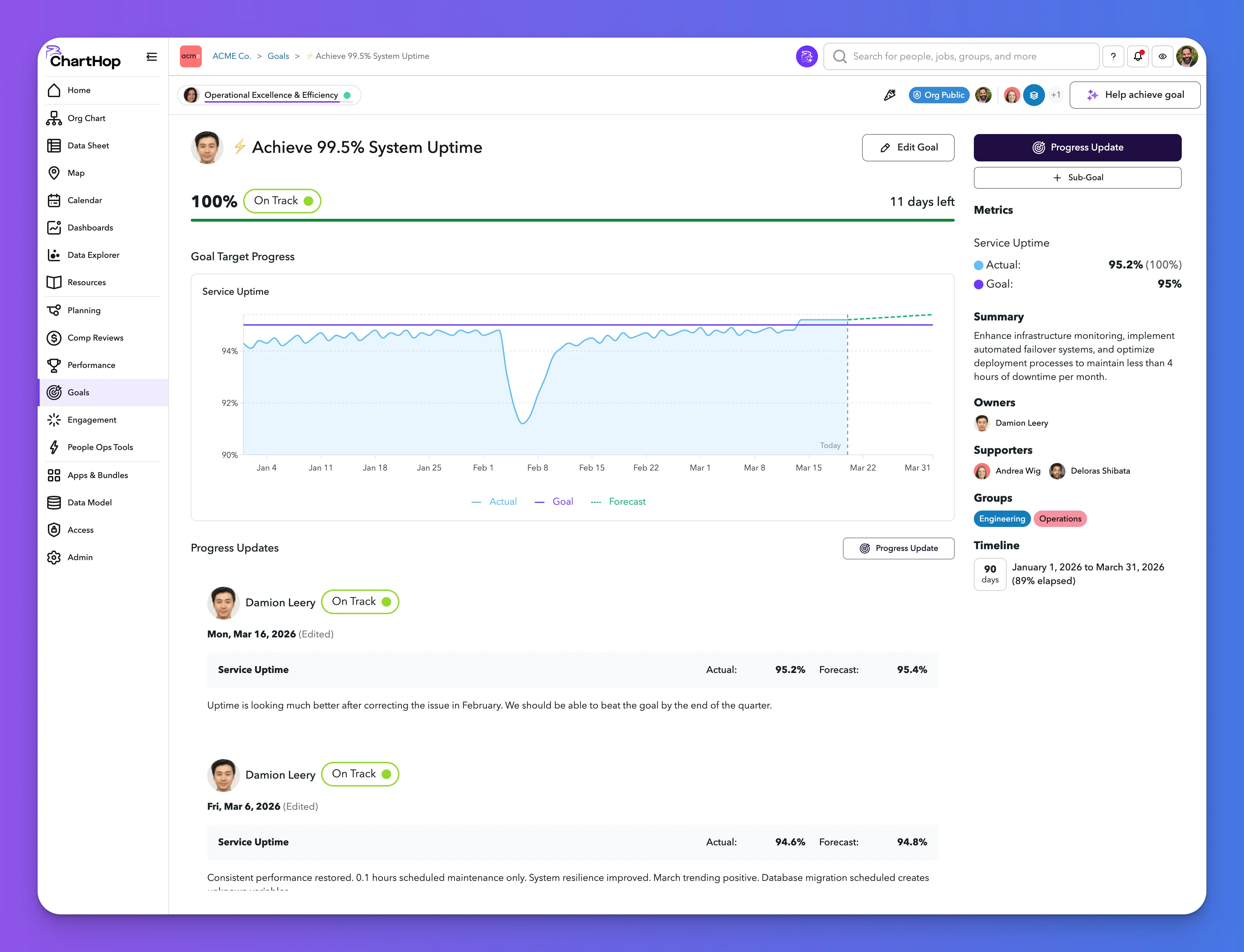
At the top of the page, a breadcrumb shows the goal's location: [Org] > Goals > [Goal Name]. If the goal has a parent, a pill below the breadcrumb shows the parent goal name and its current confidence dot. Selecting it navigates to the parent.
The top bar also shows:
- Sensitivity badge (e.g., Org Public) with a share icon to open sharing settings
- Supporter avatars with a count of additional collaborators
- Help achieve goal — lets you request to contribute to the goal
- Edit Goal — opens the Edit Goal modal
Progress and confidence
Below the header, the goal shows its current progress percentage and confidence pill side by side. A full-width progress bar sits below. On the right, a days remaining countdown shows how much time is left in the goal period.
Sidebar
The right sidebar provides context and quick actions throughout the detail view.
Primary actions:
- Progress Update (dark button) — opens the inline progress update form
- + Target Metric — opens the Target Metric modal (appears on metric-enabled goals)
- + Milestone — adds a milestone inline (appears on milestone-enabled goals)
- + Sub-Goal — opens the Create Goal modal with parent pre-filled
Context fields:
- Metrics — lists each metric with Actual value (and progress %), Goal target, and additional target levels (e.g., Base, Bunny). Shown on metric-based goals only.
- Summary — a written description of the goal. On top-level parent goals, ChartHop may surface an AI-suggested description to help get started.
- Owners — avatars and names of goal owners
- Supporters — avatars and names of goal supporters
- Groups — colored department pills for each group tagged on the goal
- Timeline — date range with total days and percentage elapsed (e.g., "90 days — 88% elapsed")
Goal Target Progress
For metric-based goals, a Goal Target Progress chart visualizes performance over time. When a goal has multiple metrics, tabs above the chart let you switch between them.
Each chart shows:
- Actual (solid light blue) — performance to date
- Goal (solid purple) — the target value
- Forecast (dashed) — the projected outcome
- Additional target and forecast lines as configured in Goal Types (e.g., Base, Bunny, Commit, Most Likely, Best Case)
A vertical dashed "Today" line marks the current date. The forecast line extends to the end of the goal period.
Milestones
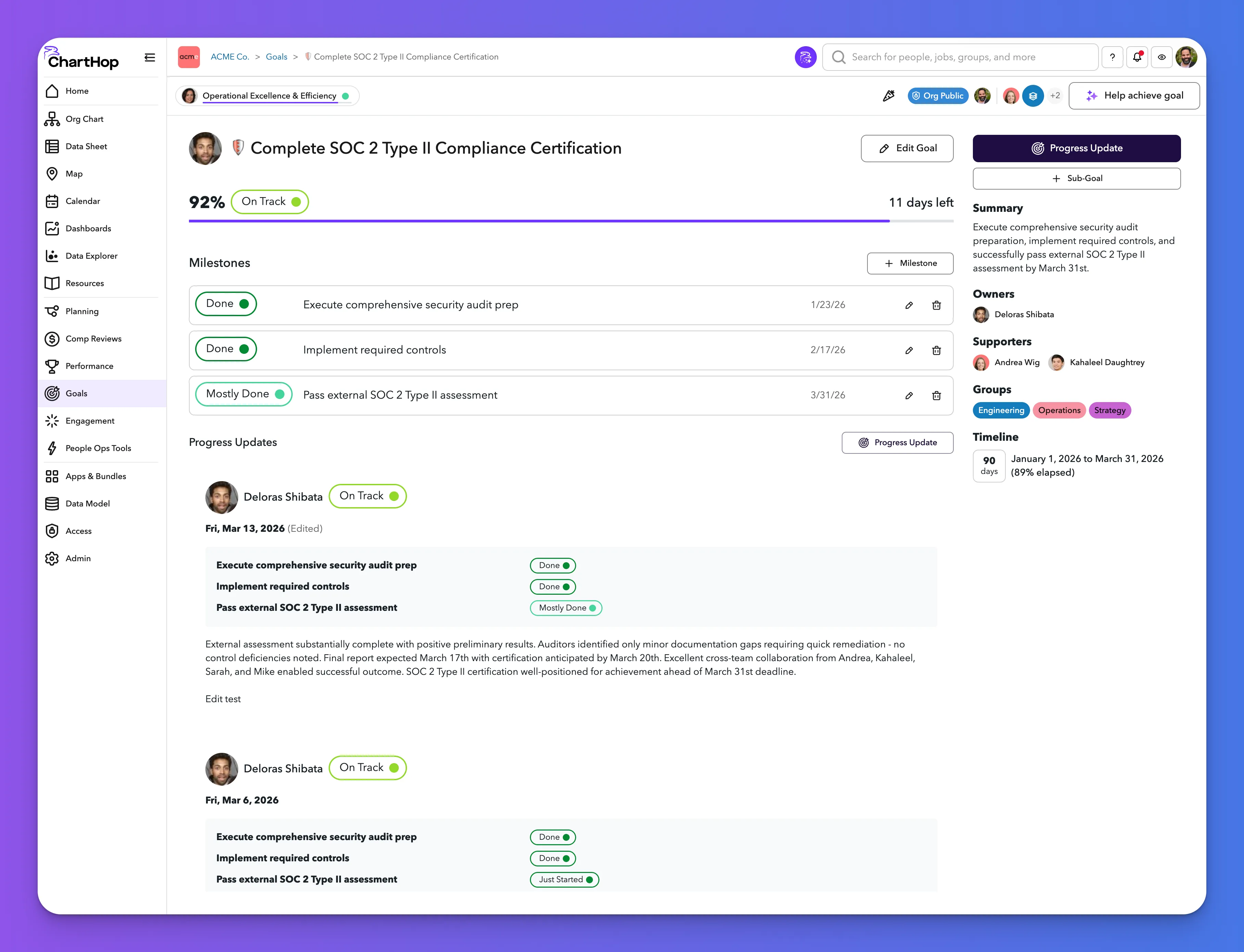
For milestone-based goals, a Milestones section replaces the progress chart. Each milestone row shows its status pill, description, due date, and edit and delete icons.
Select + Milestone to add a new milestone inline — no modal opens. A new row appears at the bottom of the list with a description field and a due date that defaults to the goal's end date. Enter the description and confirm with the checkmark, or cancel with the × icon. Milestone due dates can be set independently to sequence work within the goal period.
To update a milestone's status, submit a progress update (see below).
Sub-goals
Sub-goals appear in a table within the goal detail view with columns for Name, Owners, Confidence, Progress, and Goal. Each row links to the sub-goal's own detail view. Select + Sub-Goal from the sidebar to add one.
Progress Updates
Progress updates are the narrative layer of the goal. The update form opens inline within the goal detail page — not in a modal. The rest of the page stays visible and scrollable, so you can review metrics, milestones, previous updates, and sidebar context while composing a new update.
For metric-based goals, the update form includes:
- Update Date — defaults to today, editable for backdating
- Metrics table — one row per metric showing Metric name, Actual, Goal, and Forecast
- For automatically calculated metrics: Actual is read-only (pulled from the connected data source). Enter a Forecast value.
- For manually entered metrics: Actual is an editable field. Enter both Actual and Forecast values.
- Overall Confidence — select one: On Track, Mostly On Track, Partly On Track, Mostly Off Track, Off Track
- Mark Goal as Done — checkbox to close the goal from this update
- Comment — rich text field for narrative context (required, optional, or disabled per goal type configuration)
For milestone-based goals, the update form includes:
- Update Date — defaults to today, editable
- Milestones — each milestone listed with a status dropdown to update independently
- Overall Confidence — same five-option selector
- Mark Goal as Done — checkbox
- Comment — rich text field
Select Submit to save the update. Updates are timestamped and preserved over time, creating a living record of decision-making. Each previous update shows the author, date, a confidence pill, a snapshot of all metric or milestone values at the time, and the written comment.
Adding a Target Metric
Select + Target Metric from the sidebar to open the Target Metric modal. This is where you define what is being measured on a metric-based goal.
Field | Description |
|---|---|
Label | The name of the metric, e.g., "Service Uptime" or "Monthly Active Users" |
Type | Integer number, Money, or Percentage |
Goal Direction | Maximize (higher is better), Minimize (lower is better), or Closest (as close to target as possible) |
Target Values | Set the numeric target for each level configured in the goal type (e.g., Goal: 95) |
Goals calculated by | Manually entered, or Automatically calculated |
Carrot Expression | Appears when Automatically calculated is selected. Enter a Carrot expression referencing a Data Model table, e.g., db.goalsMetrics.metric['Support'].value. See the Carrot reference for syntax guidance. |
Starting Value | Optional baseline value for progress calculation |
Select Target Metric to save. A goal can have multiple metrics of mixed types — some automatic, some manual. Each appears as its own tab in the progress chart and its own row in the progress update form.
Modules: HRIS | Engagement | Goals | Performance | Compensation Reviews | Headcount Planning