
Greenhouse Field Mappers
Built in field mappers
Mapped job data between ChartHop and Greenhouse
The following fields are used during an inbound or outbound job data flow:
ChartHop field | Greenhouse field |
|---|---|
req | opening.opening_id |
recruit | opening.status |
createdate | opening.opened_at |
title | job.name |
employment | job.custom_fields.employment_type |
department | job.departments |
location | job.offices |
hiremgr | job.hiring_team.hiring_managers[0].id, job.hiring_team.hiring_managers[0].name |
recruiter | job.hiring_team.recruiters[0].id, job.hiring_team.recruiters[0].name |
Mapped new hire data from New Hire Webhook
The following fields are used during a new hire webhook data flow:
ChartHop field | Greenhouse field |
|---|---|
name.first | candidate.first_name |
name.last | candidate.last_name |
contact.homeemail | candidate.email_addresses[?(@.type == 'personal' || @.type == 'other')].value.first() |
contact.workemail | candidate.email_addresses[?(@.type == 'work')].value.first() |
contact.mobilephone | candidate.phone_numbers[0].value |
startdate | offer.starts_at |
currency | offer.custom_fields.salary.unit |
base | offer.custom_fields.salary.value, offer.custom_fields.salary |
variable | offer.custom_fields.bonus.value, offer.custom_fields.bonus, offer.custom_fields.variable_compensation.value, offer.custom_fields.variable_compensation, offer.custom_fields.variable.value, offer.custom_fields.variable |
grantshares | offer.custom_fields.stock_option.value, offer.custom_fields.stock_option, offer.custom_fields.equity.value, offer.custom_fields.equity |
userid | user.id |
name | user.name |
user.primary_email_address |
You must include the country code as a part of any international number for it to be recognized as such within ChartHop. When you are syncing phone numbers from an external system, such as a payroll system or ATS, be sure the country code is included in the phone number that is listed in the external system. This also applies when updating data through a spreadsheet.
Custom field mappers
Custom field mappers can be used to map additional custom fields between Greenhouse and ChartHop.
You can use custom field mappers to override the default field mappings. For example, you can pull a custom field into a ChartHop default field. Similarly, you can disable default field mappers. For more information about managing custom fields, please contact your ChartHop implementation specialist.
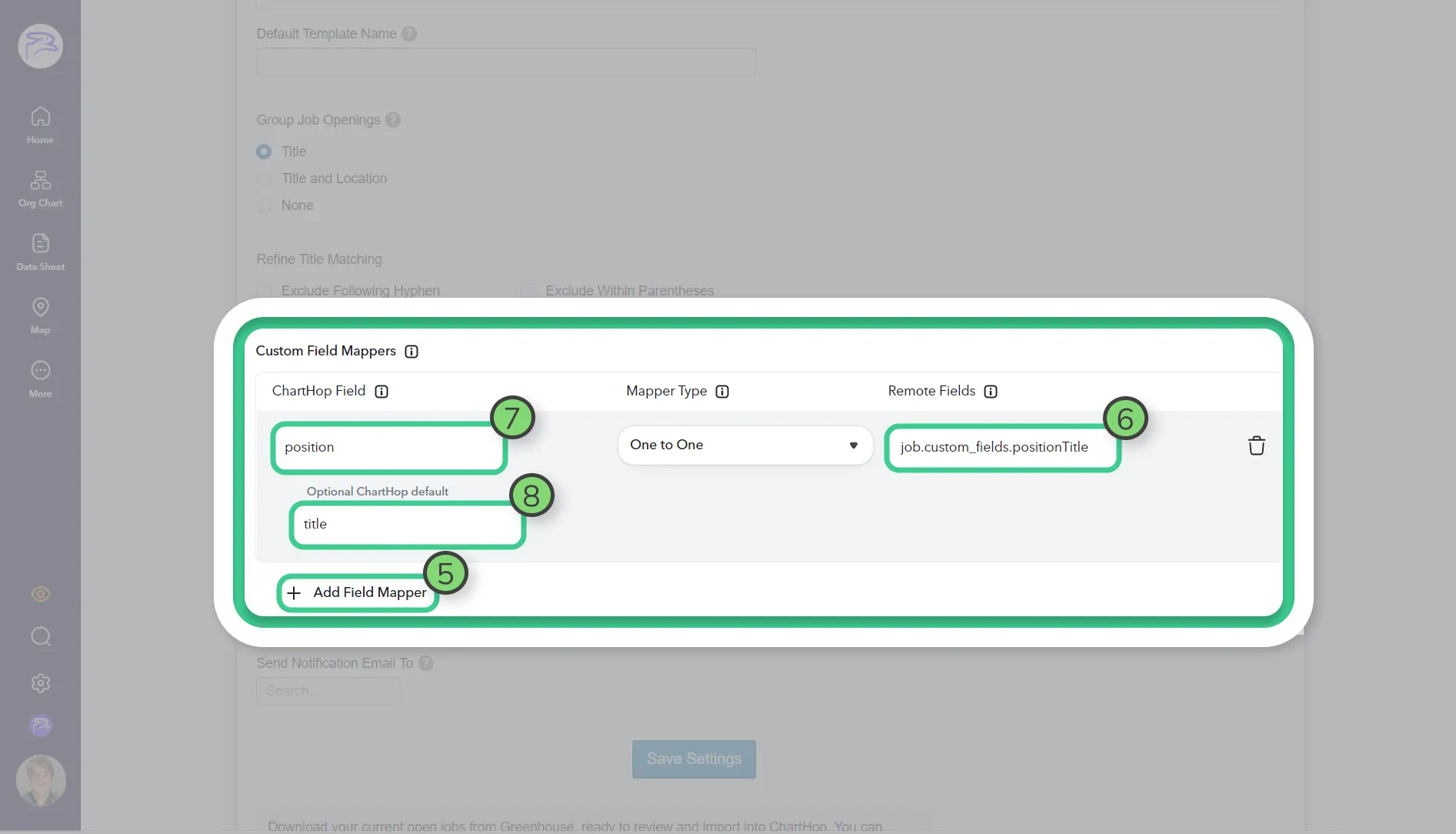
To create a custom field mapper, follow these steps:
- In ChartHop, from the left sidebar, select Apps & Bundles.
- From the sub-menu, select Apps.
- Select the Installed Apps tab.
- Scroll the list down to the Greenhouse app.
- Select the Greenhouse app.
- From the ChartHop Greenhouse app settings page, scroll down and select the Inbound Field Mapper page.
- Enter your Greenhouse custom field code name under Remote Fields, appended with the correct endpoint.
- To ensure that your Greenhouse field parses correctly, your Remote Fields must be preceded by the correct endpoint (job., offer., etc.), and structured as follows:
- The endpoint (such as job) + custom_fields. + your Greenhouse Immutable Field.
- In the ChartHop Field, enter the field or Carrot expression you wish to map to the previously entered Greenhouse custom field.
- (Optional) You can overwrite an existing default ChartHop field with your custom field. We recommend that you contact your ChartHop Implementation Specialist before trying this.
As an example, if you wanted to map a ChartHop custom field like targetSalary to the Greenhouse custom field targetBase, then you’d want to set up your field mapper like in the image below:
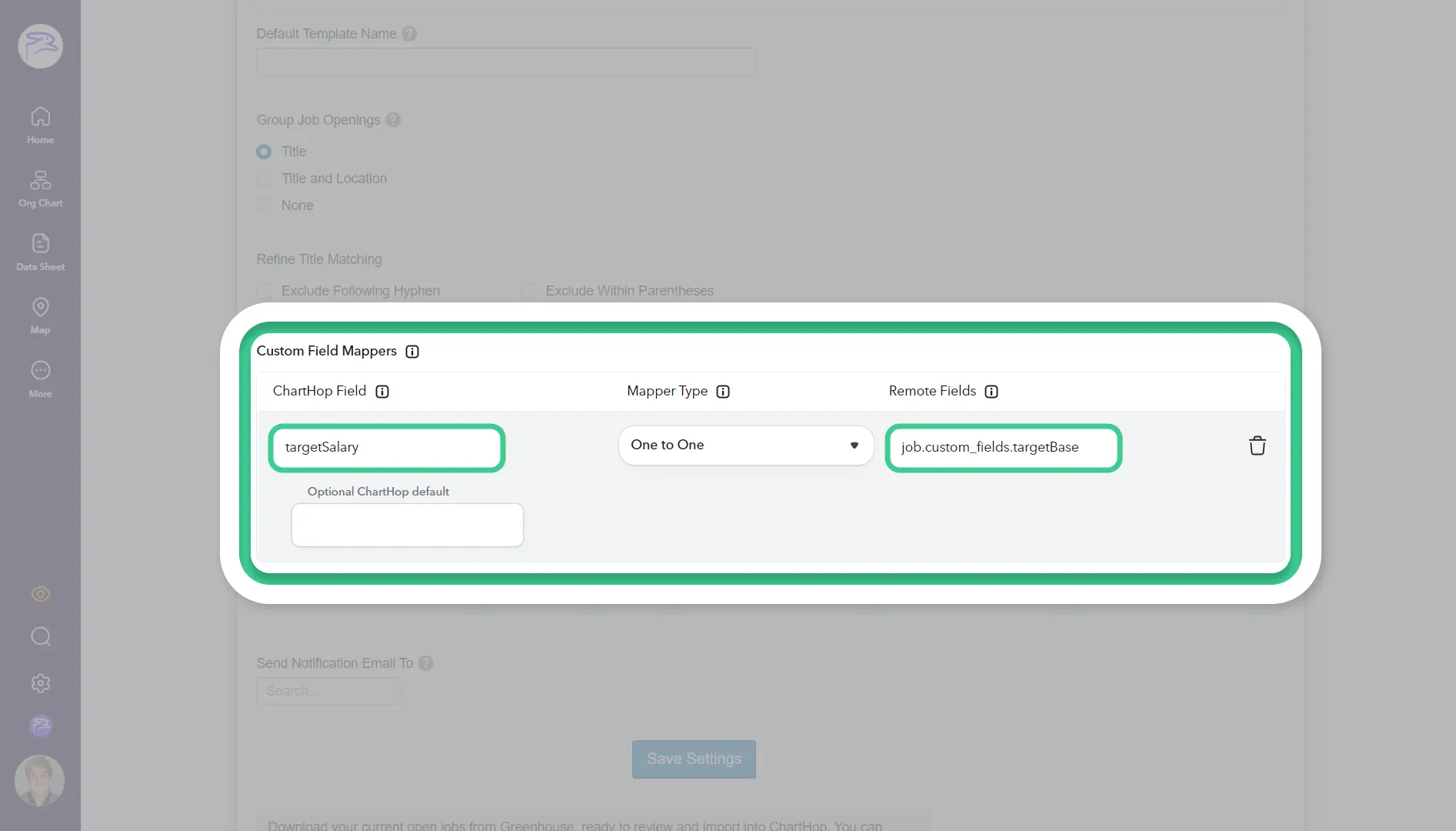
To avoid failed mappings, be sure to double-check the names of the custom fields you are using.
Set new hire announce dates
When candidates are hired and they are created in ChartHop, you have a choice about when you want them to show up publically to your organization
Under the option New Hire Webhook Announce Date select one of the following:
- Start date - The new hire will not be org public until their start date.
- Today - The new hire will be displayed immediately on the day of the sync
- Earlier of start date and today (Default)