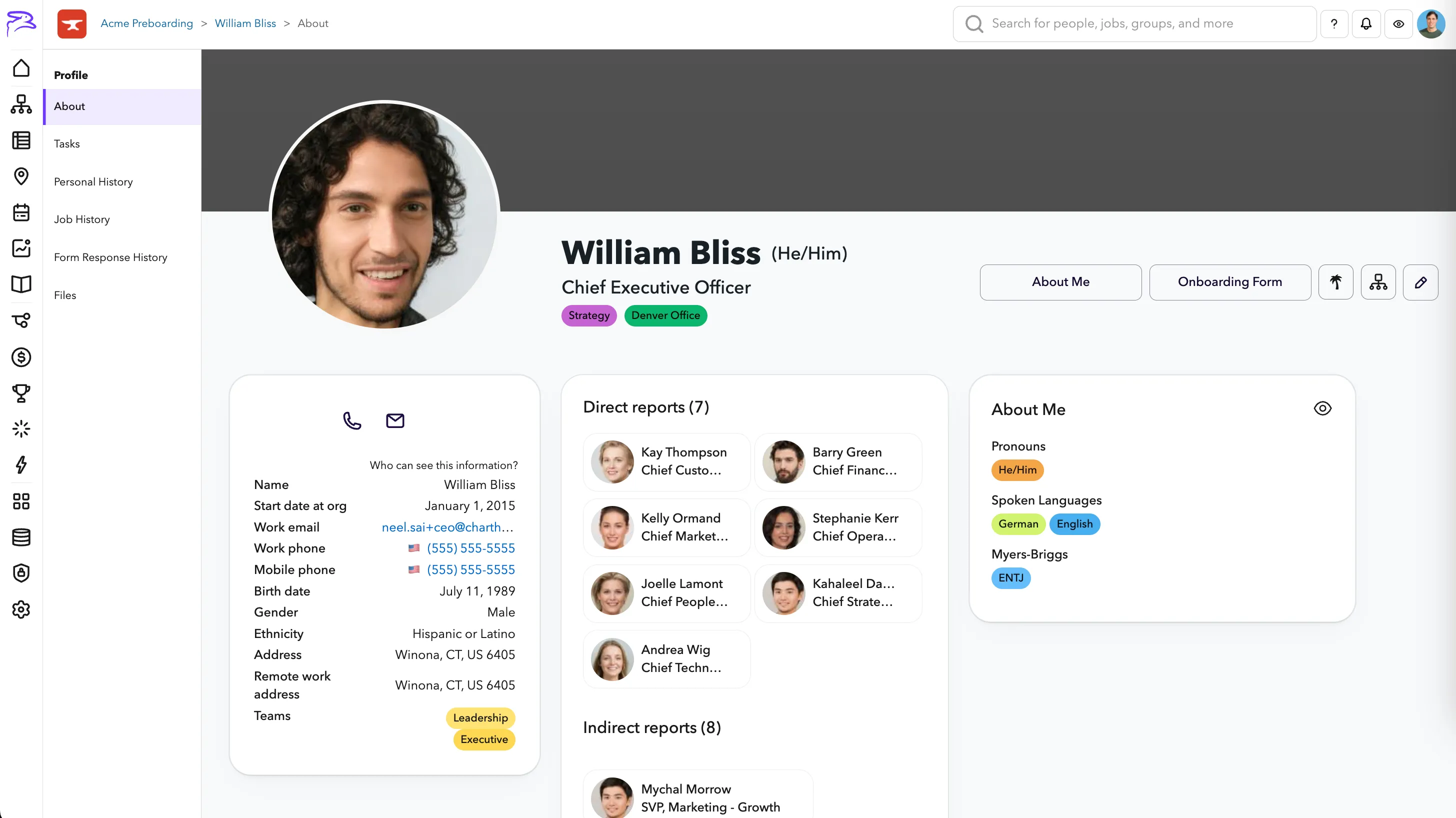
Refreshed Profile Page
This feature is currently in Alpha. Be one of the first customers to try it! Please share any feedback with the ChartHop team.
How to setup a Alpha Feature
- Read below for setup instructions and context on how the feature will work.
How to add your branding
To update your organization's branding:
- Navigate to the Admin > General
- Find the Branding header
- Add in your brand colors and logos
If you want to find your company's branding, we recommend you:
- Check your intranet, internal resources or your marketing team.
- Ask for "A brand backround color and a logo that would look good on top of that color. For example, a dark purple background and a white logo."
- Check your company website for a brand guidenlines page.
- Check your company LinkedIn or social media page for square logos. Right-click and "Save image as" then upload that image.
- Search for your company on Brandfetch.
Branding recommendations
Primary brand color — This will be used as a background on the home page and mobile app. We suggest selecting a brand color that is darker and will look good as a compliment to your logo.
Secondary brand color — This color is currently not used by default, but more options of how to use this color will come in the future.
Square logo — This logo will appear in the top right corner of your ChartHop account and many other places. We suggest you add a logo where a color other than white takes up the entire square. Circular logos or logos with clear backgrounds are not recommend.
Horizontal logo — This logo will primarily be used set against your primary brand color so make sure they work together well. We recommend a logo with a transparent background. For example, the white ChartHop logo set against dark purple.
How to add branding to the profile page
After you have added your branding in settings, you will want to turn on the Refreshed Profile toggle in Admin > Labs.
Profile Example