
Relative to: submitter vs. scenario job
Once approvals are enabled, you can create your first approval chain. There is no limit to how many approval chains you can have, however they will only be utilized if they are assigned as the default chain, or assigned to specific scenario types.

An approval chain consists of the following:
Submitter: Person who is submitting the scenario request
Approver(s): Person(s) who will be responsible for approving or rejecting the changes requested.
Fallback approver: Person who will be placed in the approval chain if the designated approver is no longer in your org. If a person is reporting to an open job, their manager's manager will receive the request for approval rather than the open job.
People notified: Anyone in your org with access to merge a scenario is allowed to be set as a notified person.
When an approver is sourced from a person field — for example Manager of requester, Second-level manager of requester, or a custom person field like Hiring Manager — you can choose whose record that field is read off of.

The Relative to toggle appears beneath the approver source dropdown and offers two options:
- The person submitting the scenario — the field is read off the submitter's own record. This is the default and matches previous behavior. Use this when the approver should be derived from who is filing the request (e.g., "the submitter's manager must approve").
- The job in the scenario — the field is read off the job (or jobs) being changed in the scenario. Use this when the approver should be derived from the job under review (e.g., "the Hiring Manager on the open req must approve").
How multi-job scenarios resolve
When Relative to is set to The job in the scenario:
- If the scenario contains one job, you get one approver.
- If the scenario contains multiple jobs, you get an approver group containing every unique value of the field across those jobs. Each approver in the group is treated like any other group approver in the chain.
When the toggle is hidden
The Relative to toggle only appears for field-based approver sources. It is hidden when the approver is configured as:
- Specific persons — no field lookup is involved, so the toggle is not applicable.
- Custom expression — the expression itself already determines what the approver resolves against.
Reading the chain visualizer
Each stage card in the approval-chain visualizer shows a subtitle indicating which mode the approver uses — either Relative to submitter or Relative to job — so you can confirm at a glance that the chain is configured as intended.
Assigning approval chains
Once you have approval chain(s) created, you can designate chains to be used on certain types of scenarios created.
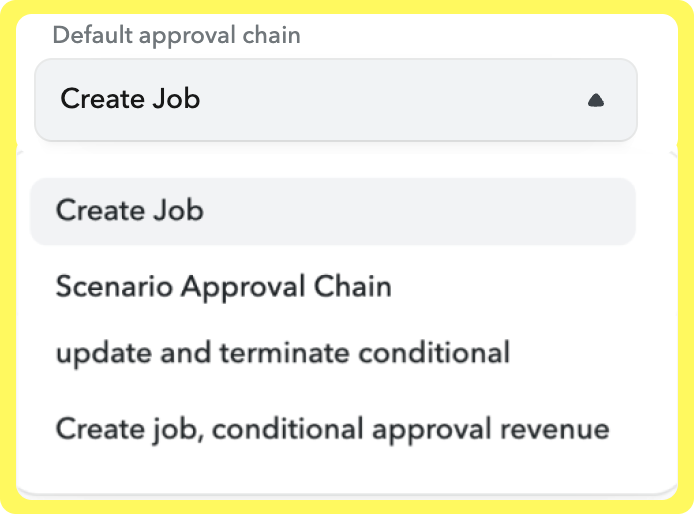
At the top of the setup page, you can set a default approval chain for all scenario types that do not have an approval chain assigned.
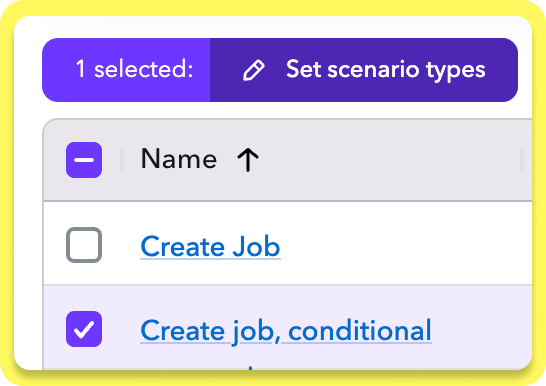
You can make a chain the default chain for specific types of scenarios by checking the box next to your chain, and choosing which scenario types it should be used for.
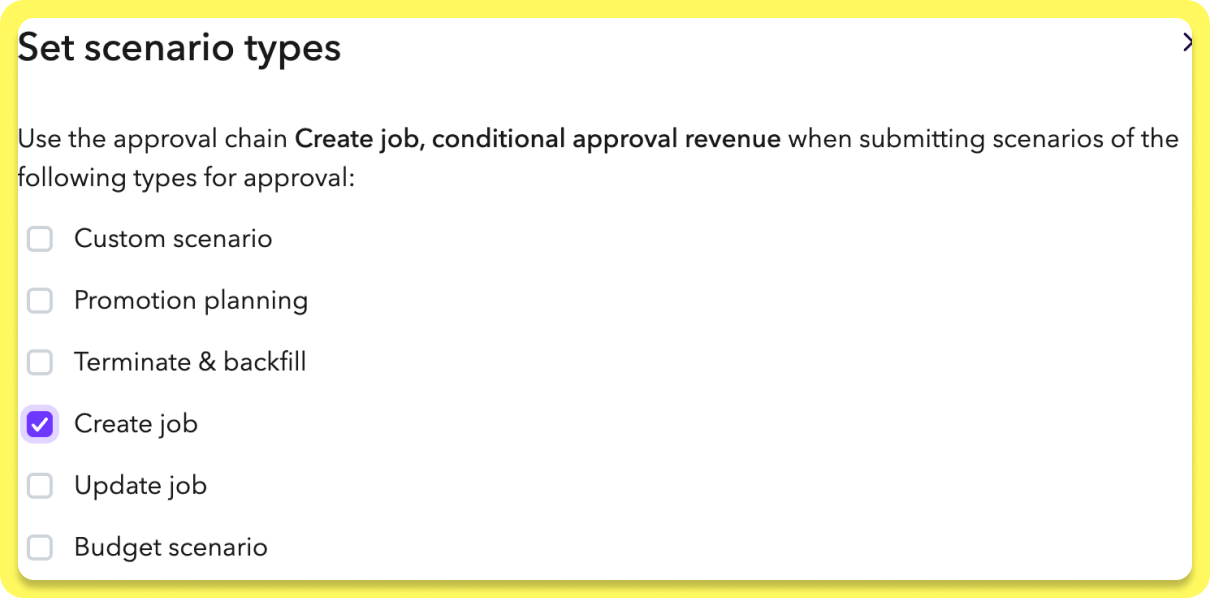
This will override your default approval chain for those scenario types.
Packages: Headcount Planning | Compensation Planning | HRIS