
Budgets
Budgets give finance and HR teams a shared, real-time view of how headcount plans track against approved spending limits. You define a budget once, and ChartHop surfaces that budget throughout the platform: on the Budgets page, and inside any scenario where your planning changes would affect it.
How budgets work
A budget is a named spending limit that ChartHop evaluates against your live org data. It consists of:
- A name. A descriptive label that identifies the budget across the platform.
- A total amount. The approved dollar limit for the budget period.
- A time frame. A start date and end date that define the period the budget covers.
- A group filter. One or more groups (such as departments or teams) that determine which jobs are in scope. Jobs whose groups match are counted toward budget usage.
ChartHop calculates budget usage by applying your org's Scenario Cost Calculation formula (configured under Admin > Financial Settings) to all active, filled jobs within the budget's group scope. How that number is measured depends on the budget's cost basis. See Cost basis below.
Setting up a budget
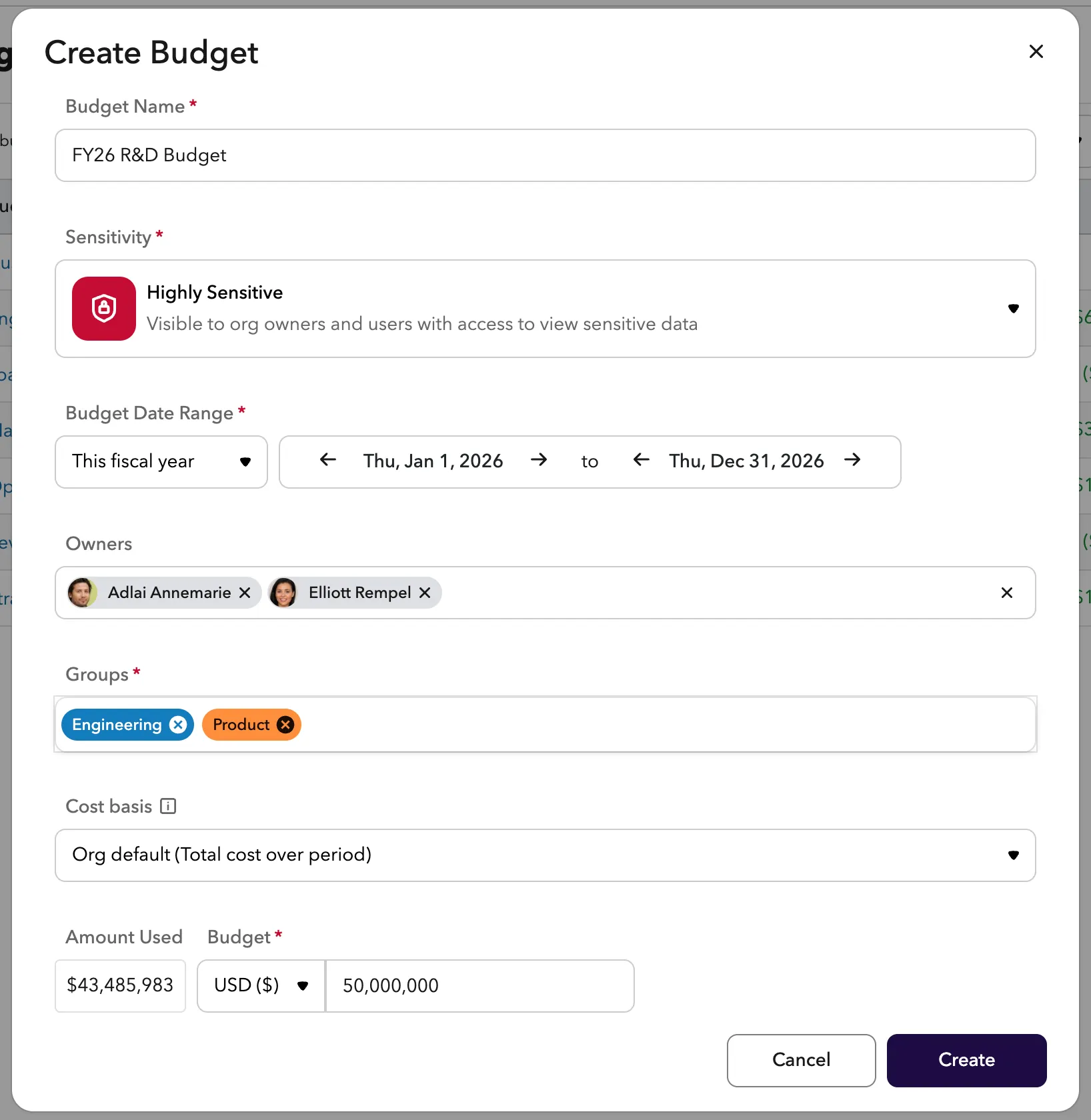
Budgets are created and managed under Planning > Budgets. This section is only visible to users with the appropriate access role (by default: Cash Comp Viewer, Comp Viewer, Equity Comp Viewer, Org Editor, and People Ops Admin).
To create a budget:
- Navigate to Planning > Budgets.
- Click New Budget.
- Fill in the budget details:
- Name. A descriptive label, such as "Engineering FY27" or "Sales Q2."
- Amount. The total approved budget in your org's currency.
- Start date and end date. The time frame the budget covers.
- Groups. Select the departments, teams, or other groups whose jobs should count toward this budget.
- Cost basis. How the budget's cost is measured (Annualized or Total cost over period). Defaults to your organization's setting.
- Click Save.
Managing budgets
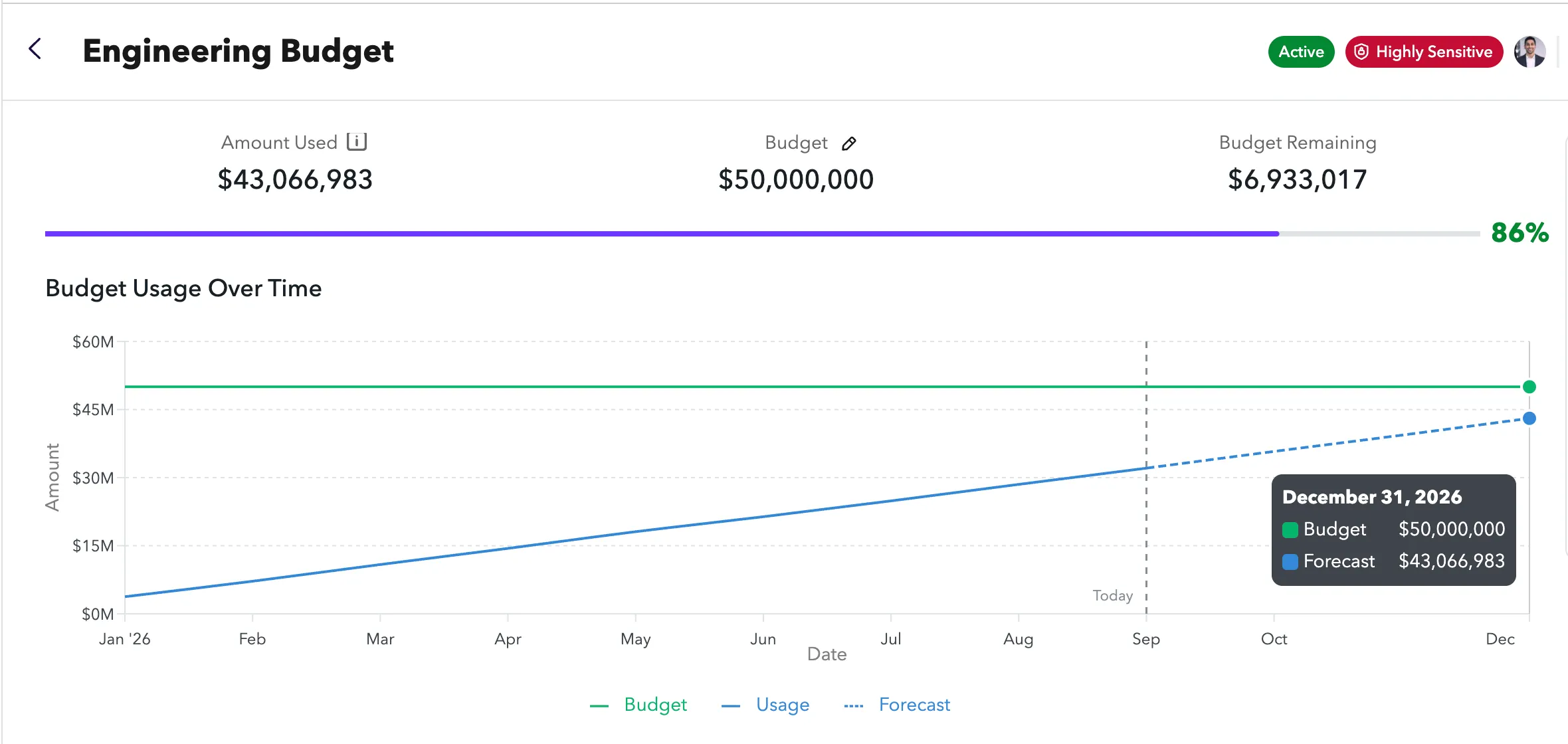
Each budget has a detail page showing:
- Amount used. The current total cost of all filled jobs in scope, calculated using your org's Scenario Cost Calculation. How this number is measured depends on the budget's cost basis. See Cost basis below.
- Amount remaining. The difference between the total budget and current usage.
- Usage bar. A visual progress indicator showing how much of the budget has been used.
- Linked data sheet. A data sheet scoped to the jobs covered by this budget for drilling into headcount detail.
To edit or delete a budget, open it from the Budgets list and use the actions menu.
Budgets in scenarios
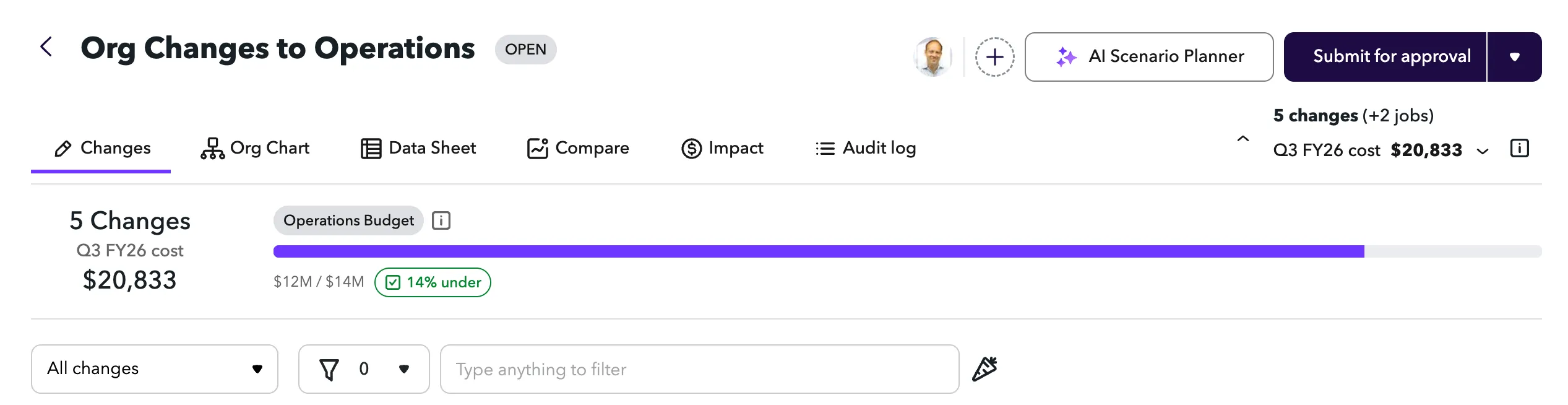
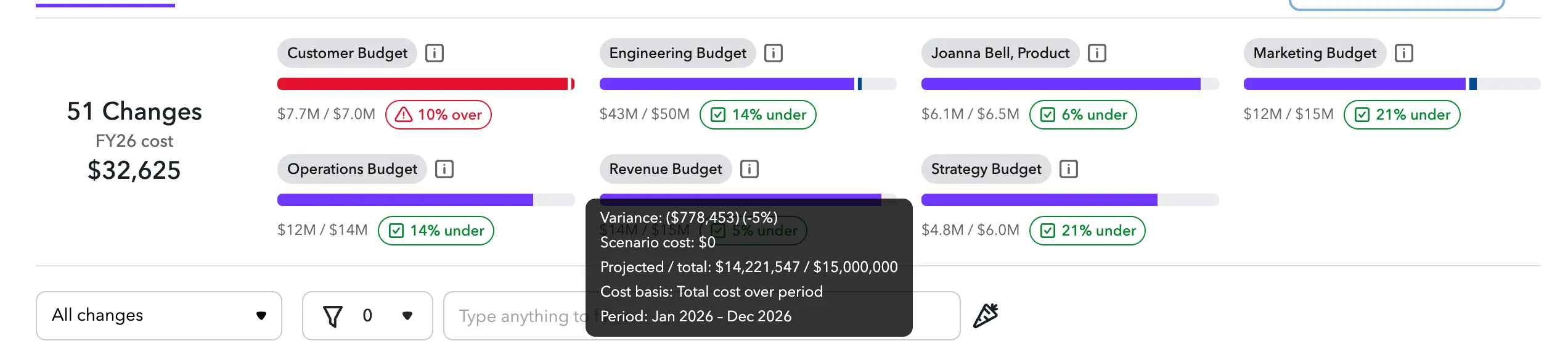
When you work within a scenario, ChartHop automatically calculates which budgets are affected and surfaces them in the scenario header. For each impacted budget, the header shows:
- Current usage. How much of the budget is used in the live org today, before scenario changes.
- Scenario impact. The net cost change the scenario would add to (or remove from) the budget.
- Total amount. The full budget limit.
A budget appears in the header only if it is active, its groups overlap with the groups affected by the scenario, and the current user has permission to view it.
Cost basis
A budget's cost basis controls how ChartHop measures the cost that counts against it. Every budget has one, and you can see it in the budget's details and in the Cost basis column of the budgets table.
There are two options:
- Annualized. The ongoing yearly run-rate. This is the full-year cost of the people and open roles in the budget, regardless of how long the budget runs. Use this when you want to see the standing cost of a team.
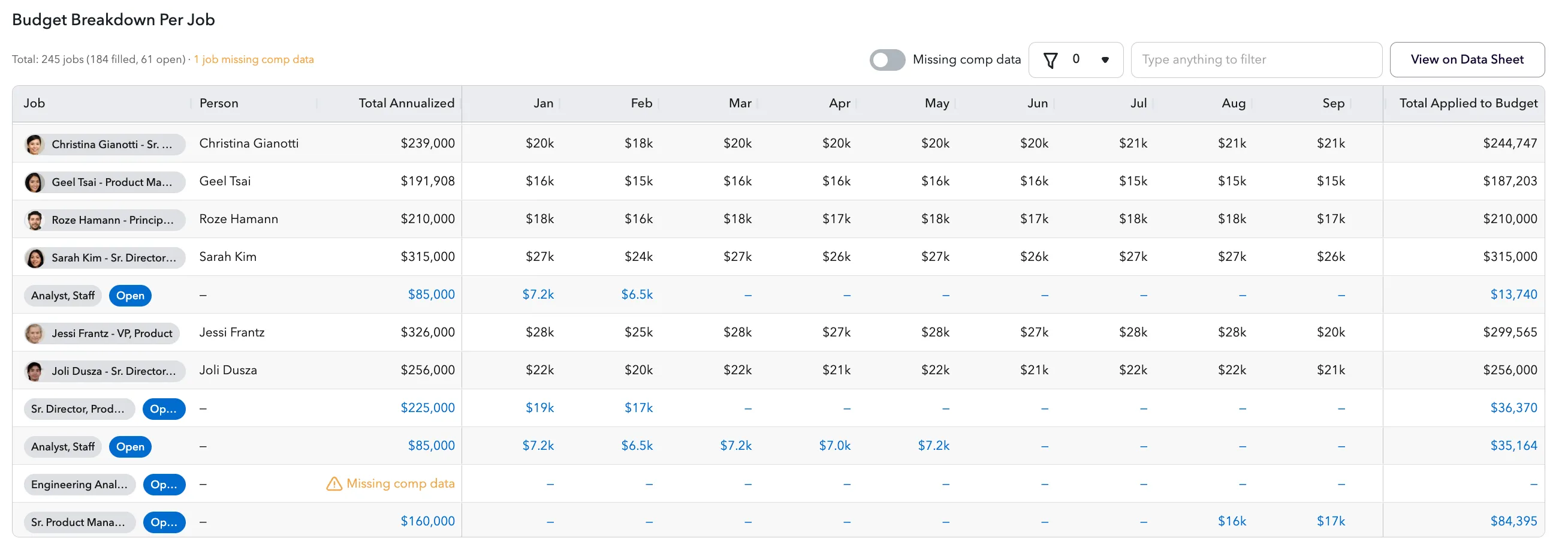
- Total cost over period. The cost that actually falls inside the budget's start and end dates. ChartHop prorates each person's run-rate across the budget's date range, month by month, and counts open roles only from their planned start date. Use this when you want spend to match the real cost of a fixed time window.
Example. A role with a $120,000 annual run-rate that is filled for the whole year shows as $120,000 on an Annualized budget. On a Total cost over period budget that runs for six months, the same role contributes about $60,000, because only half the year falls inside the budget's dates.
Choosing a cost basis for a budget
When you create or edit a budget, use the Cost basis field to choose how its cost is measured:
- Org default. Follow your organization's default cost basis. The option label shows what that default currently resolves to, so you always know what you're getting. This is the recommended choice unless a specific budget needs to differ.
- Annualized.
- Total cost over period.
Leaving a budget on Org default means it automatically follows any change an admin makes to the organization-wide default. Choosing Annualized or Total cost over period pins the budget to that basis regardless of the org default.
As you create a budget, the Amount used preview reflects the basis you pick, so you can see the resulting spend before saving. On a Total cost over period budget, set the start and end dates to see the preview.
Where you'll see cost basis
- Budgets table. A Cost basis column shows each budget's effective basis (its own setting, or the org default it inherits).
- Budget details. The details panel lists the budget's cost basis alongside its amount and usage.
- Budget dialog. The Amount used preview is computed on the selected basis.
Default cost basis (organization setting)
Admins can set an organization-wide Default cost basis under Settings > Financial. It is the cost measurement used by any budget that has not chosen its own basis.
- System default (Total cost over period). Budgets are measured over their date range.
- Annualized. Budgets show the ongoing yearly run-rate.
Individual budgets can override this from the budget's Cost basis field. Scenarios always stay annualized and are not affected by this setting. See Configuring financial settings for details.
Visibility and access
There are two ways a user can access a budget:
- Access role. Users with Cash Comp Viewer, Comp Viewer, Equity Comp Viewer, Org Editor, or People Ops Admin roles can access the Budgets page and see all budgets. Contact your ChartHop admin to update your access role if needed.
- Direct sharing. Individual budgets can be shared with specific users. Users who are shared on a budget can view that budget, even if their access role would not otherwise grant them access to the Budgets page.
Budget panels in scenarios. Within a scenario, a user only sees panels for budgets they have permission to view, either through their access role or direct sharing. Budgets they cannot access will not appear in the scenario header, including the existence of the field.
Configuring the cost calculation
The cost formula used for all budget usage calculations is set org-wide under Admin > Financial Settings > Scenario Cost Calculation. If you need to adjust how cost is calculated, update this setting before creating or reviewing budgets to ensure your amounts and usage figures are on the same basis.
Related resources
- Use Case: Budget ScenarioUse Case: Budget Scenario - learn how to create a scenario with a fixed budget limit and track spending in real time as you build your headcount plan.