
Monitoring participation in a review
Review Participation
To monitor the overall participation in a review, go to the Forms tab within the review. Each form will display the status of the indiviual forms and the overall completion percentage.

Participation statuses
Depending on the configuration of your form, your will see different statuses to reflect that various states of form completion or Form responses workflows. Here are the statuses:
Awaiting the next action:
- Pending - The form is awaiting initial submission.
- Awaiting Approval - The form has been submitted but not been reviewed or approved.
- Awaiting Changes - The form has been reviewed by the approver, and the approver has requested changes.
- Awaiting Release - The for has been submitted and if applicable approved but not yet released.
Completed statuses: These contribute to the completion percentage in the center of the graph.
- Done - The form has been submitted and that is the final step.
- Approved - The form has been approved and that is the final step.
- Released - The form has been released and that is the final step.
- Skipped - The form has been skipped and will not be completed.
End statuses:
- Expired - The form has closed and these forms will not be completed.
- Rejected - The form response was rejected and will then be again awaiting approval.
Tasks Tab
On the Tasks tab, you can view a list of all the tasks that have been created as part of the Review.
All tasks associated with the review display on this tab, include form submission, approval and resubmission tasks.
From the Tasks tab, you can see all reviewees, reviewers, the associated form, the task type, task status, sent date/time, due date/time and completion date/time.
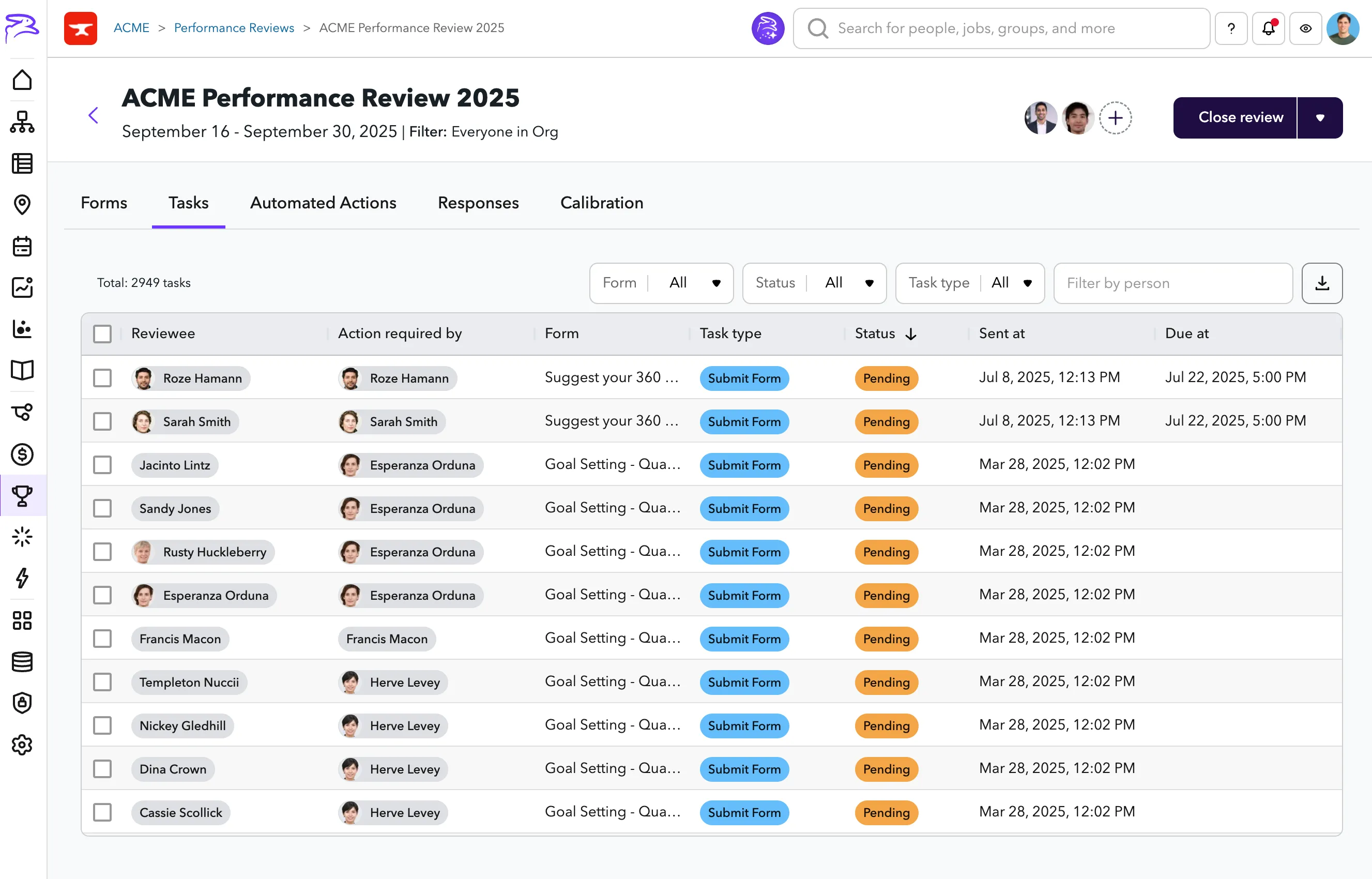
You can filter the list by form, task type, status, by reviewer or by reviewee.
You can find an overview of all of the statuses within Managing tasks.
Select the checkbox next to a row to perform any of the following bulk actions:
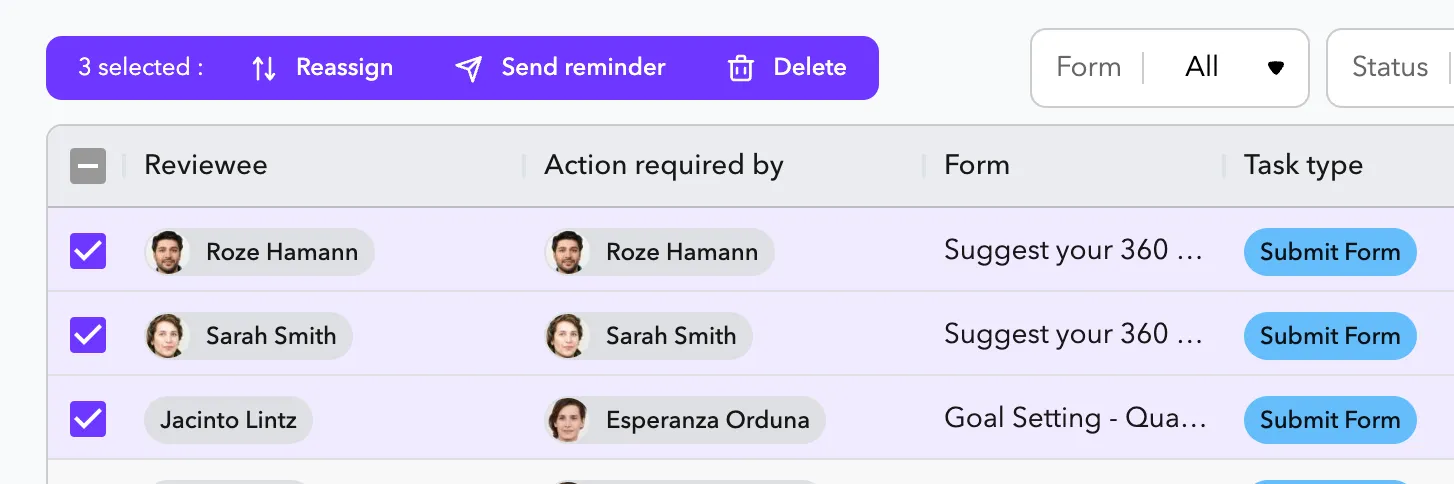
Reassigning a task
You can reassign a Pending Submit Form task to another person, such as a new manager, if you need to.
To reassign a task:
- In the Tasks tab, navigate to the task you want to reassign. Select the checkbox next to the task or tasks.
- At the top of the table, click Reassign.
- In the Reassign Tasks dialog, select the person to reassign the tasks to.
- [Optional] Add a message that will be included in the email or chat message to them when they receive notification of the task assignment
- Click reassign tasks. The person will them be notified of the task assignment.
Send a task reminder
You can send task reminders directly from the Tasks tab for Pending Tasks to encourage a reviewer to submit their form. This is helpful for when you want to send a reminder to a specific reviewer.
To send a task reminder:
- In the Tasks tab, navigate to the task you want to send a reminder for. Select the checkbox next to the task or tasks.
- At the top of the table, click Send Reminder.
- In the Send Reminder dialog, optionally add a message that will be included in the email or chat message to them when they receive notification of the task assignment
- Click send reminder. The person will them be re-notified of the task.
Delete a task
Deleting a task permanently removes the task from the review.
To delete a task:
- In the Tasks tab, navigate to the task you want to delete. Select the checkbox next to the task or tasks.
- At the top of the table, click Delete .
- In the Delete confirmation dialog, type DELETE.
- Click confirm. The tasks will then be deleted.
Export tasks
From the Tasks tab, you have the ability to export employee data as a spreadsheet.
To export tasks:
- In the Tasks tab, click the download icon button (Export CSV). The Export CSV dialog displays.
- In the Export type dropdown, select an export type. You can select from the following:
- Pending Tasks Only - Exports a list of pending tasks.
- All Tasks - Exports a list of all tasks associated with the current review cycle.
- (Optional) Select whether to include ChartHop IDs or former employees (if applicable) in the spreadsheet.
- Select Export.
- Once the export is complete, select Download to save the generated .csv file.
Modules: HRIS | Engagement | Goals | Performance | Compensation Reviews | Headcount Planning