
Configure the job form (Alpha)
Alpha. This settings page appears for organizations in the job form alpha.
Choose who can propose job changes, and lay out the job form's sections and fields for your org.
Check this before rollout: both "Who can propose job changes" options are on by default. That means anyone can propose changes to their own job, and managers can propose changes to their reporting line. Proposals are saved as scenario drafts and don't change your org until someone approves or merges them.
Open the settings
- Select Admin in the left sidebar.
- Under Configuration, select Job Form.
You need access to org settings.
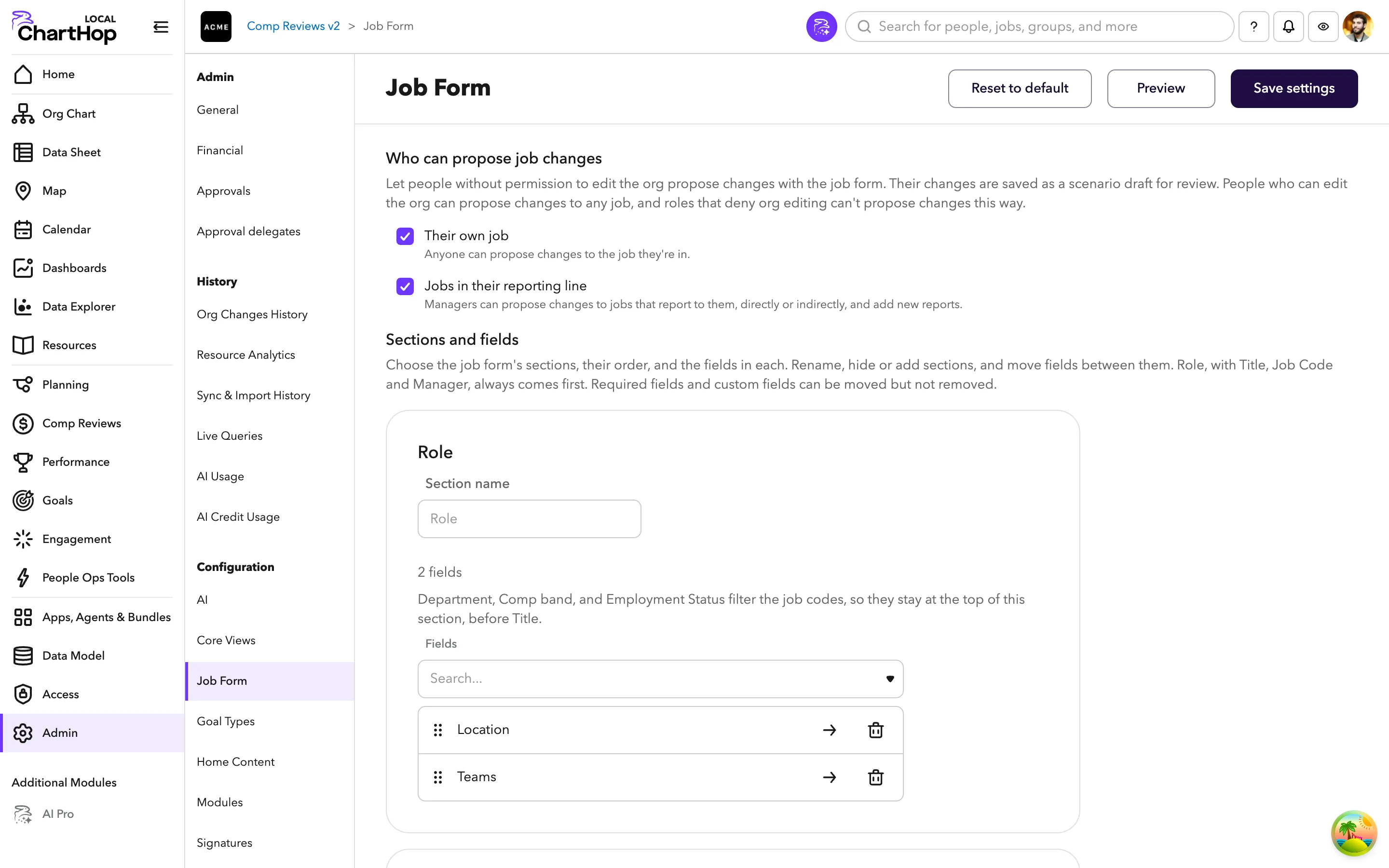
Who can propose job changes
Let people without permission to edit the org propose changes with the job form. Their changes are saved as a scenario draft for review.
- Their own job: anyone can propose changes to the job they're in.
- Jobs in their reporting line: managers can propose changes to jobs that report to them, directly or indirectly, and add new reports.
People who can edit the org can propose changes to any job. Roles that deny org editing can't propose changes this way.
To route proposals to approvers, set up approval chains. See Enabling approvals.
Sections and fields
Choose the form's sections, their order, and the fields in each.
- Rename a section: edit Section name. Leave a built-in section's name blank to use the default. Names can be up to 50 characters and must be unique.
- Reorder sections: use the move up and move down buttons.
- Hide a section: select Hide section. Hidden sections say "Hidden from the job form". Select Show section to bring one back.
- Add a section: select Add section, then name it and add fields.
- Remove a section you added: select Remove on the section.
- Add or move a field: search for a field in a section's Fields box. The list shows which section each field is in now (for example, "In Compensation"); picking one moves it here. Or select the arrow button on a field and choose Move to and the section name. You can also drag fields to reorder them.
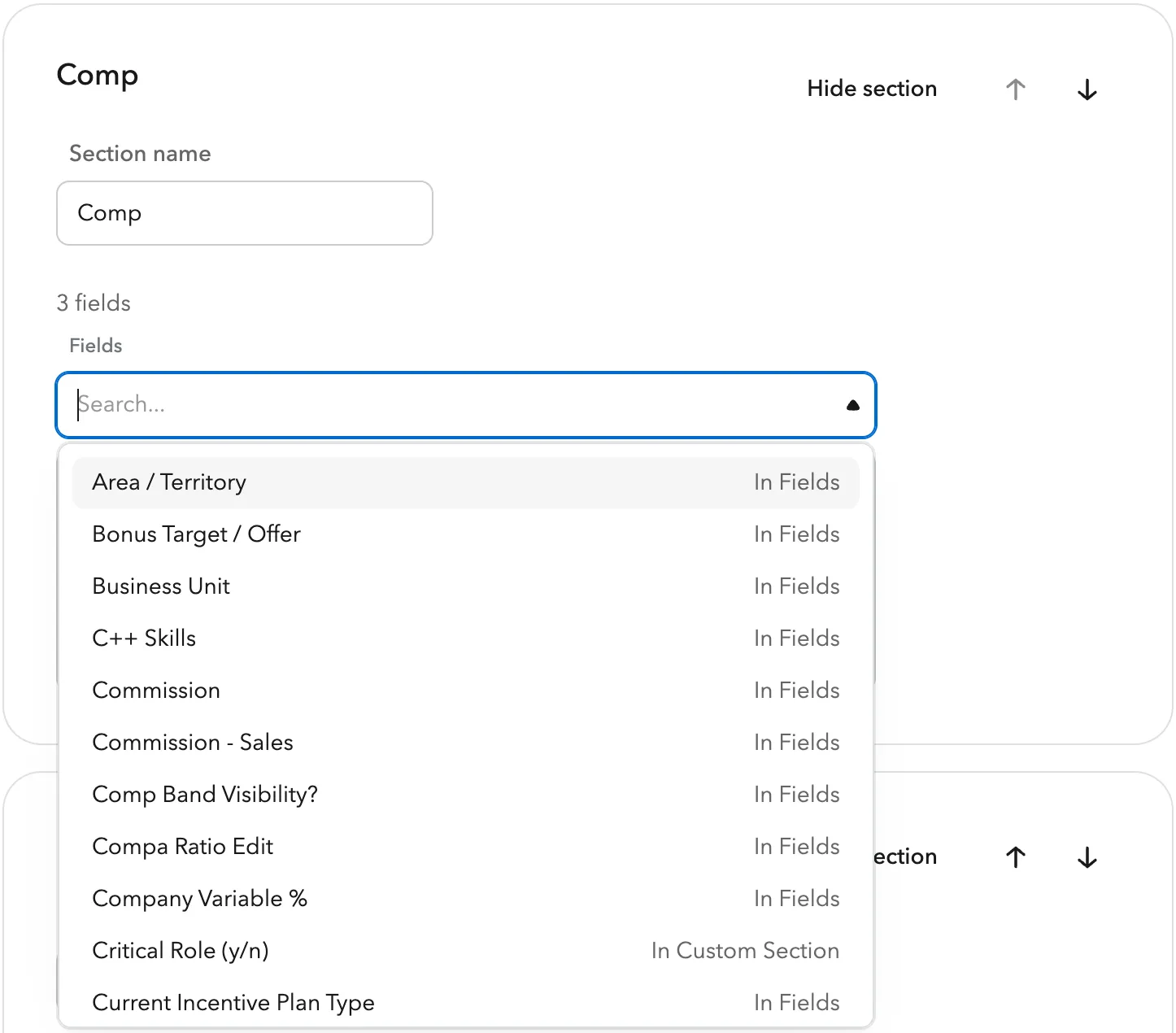
Rules
- Role always comes first, with Title, Job Code and Manager at the top. Fields that filter job codes stay above Title too (for example, "Department, Comp band, and Employment Status filter the job codes, so they stay at the top of this section, before Title.").
- Description and Recruiting only hold their own fields.
- Required fields and custom fields can be moved, but not removed. A section with required fields can't be hidden.
- Custom fields that aren't in another section show in Fields, which is hidden when it's empty. To leave a custom field off the form, turn off "Include on create or update job" in its field settings.
- Fields added to your org later appear in their default section.
Preview, save or reset
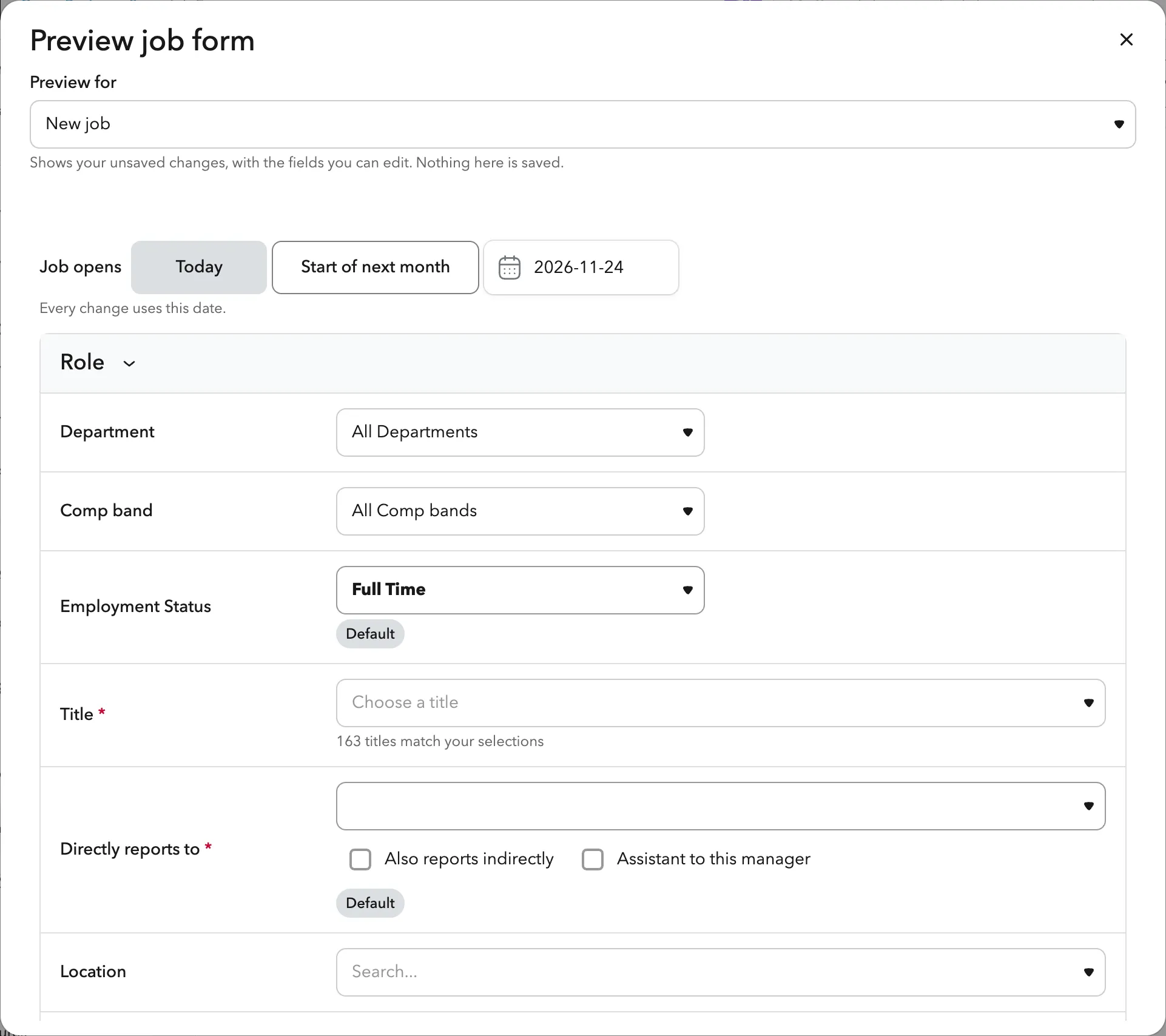
- Select Preview to see the form with your unsaved changes. Pick a job in Preview for, or leave it on New job. Nothing is saved.
- Select Save settings to apply your changes for everyone.
- Select Reset to default to go back to the default layout. It appears once you've customized the layout.
Related settings
In Admin, Core Views, Job Details Panel (for orgs with job codes):
- Field to filter job codes by: the filters above Title on the job form, up to three.
- Categories excluded from linked job updates on filled jobs
- Default sensitivity for backfill jobs