
Save job changes and send for approval (Alpha)
Alpha. This page describes the redesigned job form, available to organizations in the alpha.
After you review your changes on the job form, you choose how to save them. The buttons you see depend on where you are and what you have access to.
In a scenario
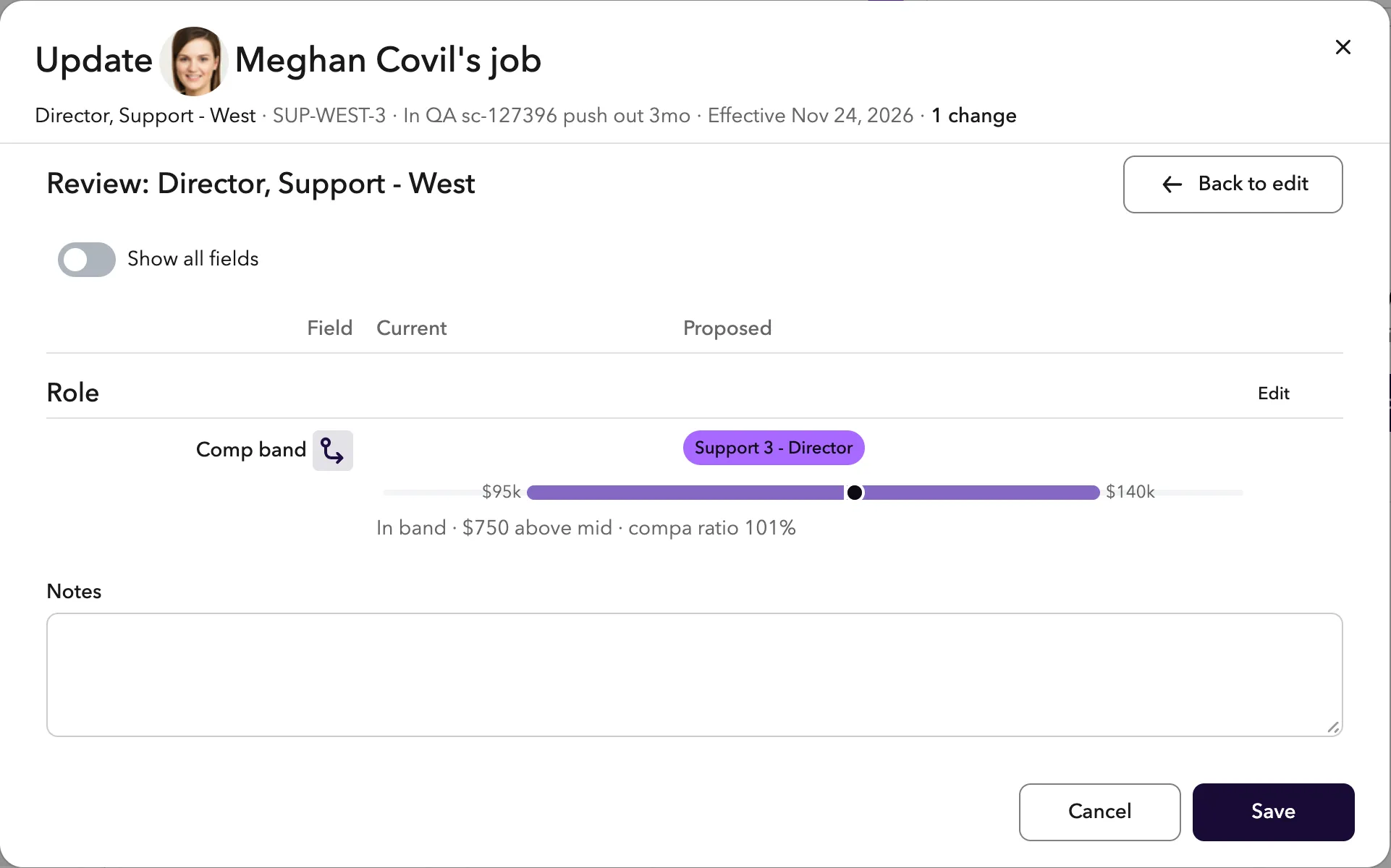
When you're working in a scenario, select Save. The change is added to the scenario. Nothing changes in your live org until the scenario is merged.
If you edit a job that was created in the same scenario, the change uses the date the job was created, and you can't pick another date.
On your live org (primary)
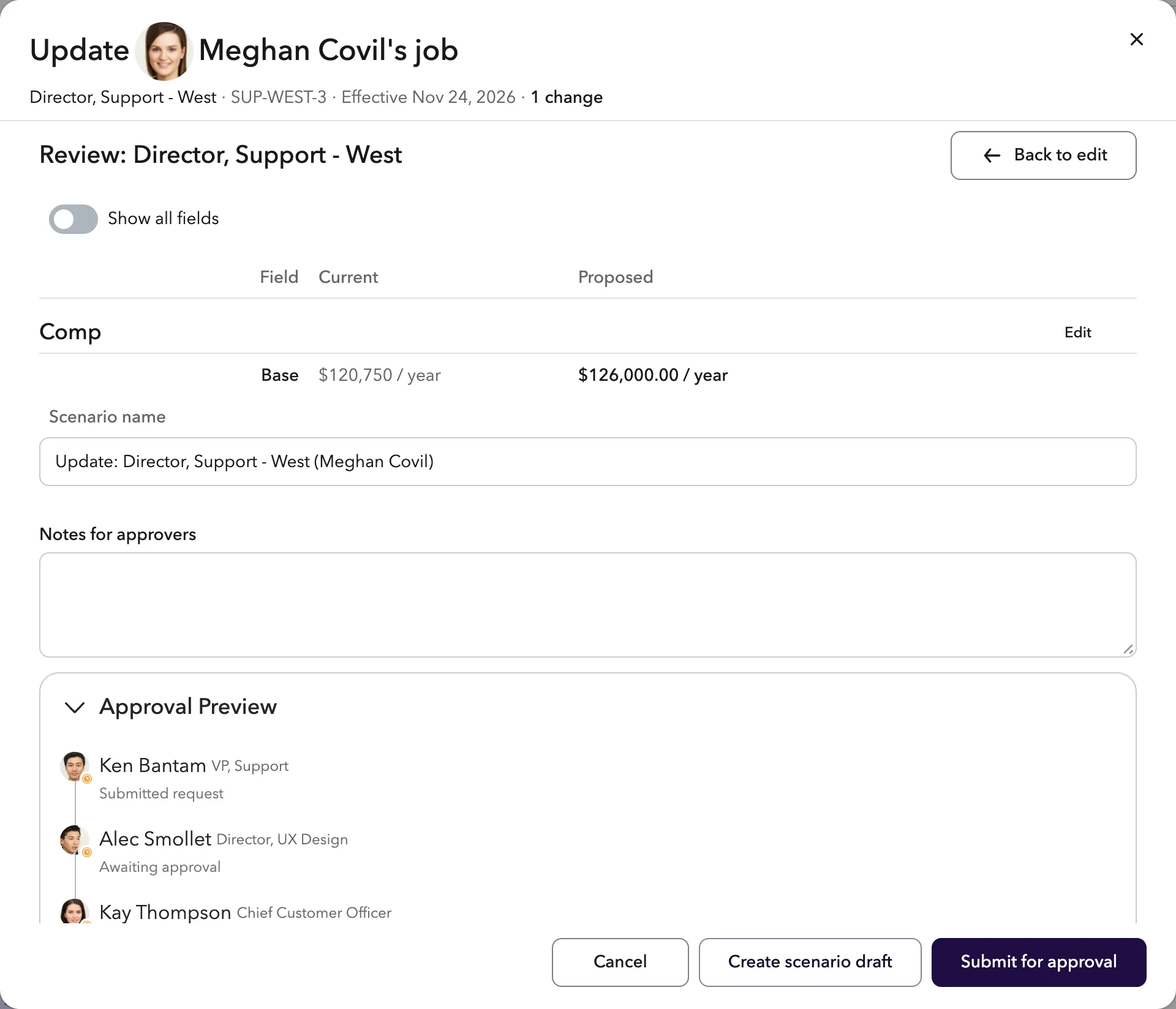
On Review, you'll see one or more of these buttons. The last one is the main button.
Button | When you see it | What happens |
|---|---|---|
Save to primary | You can edit every field you changed, directly in your live org. | The change is saved to your live org. You stay where you are. |
Create scenario draft | You can propose every field you changed in a new scenario. | A draft scenario is created with your change, and opens. Share it or submit it when you're ready. |
Submit for approval | Same as above, plus your org has an approval chain for this kind of change, plus you're in a job yourself. | A scenario is created and sent to its approvers. Its Summary opens. |
If you see "You can't save all of these changes in one place. Go back and change fewer fields.", some of your changes need direct access and others can only be proposed. Select Back to edit and split the change in two.
Scenario name
When you create a draft or submit for approval, the scenario gets a name based on the change. You can edit it on Review. For example, for a Senior Engineer job filled by Jamie Lee:
Change | Name |
|---|---|
Create, duplicate or add a direct report | Create: Senior Engineer |
Edit | Update: Senior Engineer, or Update: Senior Engineer (Jamie Lee) for a filled job |
Backfill | Backfill: Senior Engineer |
Terminate with a backfill | Term & Backfill: Jamie Lee |
Terminate without a backfill | Terminate: Jamie Lee |
Approval preview
When you can submit for approval, Review shows who will approve the change, stage by stage, before you submit.
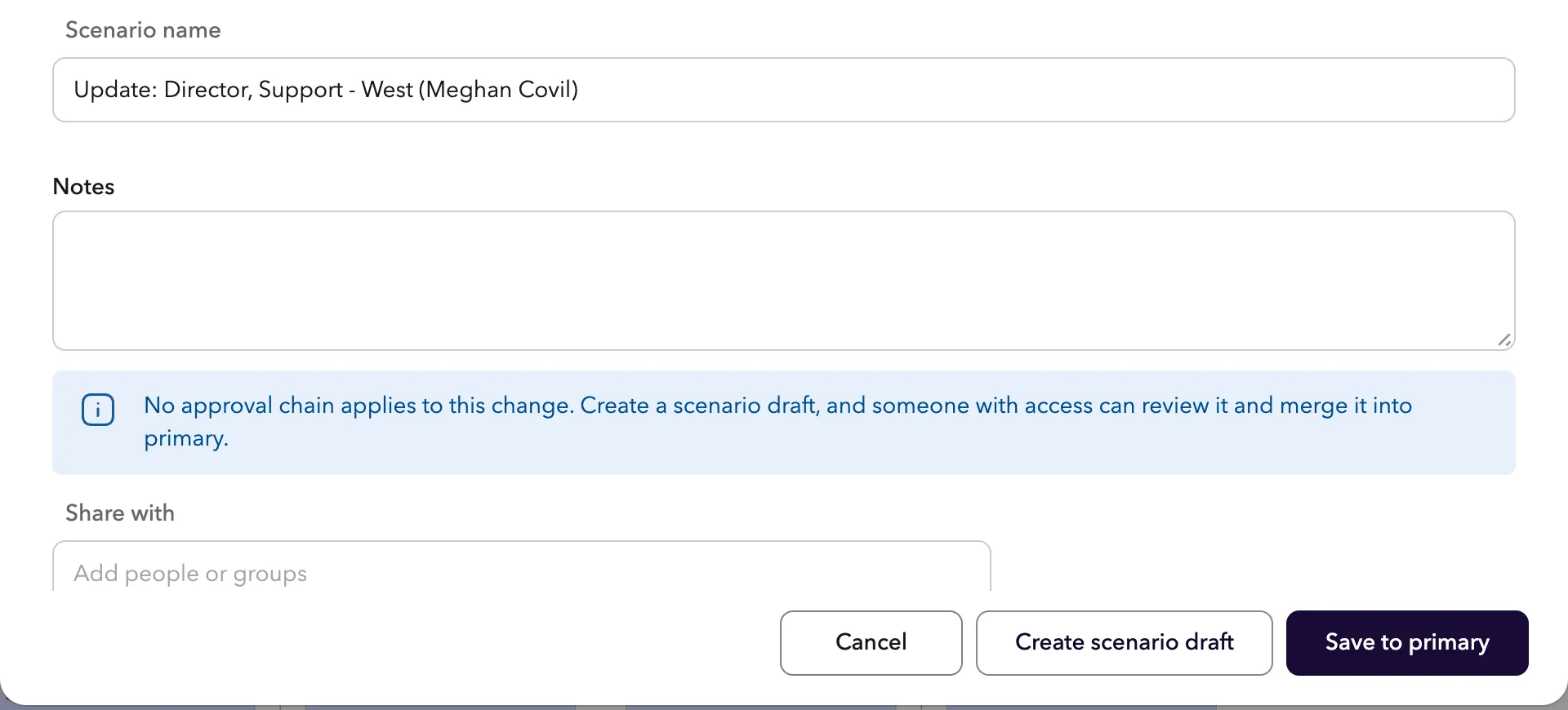
- If no approval chain applies, you'll see "No approval chain applies to this change. Create a scenario draft, and someone with access can review it and merge it into primary." This also shows if you're not in a job yourself, since submitting for approval needs a submitter who is.
- If the preview can't load, you'll see "Couldn't load the approval preview. You can still save the change." Submit for approval is unavailable until it loads, but the other buttons still work.
To set up approval chains, see Enabling approvals.
Share
Use the share box to give others access to the scenario before you save. You start as the owner.

Notes
The note on Review is saved with the change.
- It's labeled Notes for approvers when you can submit for approval. A note is required to submit.
- It's required whenever a field overrides its job code value. The placeholder asks why the field differs. See Job codes on the job form.
Who can propose changes
People who can edit your org can save directly or propose changes to any job. Admins can also let other people propose changes, saved as a scenario draft for review:
- Their own job: anyone can propose changes to the job they're in.
- Jobs in their reporting line: managers can propose changes to jobs that report to them, directly or indirectly, and add new reports.
Both are on by default. See Configure the job form.
What happens next
- To follow a submitted change, see Submit an approval request for a scenario.
- Approvers can edit a submitted change before approving it. See Simple workflows: for approvers.