Simple workflows (Alpha)
Alpha. This page describes simple workflows on the redesigned job form, available to organizations in the alpha. Otherwise, see Create a scenario.
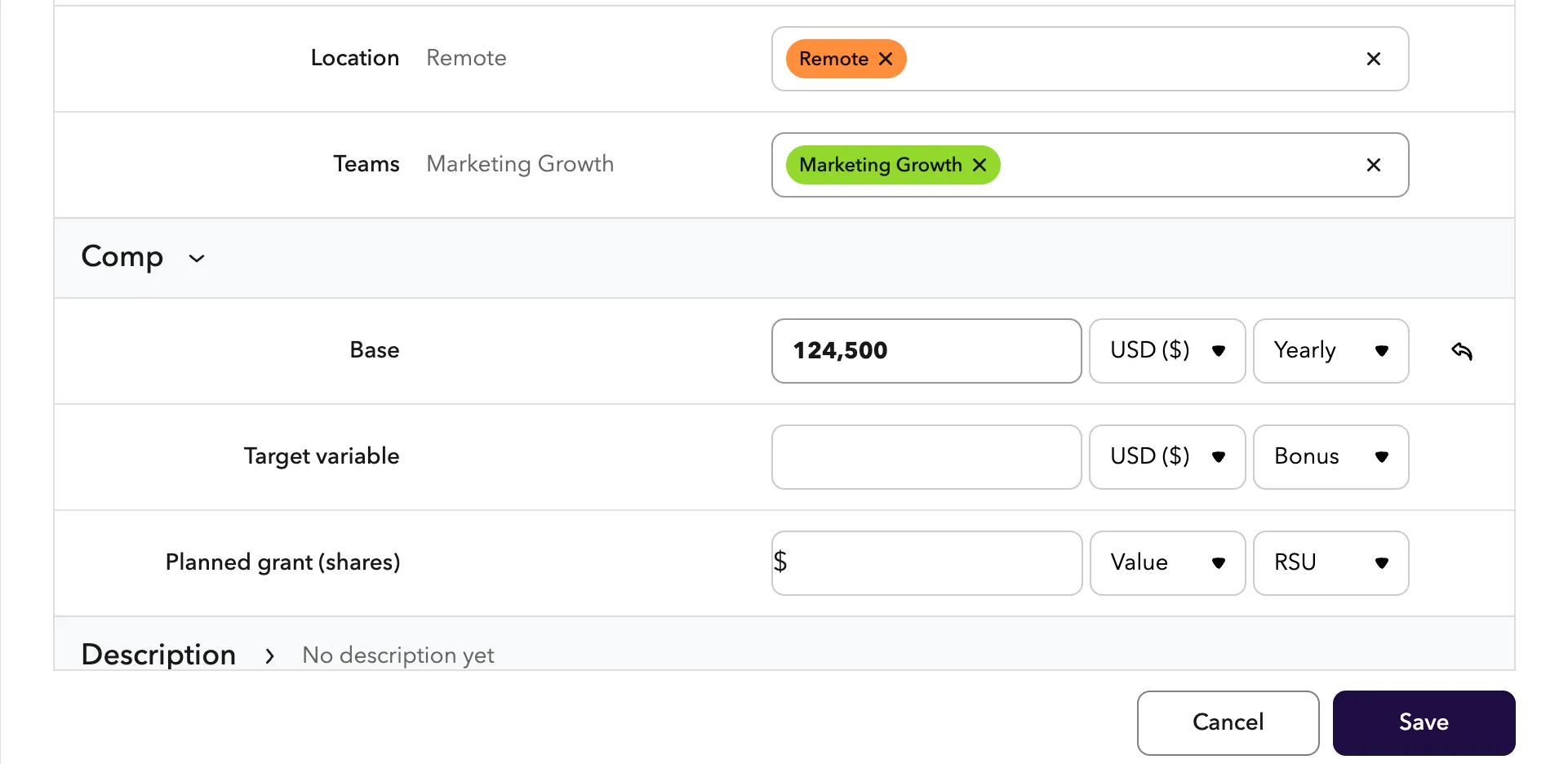
A simple workflow is a scenario for one change to one job: create a job, update a job, backfill a job, or terminate a person. It uses the same form as the Org Chart, on a full page, and can be submitted for approval.
Start a simple workflow
- Select Planning in the left sidebar.
- Select Create scenario.
- On Choose a scenario type, pick Create job, Update job, Backfill or Terminate & backfill.
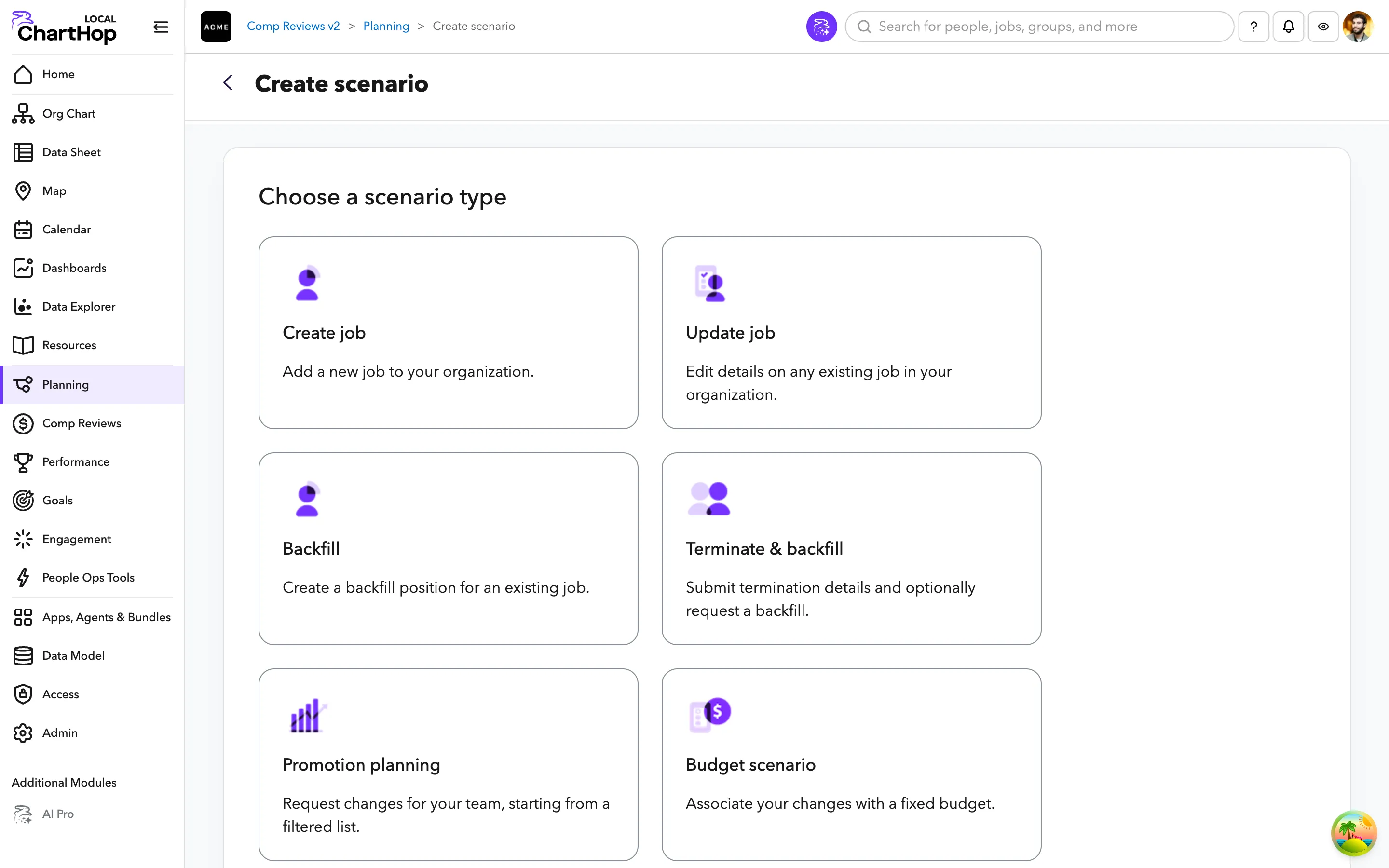
A draft scenario is saved as soon as you start. You can leave and come back to it from the Scenarios list.
You only see the simple workflow types your plan includes and that you can create.
Make the change
Each type starts a little differently:
Type | First step |
|---|---|
Create job | Optionally pick a job in Start from to copy. See Create a job. |
Update job | Search for a job or person. Check Only show open jobs to narrow the list. See Edit a job. |
Backfill | In Select job to backfill, pick the job. "Show only terminated jobs without backfill" is checked to start; uncheck it to see every job. See Backfill a job. |
Terminate & backfill | Choose who's leaving, then fill in the departure and backfill choice. See Terminate a person. |
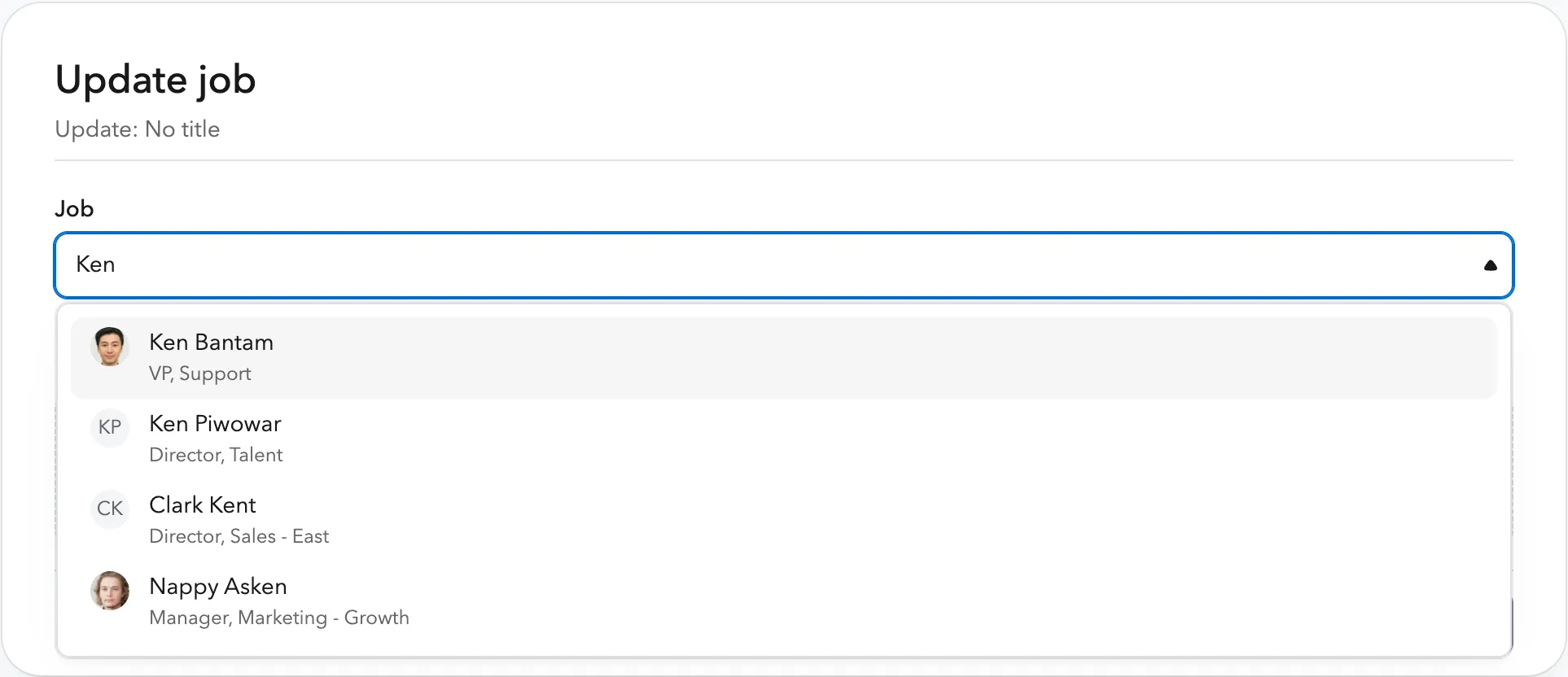
If you switch to a different job after making changes, you're asked to confirm. Select Discard and switch to continue, or Keep editing.
Review and submit
- Select Save. The change is saved into the scenario, and the scenario is named after it (for example "Update: Senior Engineer"). You can rename it on Review.
- On Review, check the changes, add a note, and share the scenario if you like.
- Choose how to finish:
- Create scenario: saves the scenario so you and the people you shared it with can work on it.
- Submit for approval: sends it to the approvers shown on Review. A note is required. This appears when your org has an approval chain for this type of change.
Both open the scenario's Summary.
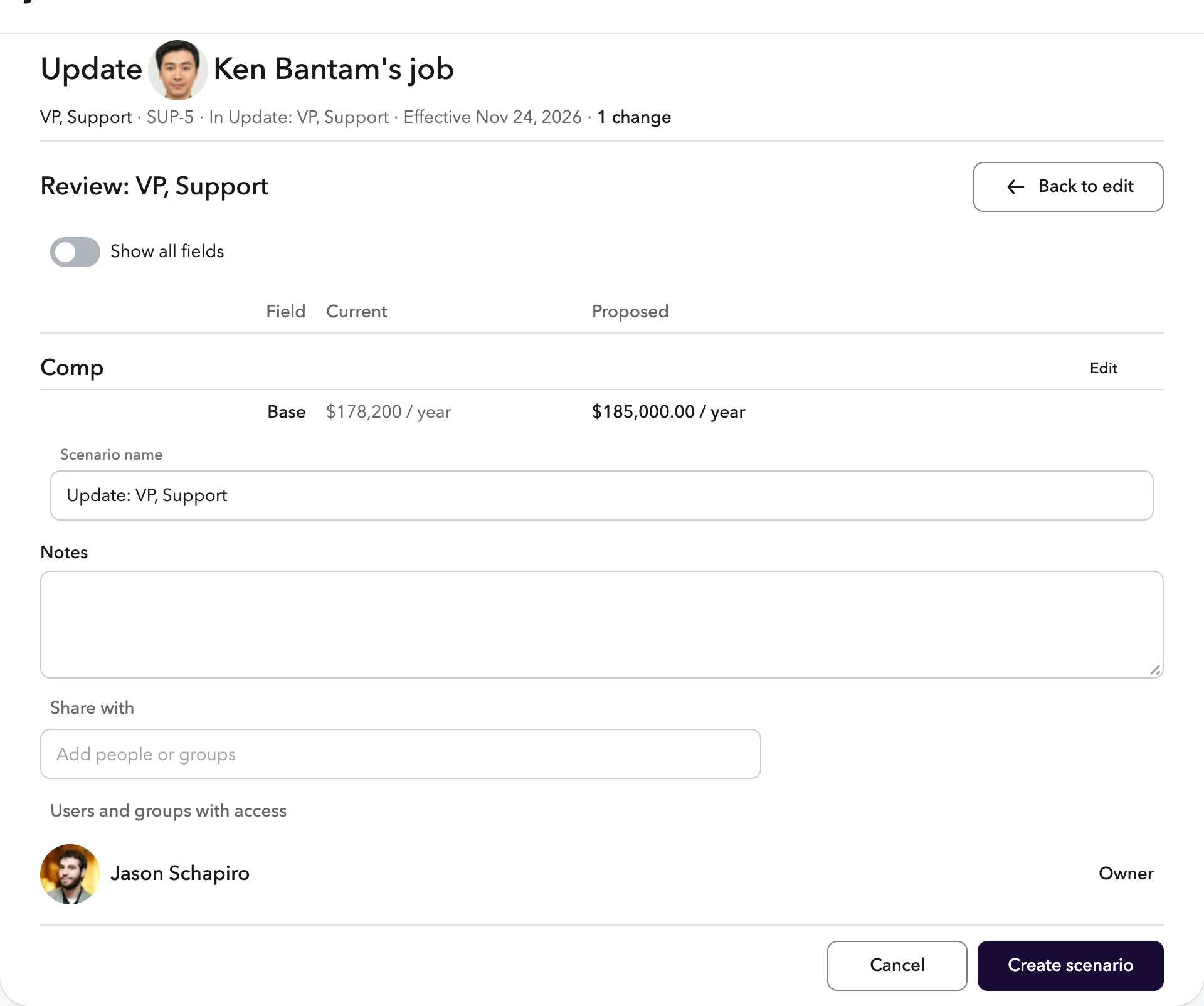
If you select Cancel, the scenario stays as a draft.
Summary
The Summary shows the change as it appears on Review, your note, and comments. If you can change the scenario, select Back to edit, or Edit next to a section, to reopen the form.
After the scenario is merged, an Update job Summary shows the change as it was recorded.
To make changes after submitting, withdraw the approval request. The scenario goes back to a draft and the form reopens.
For approvers
When a simple workflow is waiting for your approval, you can edit the change before approving it:
- The date is locked to the date the change was submitted for. On a termination, the last day and announce date are both locked.
- The submitter's note shows as read-only. Add your own in Comment on your changes, which is required and is posted to the scenario.
- Select Save to keep your edits. If there's a later approval stage, you can select Save and approve instead. At the last stage, save your edits, then approve from the scenario.
If your edits save but the approval doesn't go through, you'll see "Your changes were saved, but the approval didn't go through. Approve it from the scenario."