
Edit a job (Alpha)
Alpha. This page describes the redesigned job form, available to organizations in the alpha. To edit many jobs at once, or if your job dialog has tabs instead of sections, see Edit jobs.
Change a job's details on a date you choose. You see each field's current value next to your change, and review only what changed before saving.
Edit a job
- Open the job in one of these ways:
- On the Org Chart, select the job, then select Edit job in its details panel. Or double-click the job.
- On the Data Sheet, open the row's actions menu (⋮) and select Edit job.
- On a profile, select Edit, then Edit job.
- In Takes effect, choose when the change happens: Today, Start of next month, or a date. "Job last updated on", followed by a date, shows when the job's latest change took effect.
- Change the fields you need. Your change shows in Proposed, next to the Current value.
- Select Save, check the changes on Review, and choose how to save. See Save job changes and send for approval.
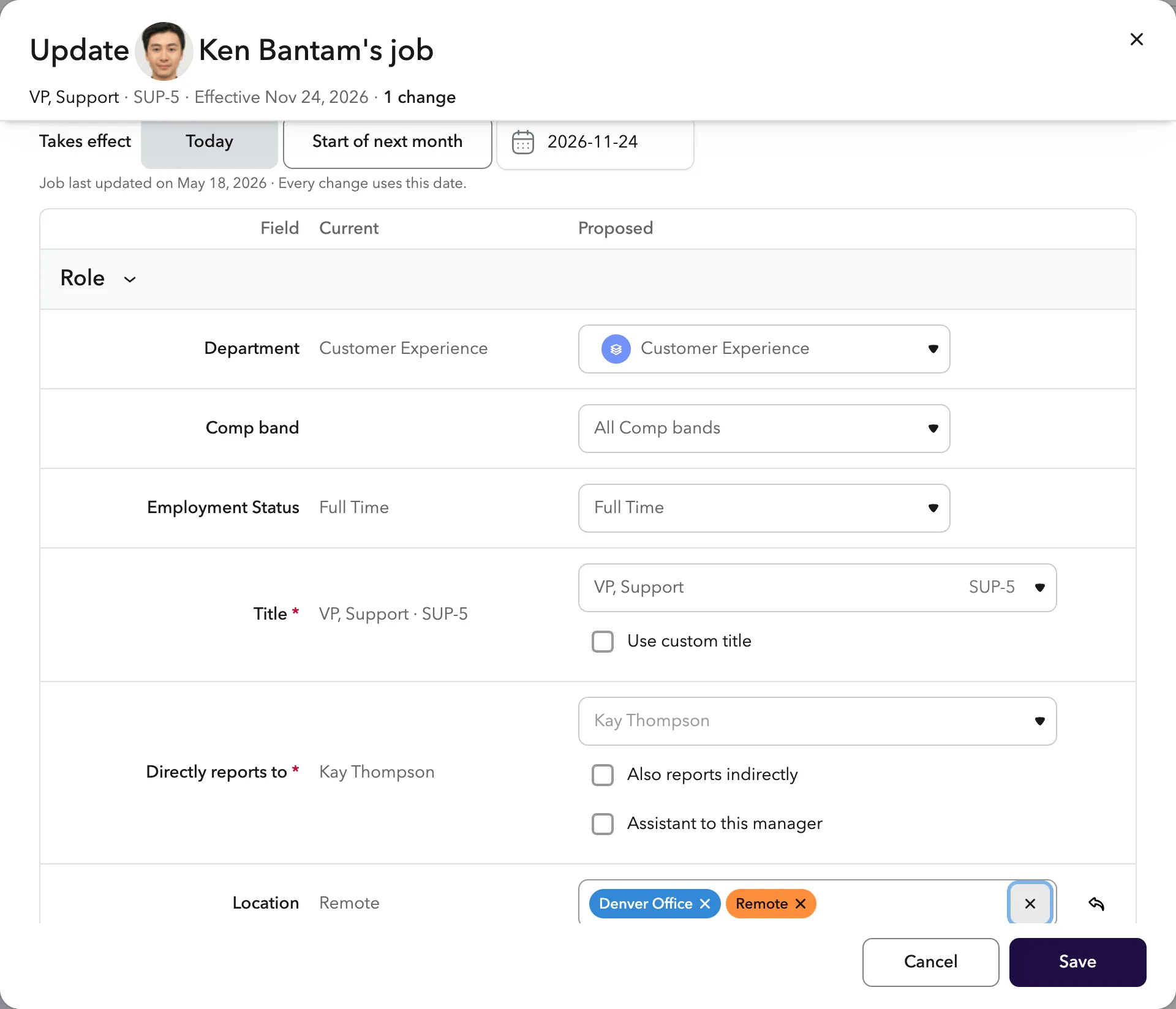
Every change on the form uses the same date. To make changes on different dates, save one, then open the form again.
Undo or remove a value
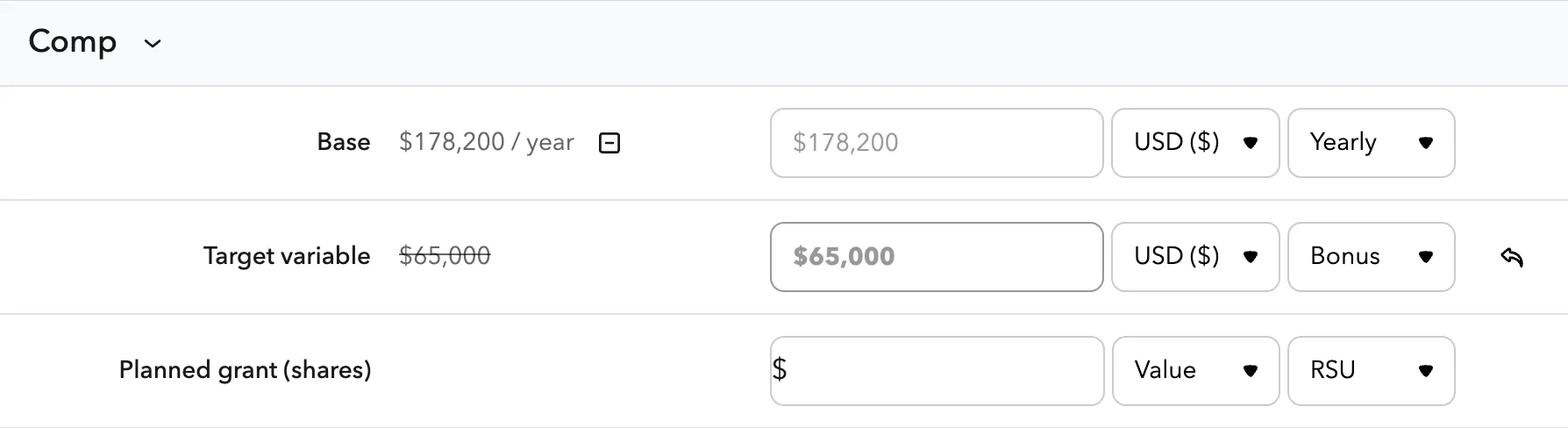
- Select Undo on a field to put it back to its current value.
- Select Remove on an optional field to clear it. The current value is shown struck through, and Review lists it as "Removed".
Change the manager
The Directly reports to row holds the job's manager and related options:
- Change indirect managers appears when the job already has indirect managers. Check it to edit them. Otherwise, check Also reports indirectly to add some.
- Assistant to this manager places the job as an assistant on the Org Chart.
You can also drag a job onto a new manager on the Org Chart. The form opens with the new manager already filled in. Inside a scenario, dragging saves the move right away without opening the form.

Change the title
- Without job codes, Title is a text field.
- With job codes, pick a title from the list. See Job codes on the job form.
- To use a title that isn't in the list, check Use custom title. If the job already has a custom title, check Change custom title to edit it.
Required fields
When you edit a job, required fields that already have a value must keep one. Recruiting fields aren't required on filled jobs.
Editing in a scenario
In a scenario, the form has a single Save button that adds the change to the scenario. If the job was created in that scenario, your edits update it on the date it was created.
Related
- Edit jobs (bulk edit)