
Backfill a job (Alpha)
Alpha. This page describes the redesigned job form, available to organizations in the alpha. For backfill history and reporting, or if your job dialog has tabs instead of sections, see Create a backfill for a job.
A backfill is an open job that replaces someone who is leaving. The person stays on the Org Chart until they're terminated. The backfill starts as a copy of their job.
To keep a backfill out of sight of the wider org, set Sensitivity to Highly sensitive. Only people with access to sensitive data can then see the open job. See Sensitive data.
Create a backfill
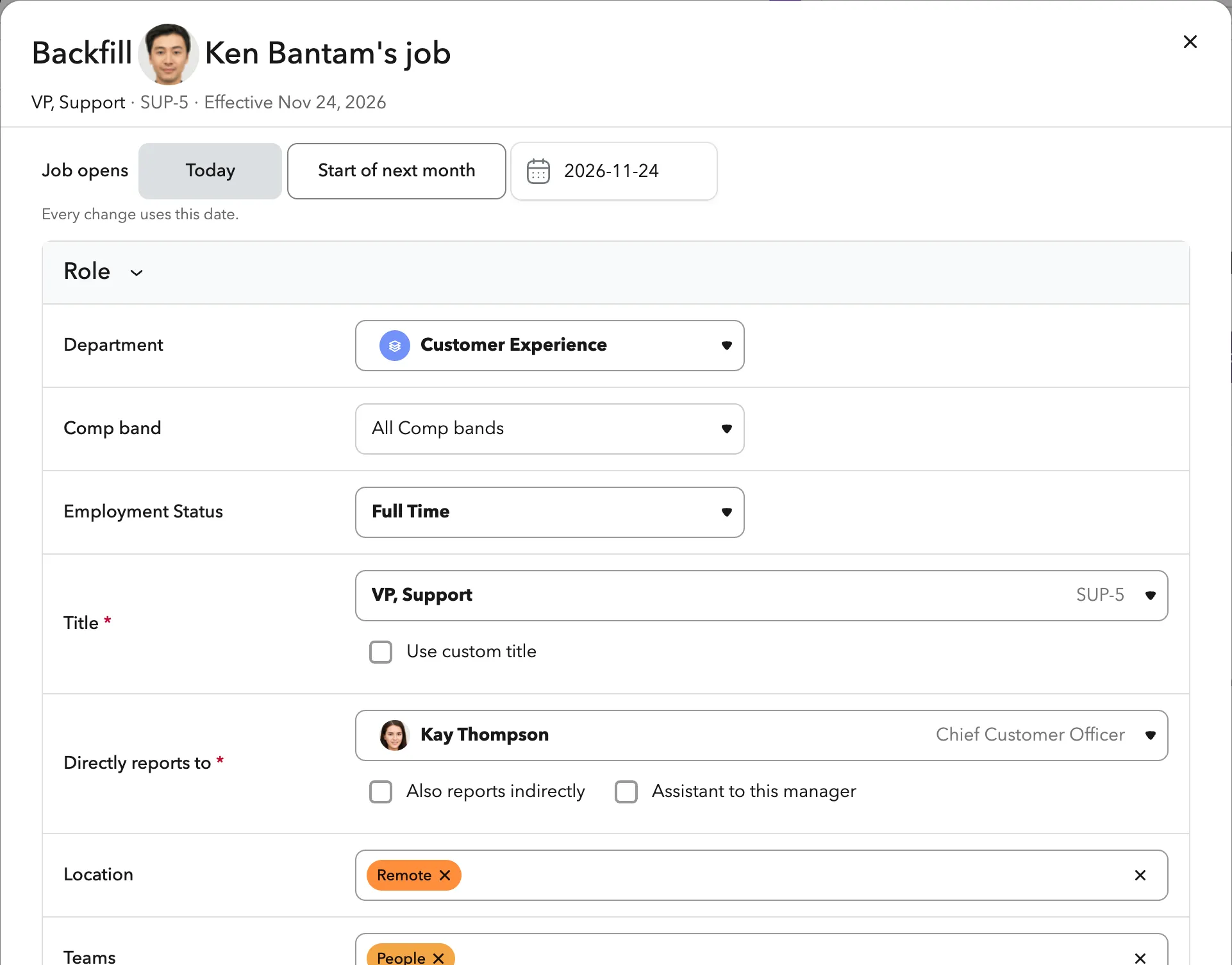
- Open the form. Backfill shows on filled jobs.
- On the Org Chart, select the person's job, then select Backfill in its details panel.
- On the Data Sheet, open the row's actions menu (⋮) and select Backfill.
- Check the details copied from the job and change what's different.
- Select Save, check the changes on Review, and choose how to save. See Save job changes and send for approval.
If the person is also leaving, use Terminate instead to record the departure and open the backfill in one step. See Terminate a person.
What's copied
The backfill copies the job, except:
Field | Starts as |
|---|---|
Recruiting status | Not started |
Recruiter | Empty |
Req | Empty |
Planned start date | The first of the month, two months from now |
Sensitivity | Your org's "Default sensitivity for backfill jobs" setting (Sensitive if it isn't set) |
Recruiting status, recruiter and planned start date are tagged Backfill default and don't count as changes until you edit them.
The backfill field shows the person being replaced. You can't change it here.
One backfill per person
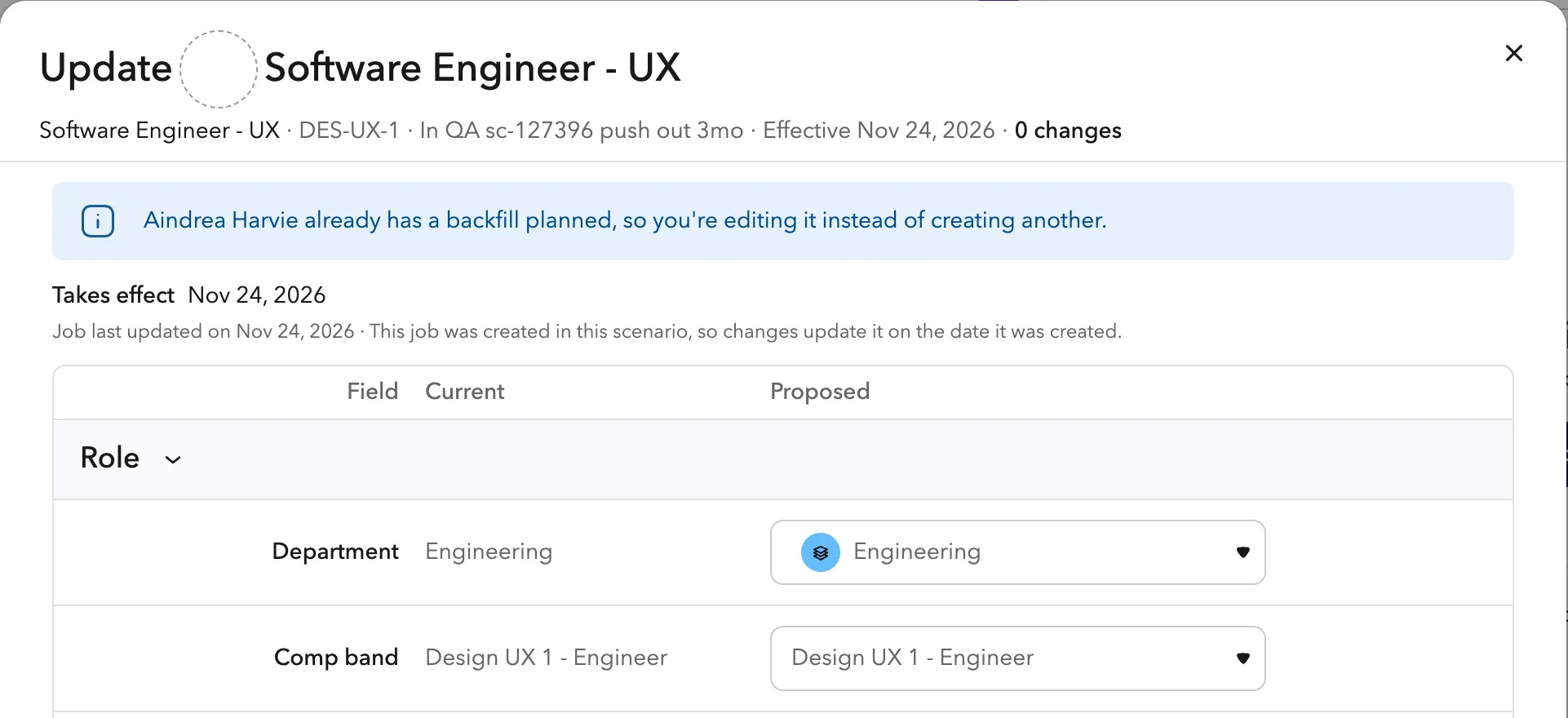
A person can only have one planned backfill. If they already have one, the form opens that backfill for editing instead, with a notice that the person already has a backfill planned, so you're editing it instead of creating another.
Backfill someone who has already left
On the Org Chart, use the date slider to go to the person's last day, then create the backfill. It appears on the current Org Chart.
Related
- Create a backfill for a job: viewing historical backfills and reporting on previous pay