
Create a job (Alpha)
Alpha. This page describes the redesigned job form, available to organizations in the alpha. If your job dialog has tabs instead of sections, see Add a new open job.
Create an open job from the Org Chart, the Data Sheet or a scenario. You can start from a blank job or copy an existing one.
Ways to start
Where | Select | Starts with |
|---|---|---|
A job's details panel, or its row on the Data Sheet | Add direct report | The manager filled in, tagged "From Add direct report" |
Data Sheet, Jobs view | Add Open Job | A blank job |
A job's details panel, or its row on the Data Sheet | Duplicate job | A copy of that job |
A scenario | Add new job | A blank job, saved into the scenario |
To create a job as a proposal for approval, you can also use the Create job simple workflow. See Simple workflows.
Create a job
- Open the form using one of the options above.
- Optionally, in Start from, pick an existing job to copy. Everything below fills in from that job, and you change only what's different. Leave it on Blank job to start empty.
- In Job opens, choose when the job opens: Today, Start of next month, or a date.
- Choose a Title. If your org uses job codes, the fields linked to that title fill in. See Job codes on the job form.
- Check Directly reports to.
- Fill in the rest of the sections. Required fields are marked.
- Select Save, check the changes on Review, and choose how to save. See Save job changes and send for approval.
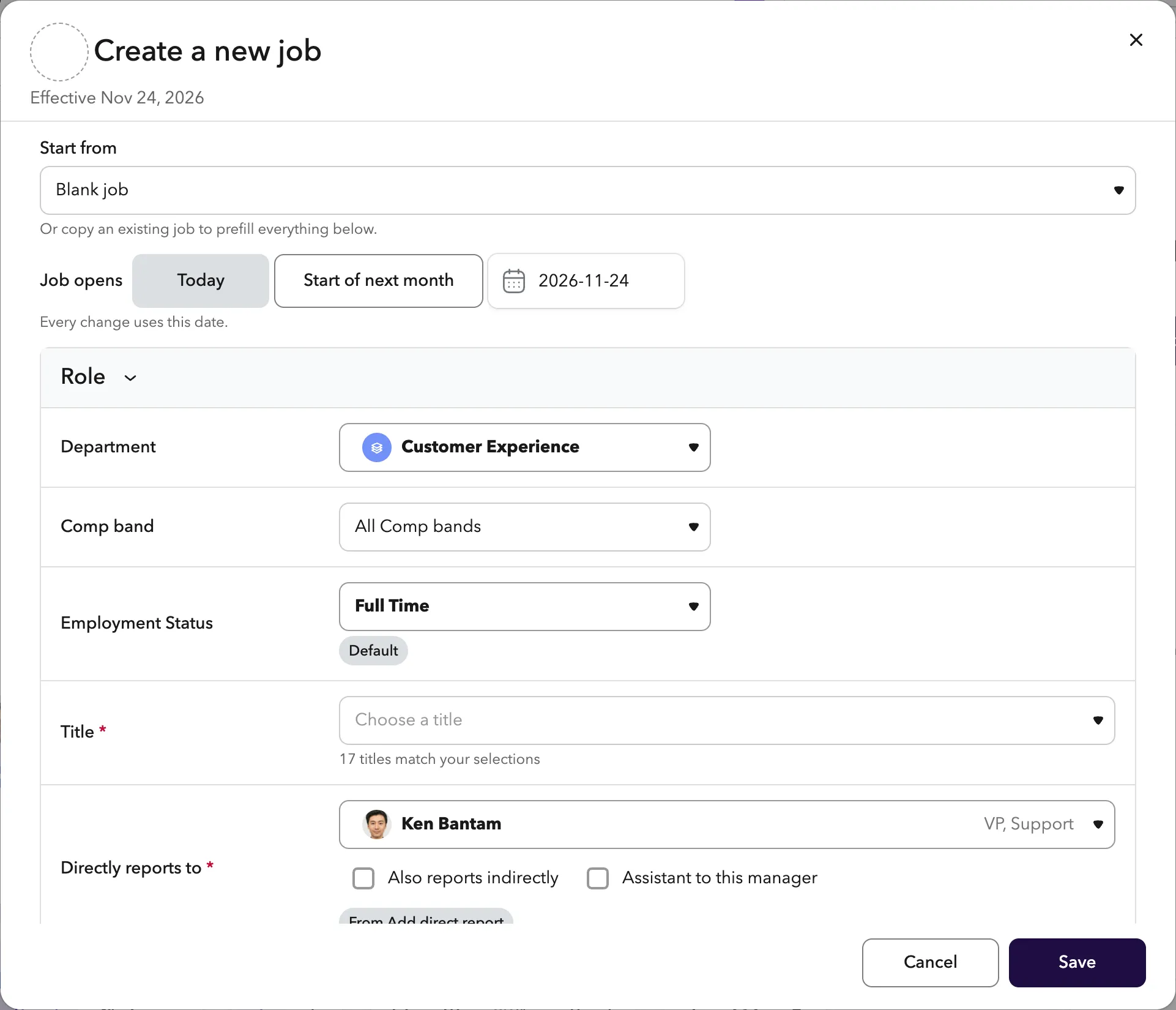
If you change Start from after entering details, you're asked "Replace your changes?" Starting from another job replaces everything you've entered.
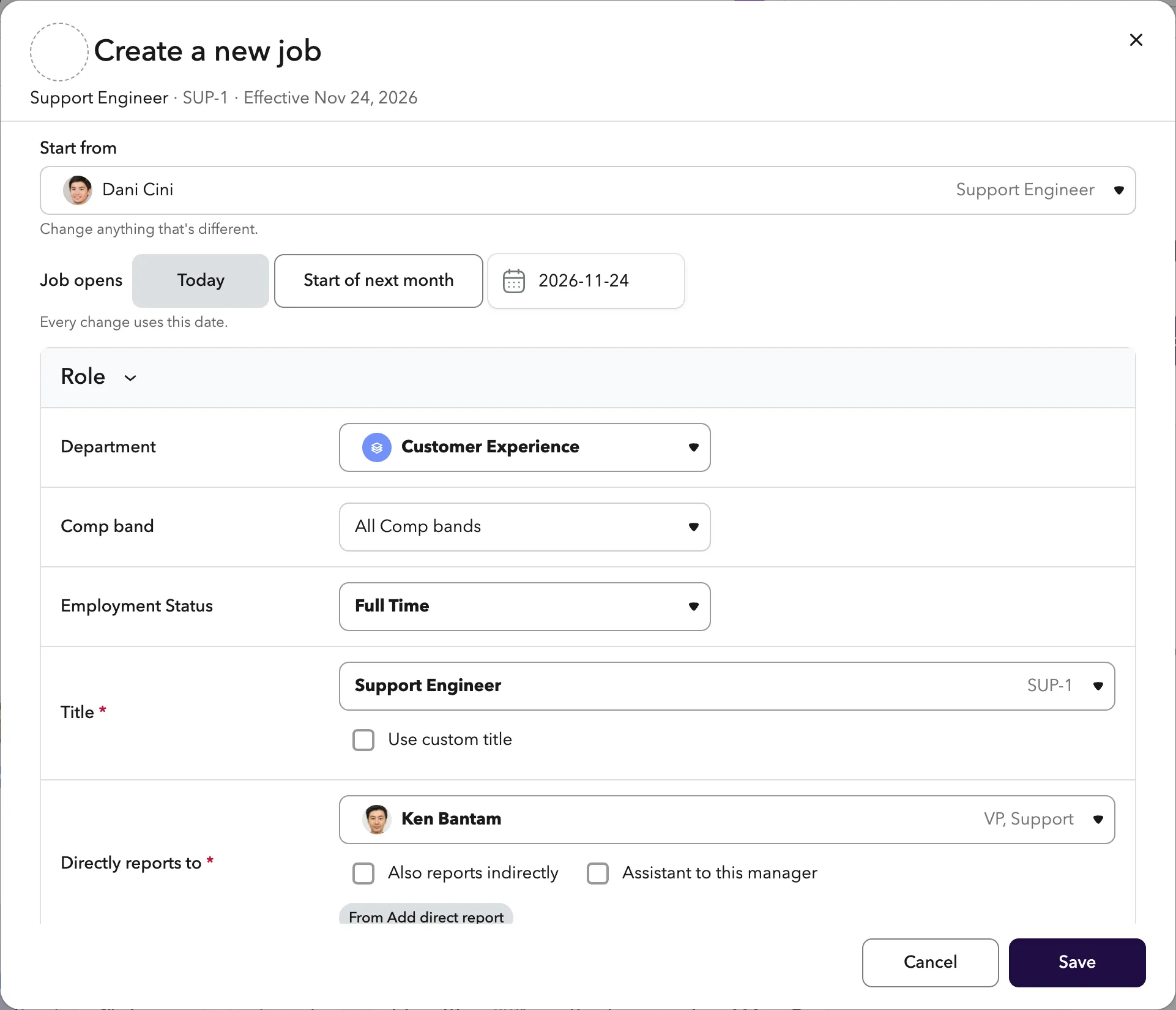
Default values
A blank job starts with your org's defaults for Employment, Placement, Sensitivity and the recruiting fields. They're tagged Default and don't count as changes. Edit any of them like a normal field.
Required fields
A new job needs:
- A Title
- A manager in Directly reports to, unless the job is the head of the org
- Every field your org has made required for new jobs. See Requiring fields when opening jobs.