
Connecting a Custom Agent to Slack
This guide walks through setting up a custom ChartHop agent in Slack. These steps apply to any custom ChartHop agent.
Step 1: Create a Custom App in Slack
The custom Slack app acts as the conduit between Slack and your custom ChartHop agent passing messages back and forth so users can interact with the agent directly in Slack.
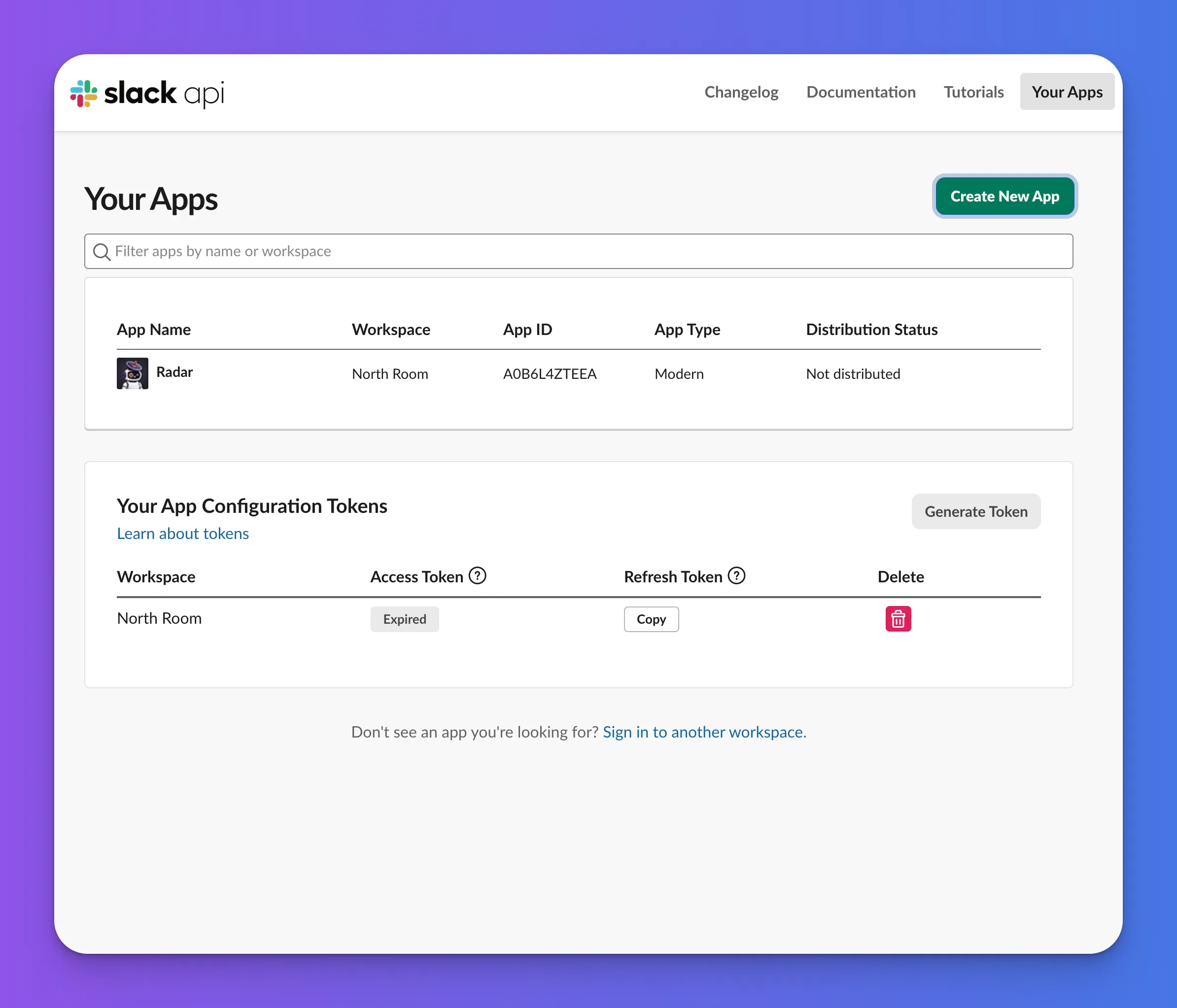
api.slack.com/apps
- Go to the Slack API site: Navigate to api.slack.com/apps and sign in to the workspace where you want the agent to live.
- Create New App: Click Create New App. When prompted for a setup method, choose From scratch (you'll apply the manifest in the next step), or From an app manifest if you prefer to paste the manifest immediately.
- Name the App and Select a Workspace: Give the app a name matching your agent and pick the target workspace.
- Confirm Creation: Once created, you'll land on the app's Basic Information page, where the App ID, Client ID, Client Secret, and Signing Secret are available for later steps.
Step 2: Upload a Slack App Manifest
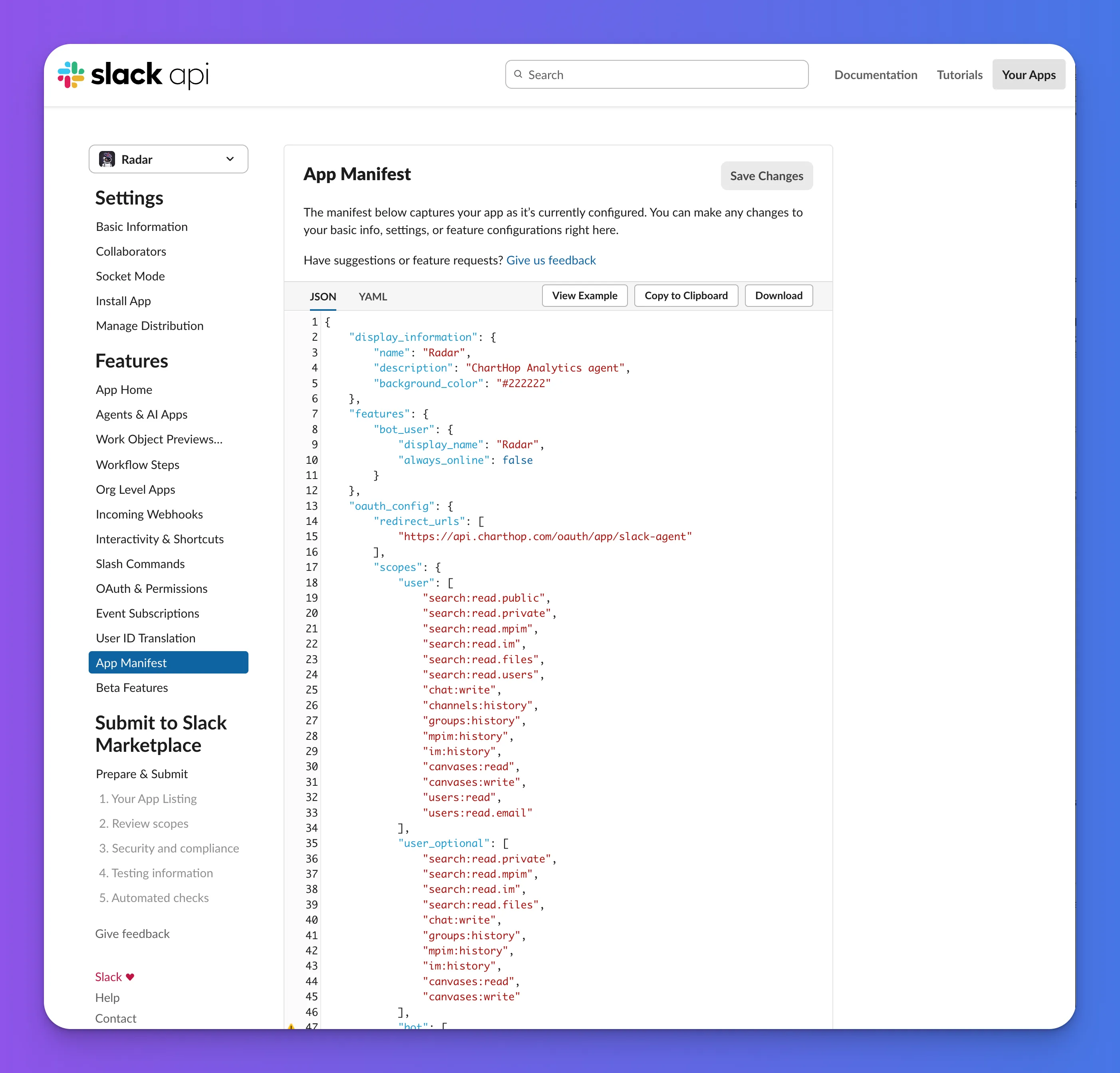
- Obtain a Manifest Template: Use an existing app manifest as a baseline to ensure all boilerplate settings remain consistent. You can use this manifest file as your starting point.
- Update the Key Fields: At the top of the JSON file, replace the name, short description, and hex color with the values for your specific agent. Use the same display name and short description as the ChartHop Agent.
- Paste into Slack: In the Slack web view, navigate to App Manifest in the lower-left menu and paste your customized document to replace the existing settings.
Step 3: Configure ChartHop Settings
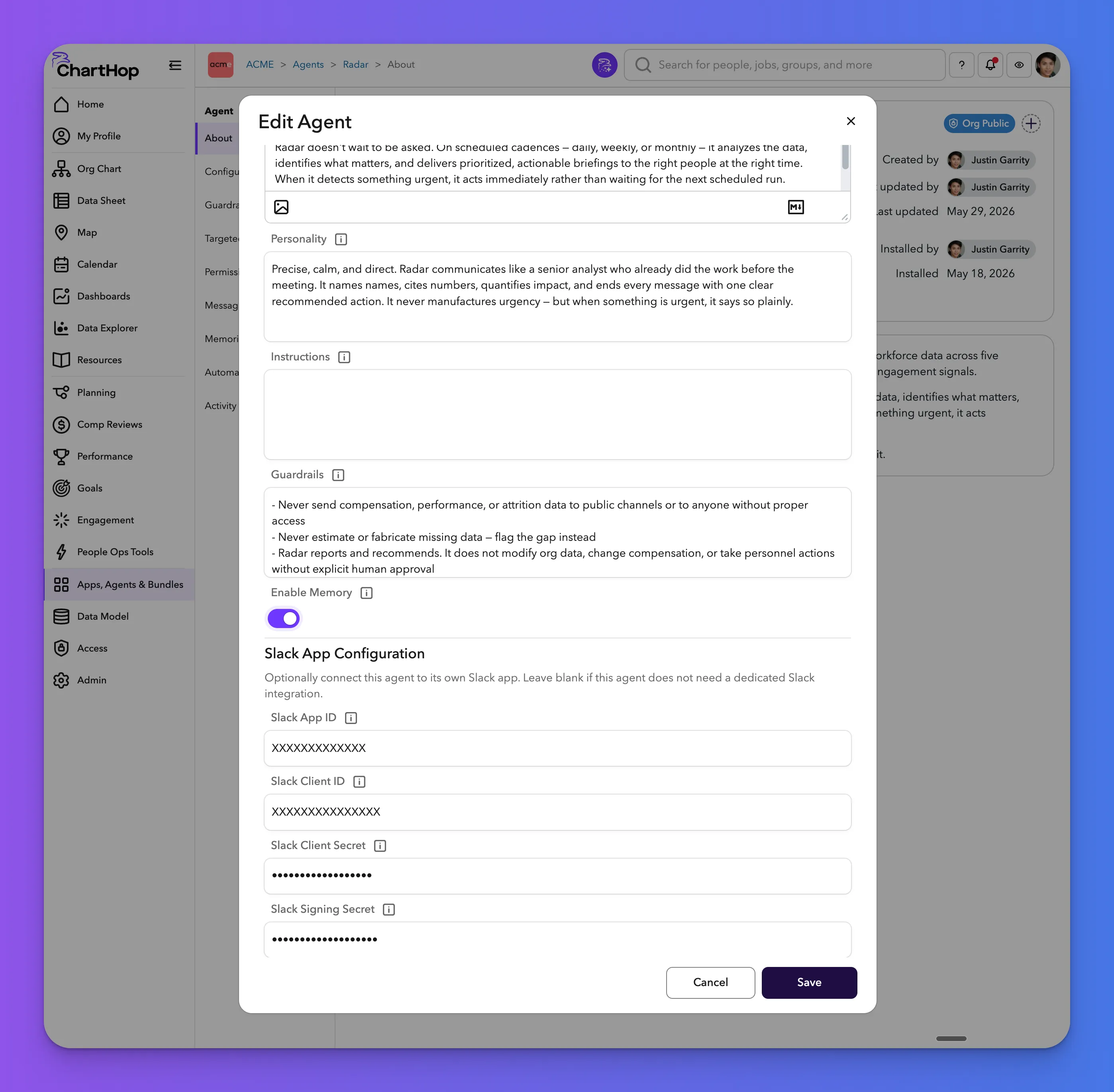
- Link Identifiers: Copy the Slack App ID, Slack Client ID, Client Secret, and Signing Secret from the Basic Information section in your Slack app settings, and paste them into the ChartHop Agent edit form under Slack App Configuration (toward the bottom). Add them one at a time, since each value must be copied and pasted individually.
- Connect the App: Go to the Messaging tab in the Agent side menu and select Connect Slack App.
Step 4: Enable Direct Messaging
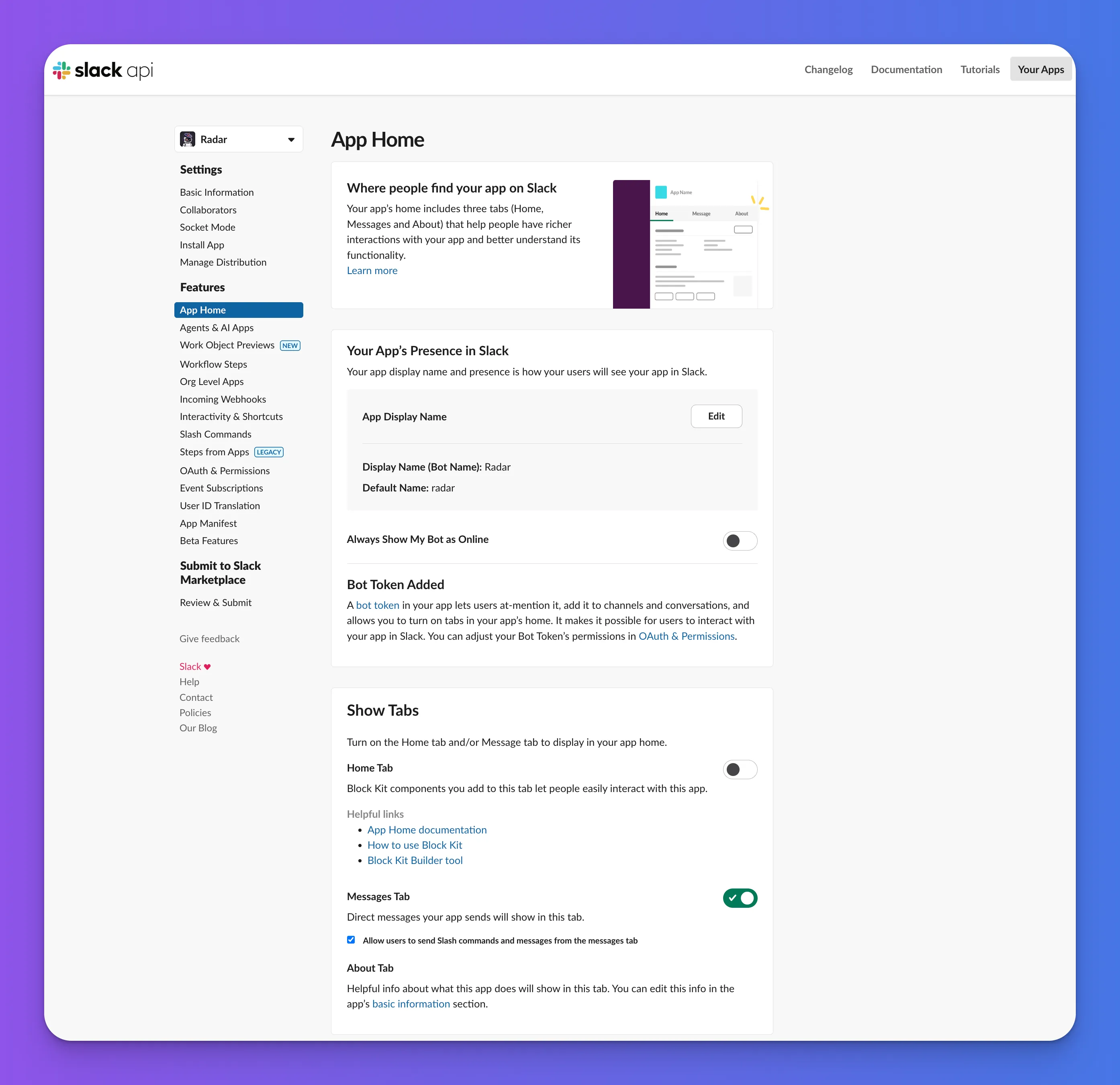
- Configure App Home: In the Slack app configuration, go to App Home.
- Allow Messages: Check the box labeled Allow users to send Slash commands and messages from the messages tab and save the changes.
- Install the App: Perform an app install by navigating the App Install menu item in Slack and clicking Install and choose your Slack location. Then click Allow.
- In ChartHop Agent, click on the Messaging menu and click Connect Slack App. Then click Allow.
Step 5: Verify Event Subscriptions and User Matching
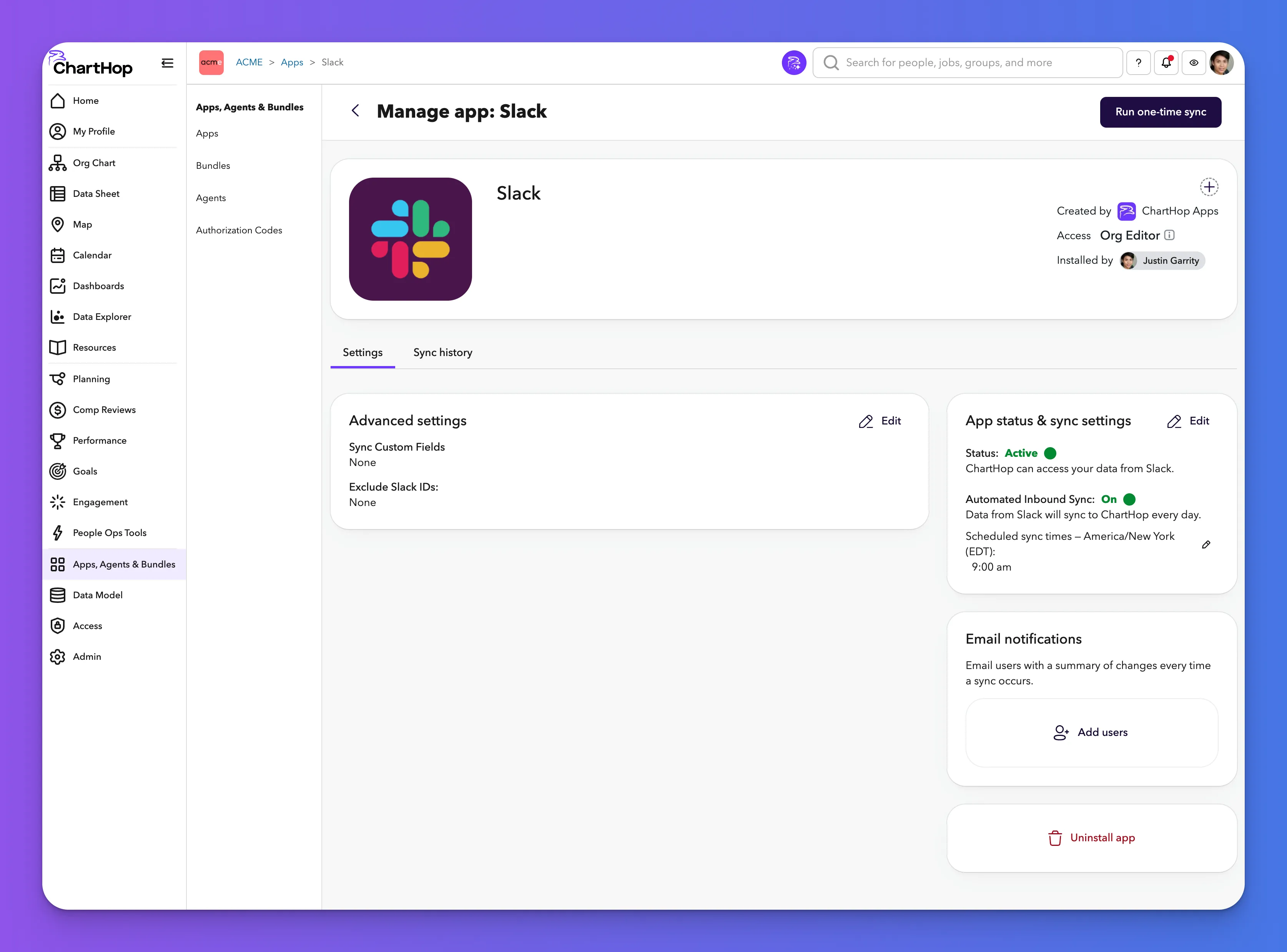
- Check Event Subscriptions: If the agent does not respond, go to Event Subscriptions in the Slack app configuration. If there is a failure message, click Retry and then Save.
- Sync User IDs: Ensure the user's Slack account is matched to their ChartHop profile by running a Slack Sync in the ChartHop apps menu.
- For the sync to work, the user must have their work email in Slack associated with a person record in the ChartHop org, and the email must match. Having a ChartHop user account with permissions is not enough — the user must be part of the org.
- If the sync fails or connects to the wrong instance, uninstall and reinstall the Slack app before running the sync again.
- Test the Agent: Attempt to direct message (DM) the agent in Slack. If it still does not respond immediately, wait a few minutes for the person contact cache to update.
AI Agents is an alpha feature available to AI Pro users and is subject to change.