
Data Sheet: Group By and Progressive Loading
This feature is currently in Alpha. Be one of the first customers to try it! Please share any feedback with the ChartHop team.
How to setup a Alpha Feature
- Read below for setup instructions and context on how the feature will work.
These new capabilities enhance Data Sheets with powerful grouping functionality and performance improvements for large datasets. Group By allows you to organize and analyze data with pivot table like categories, while Progressive Loading ensures fast performance even with thousands of rows.
Group By
Group By transforms your Data Sheet into a consolidated view, allowing you to aggregate and analyze data by any field in ChartHop.
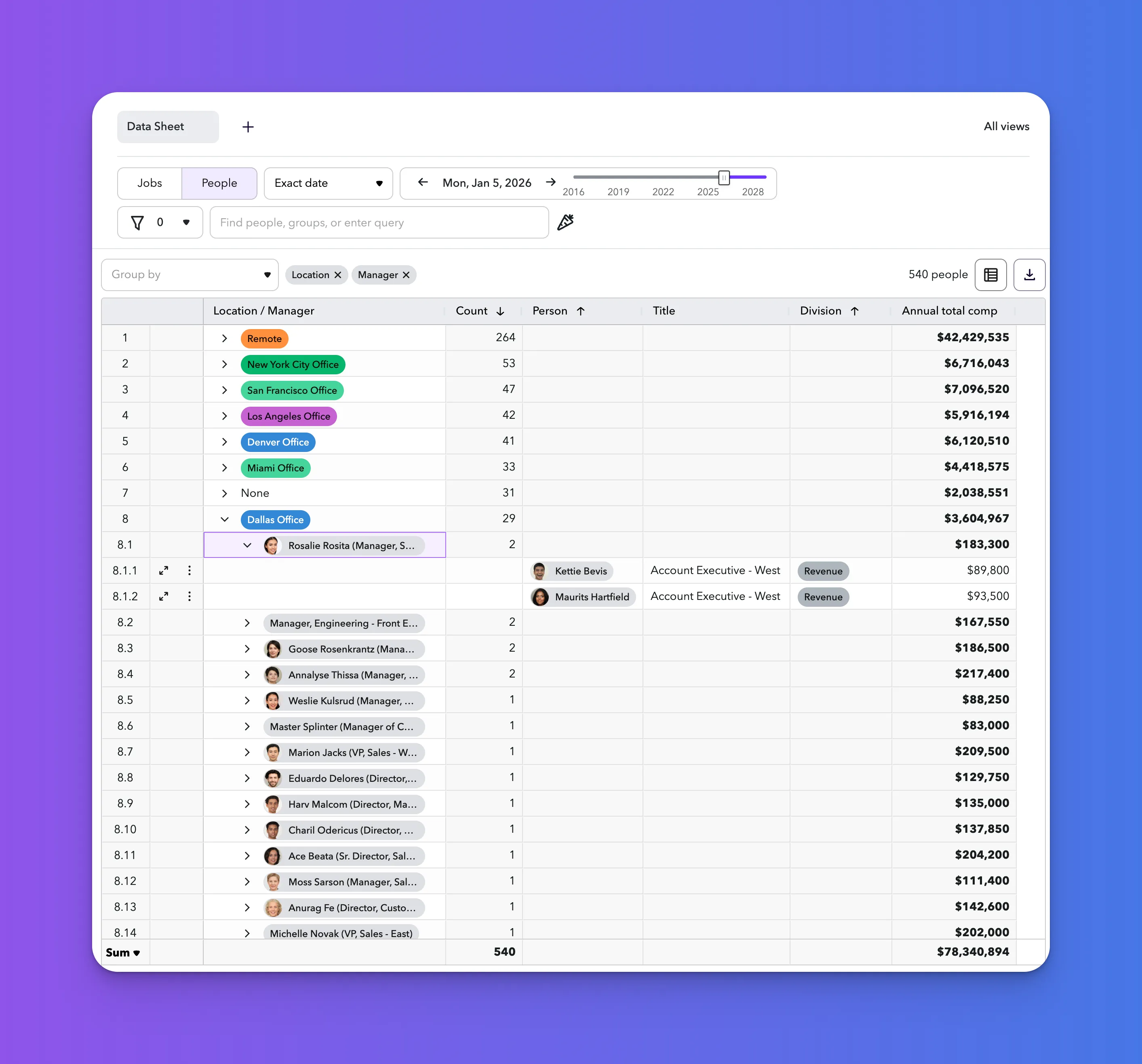
How to use Group By
- Open any Data Sheet view
- Click the "Group By" selector in the toolbar above the table
- Select the field you want to group by (e.g., Department, Location, Manager, Job Level)
- The sheet will reorganize to show grouped rows with expandable sections
What happens when you apply grouping
When you group your data:
- Rows are organized hierarchically — All people sharing the same value for the grouped field appear together under a collapsible header
- Aggregate values are calculated — Numeric columns automatically show totals or averages for each group (currently only selective fields that can be calculated are aggregated in Group By row). If person or job is not exclusive to a specific Group, they will not be counted more than once in total count or aggregation in the Sum row.
- Navigation becomes easier — Expand or collapse groups to focus on specific segments of your organization
Common use cases for Group By
- Department analysis — Group by Department to see headcount, total compensation, or average tenure across different parts of your organization.
- Manager span of control — Group by Manager to quickly identify direct report counts and team compositions.
- Location planning — Group by Location or Office to understand geographic distribution and plan for office space or regional strategies.
- Compensation equity — Group by Job Level or Comp Band to identify pay distributions and ensure equitable compensation practices.
Multi-level grouping
You can apply multiple Group By fields to create nested hierarchies:
- Apply your first Group By (e.g., Department)
- Click "Add Group By" to nest a second level (e.g., Job Level within Department)
- Add one more if desired for a max of three nested GroupBys
This creates views like Department > Job Level > Location, allowing for sophisticated analysis of organizational structure.
Working with grouped data
- Expanding and collapsing groups — Click the arrow icon next to any group header to expand or collapse that section. Use "Expand All" or "Collapse All" to manage all groups at once.
- Filtering within groups — Filters continue to work with grouped views, allowing you to group by Department while filtering to only active employees or specific locations.
- Exporting grouped data — (coming soon)
Progressive Loading
Progressive Loading dramatically improves performance for Data Sheets with large datasets by loading data incrementally as you scroll.
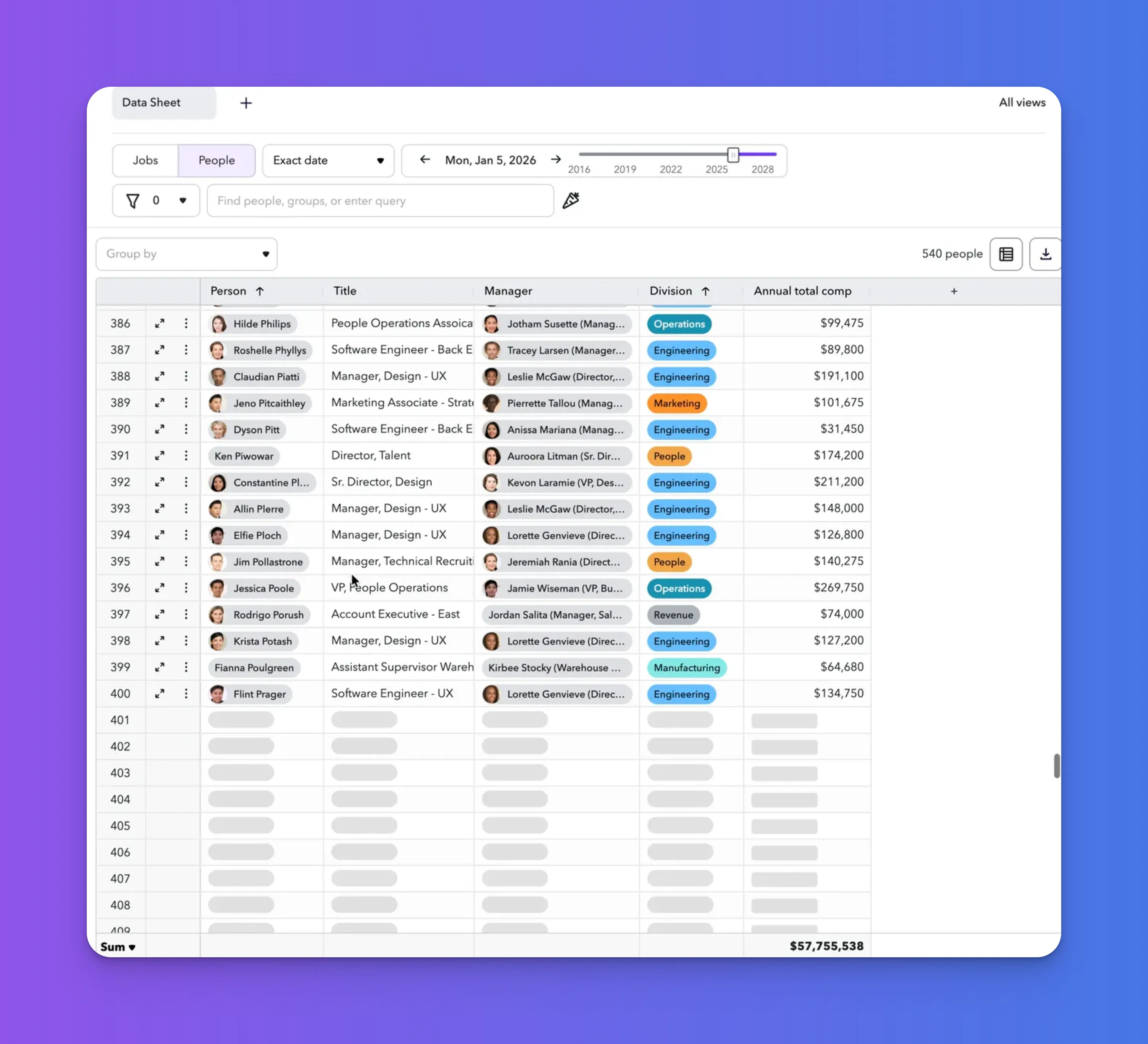
How Progressive Loading works
Instead of loading all rows at once, Progressive Loading:
- Loads an initial batch — The first 100-200 rows appear immediately when you open the sheet
- Loads more as you scroll — Additional rows are fetched automatically as you scroll down
- Maintains full functionality — All filtering, sorting, and searching work across the entire dataset, not just loaded rows
Performance benefits
For large organizations, Progressive Loading delivers:
- Faster initial load times — Sheets with 5,000+ employees now load in seconds
- Smoother scrolling — No lag or freezing when navigating through large datasets
- Reduced browser memory usage — Only visible rows are rendered in your browser
Working with progressively loaded data
- Searching and filtering — When you apply a search or filter, ChartHop searches the entire dataset (not just loaded rows) and returns all matching results.
- Sorting — Sort operations work across the full dataset and will reload the sheet with the new sort order applied.
- Exports — Exporting always includes all rows, regardless of how many have been progressively loaded in your browser.
Group By with Progressive Loading
When using Group By on large datasets, groups are loaded progressively as you expand them, maintaining fast performance. These features work seamlessly together for analyzing large organizations:
- Apply Group By to organize data (e.g., by Department)
- Progressive Loading ensures each group loads quickly
- Expand groups as needed to drill into specific segments
- Navigate through thousands of employees with consistent performance
This combination is particularly powerful for executive dashboards, annual planning reviews, and organization-wide compensation analysis.