
Troubleshooting time off
This page details how to troublshoot and resolve common time off issues.
How to troubleshoot an "incorrect" balance:
If an employee says they have an incorrect time off balance, here are your tools for understanding their balance.
Identify why their balance is the way it is.
Balances are calculated based on the combinations of Upfront Balances, Accruals, Carryover, Adjustments and Approved time off requests. The best place to understand the balance is the policy details modal which can be accessed by clicking on a policy on the profile Time off tab or the Balance Tab of the policy.
This will display a ledger of all transactions in a person's time off history. You can walk through it to understand how a balance was calculated and determine potential the issues with it.
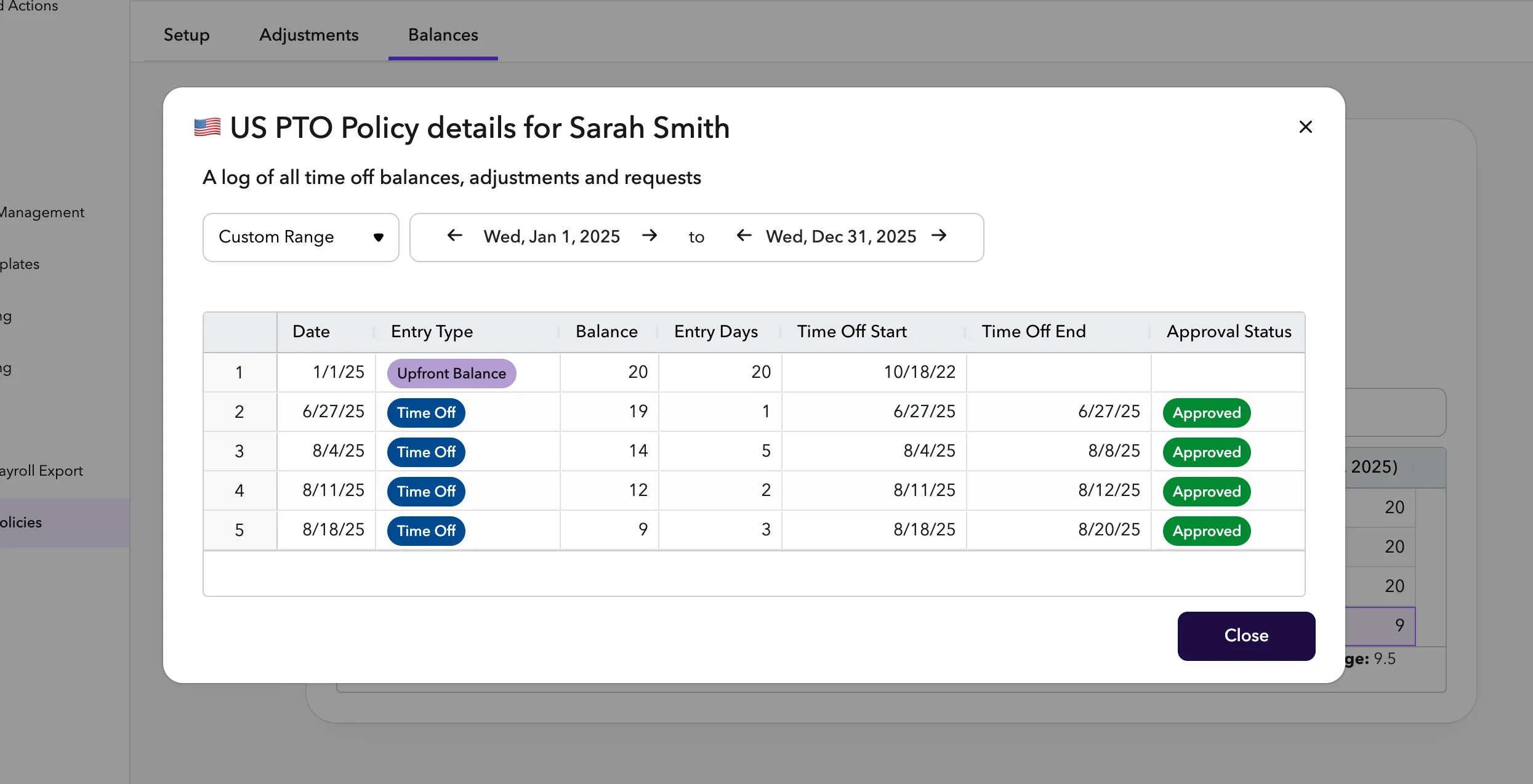
A few common issues that could be the problem:
- An Adjustment was added incorrectly
- A Time Off request is incorrect
- Time off Expired and the person didn't realize it
Resolving an issue with an Adjustment
Adding an adjustment
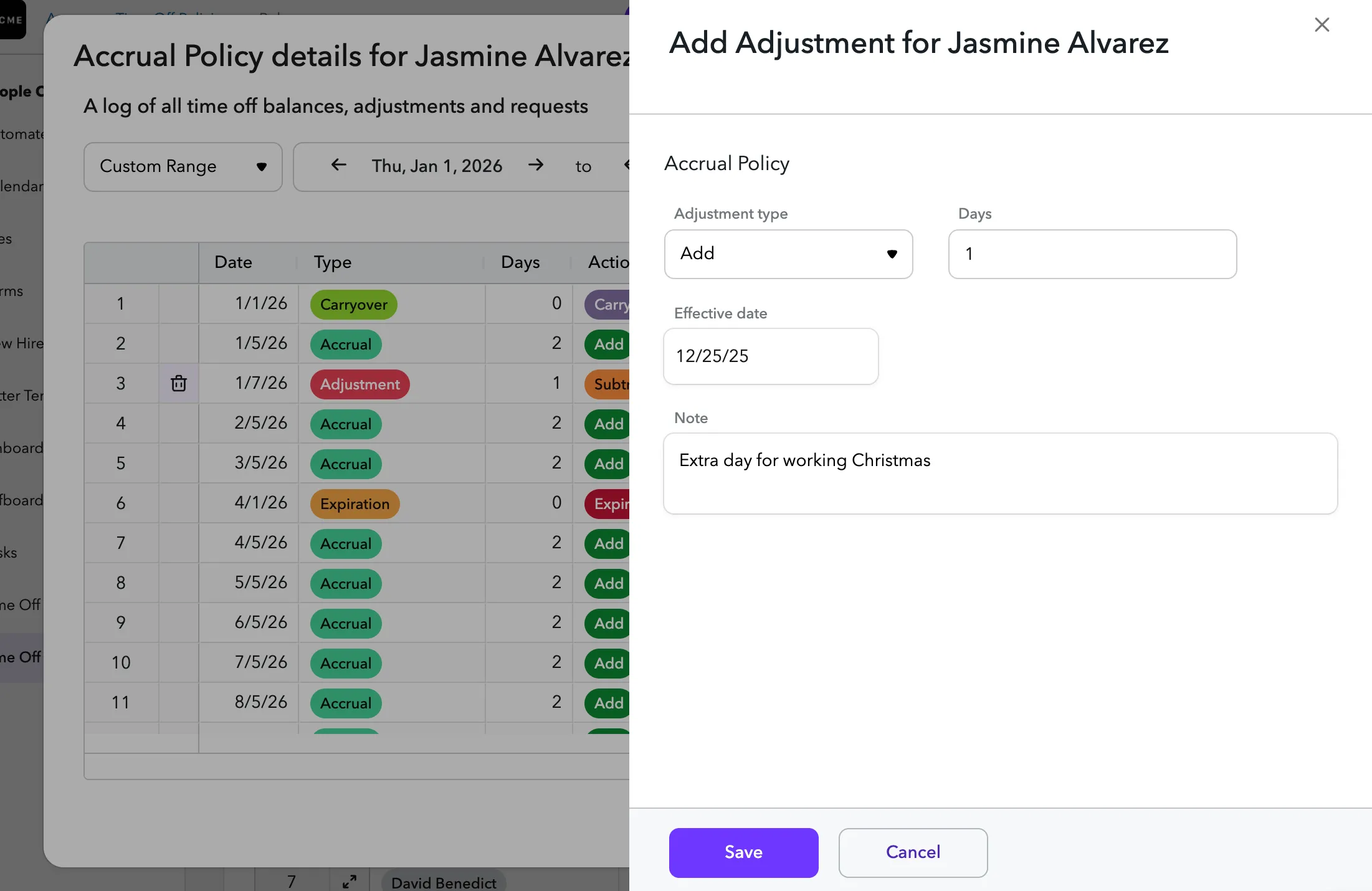
To add an adjustment:
- Go to the Policy details dialog for a certain person using the Balance Tab of the policy.
- Click Add Adjustment
- Select an adjustment type:
- Add - Will add additional days for the person as of the effective date
- Subtract - Will add additional days for the person as of the effective date
- Override - Will set the balance to the indicated amount as of the effective date. We advise you use this option sparingly. If you are using it with an arbitrary effective date, you are likely not addressing the root issue for why the balance is incorrect.
- Set the number of days to add, subtract or set as the balance
- Set the effective date - We advise that you intentionally set this date rather than just setting it to the current date. A few examples:
- If a person was awarded an extra day for working on December 25, and you are adding it to their record on December 29, then us Decemeber 25 as the effective date.
- If a person's upfront balance is incorrect, and you realize this in March 13, add the override adjustment to the correct upfront balance with an effective date of January 1 rather March 13.
- Add a note (strongly recommened)
- Undocument adjustments often cause confusion. For example: "Extra day for working Christmas" or "Correcting upfront balance due to tenure issue"
Deleting an adjustment
You are able to delete adjustments that have been have made in ChartHop.
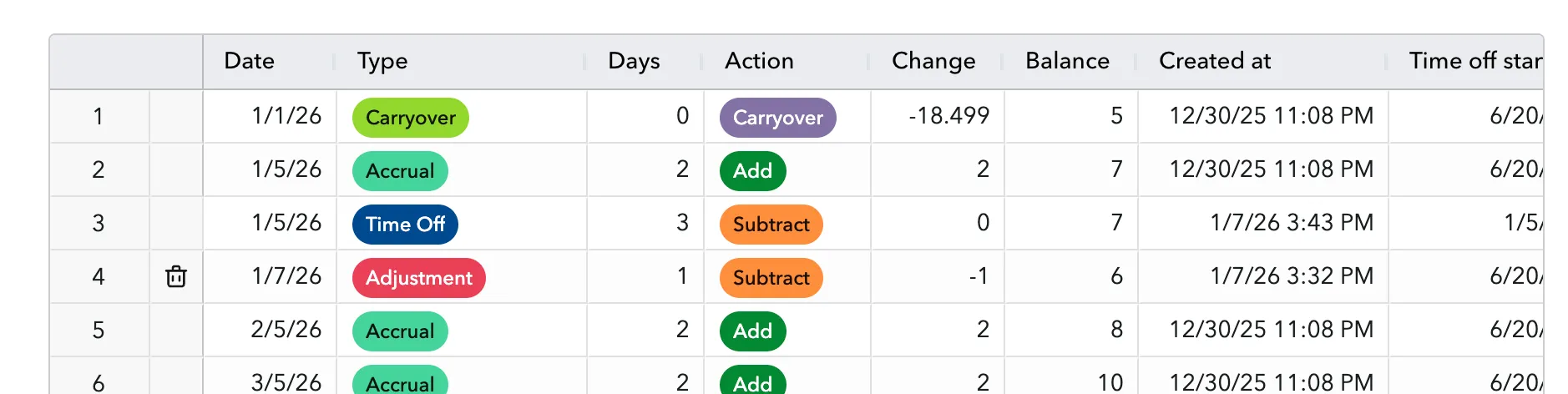
To delete an adjustment:
- Go to the Policy details dialog for a certain person using the Balance Tab of the policy.
- Locate the adjustment and click the trash can icon.
- Confirm that you want to Delete Adjustment
Editing an adjustment
If you need to adjust the days, type, effective date, or note of an adjustment, you will need to delete it and re-create it.
Resolving an issue with a Request
Here are instructions for how to solve the following issues:
- Change a request to a different policy
- Select the request and click the Edit button.
- In the panel, select the new policy and click Save.
- Change the dates of a request
- Select the request and click the Edit button.
- In the panel, select the new dates for the request.
- Add a missing request
- Single request - As an admin, you can click “Request Time Off” and create a new time of request for the person and create the missing request
- In Bulk - Contact the ChartHop team if you need to import a number of missing requests.
- Delete an extra request
- Select the request from the list and click “Withdraw Request.” In the confirmation dialog, follow the instructions.
- Approve a pending request
- Unapproved requests are not counted towards a balance. As an admin, you may approve or reassign approval of a given request to another person.