
Calendar
The Calendar view is a page on the main navigation of ChartHop that displays key employee dates like Anniversaries,Start Dates and Time Off in a calendar format.
The calendar can be filtered to display events applicable to:
- Everyone
- My department
- My Teams
- My direct reports
- Me
- Custom

"This week" calendar preview on home page
On the home page, a preview of the calendar will display the current week and what events are happening during that week. You can configure this view in Home Content.

Calendar configuration
Built-In Calendars
Adding or removing calendars for employee visibility
To add or remove a built-in calendar for employee visibility:
- Can be done by users with Owner, Org Editor, or People Ops Admin access
- From the left sidebar, select Calendars
- Check the box of the calendar you want to edit, and update the status to “Active” or “Inactive”
To add or remove other calendars for employee visibility:
- Can be done by users with Owner, Org Editor, or People Ops Admin access
- Select the calendar name
- Click “Edit Calendar” on the top right of the page
- Update the status to “Active” or “Inactive”
Where the dates come from for each calendar
- Start Date and End Date → These are date fields that are entered within ChartHop.
- Anniversary → This is a calculated field in ChartHop.
- Birthday → This is a calculated field containing the month and day from birth date. Employees can modify visibility for this field themselves. More information here.
- Tasks → if a task is assigned with a deadline, the due date is displayed.
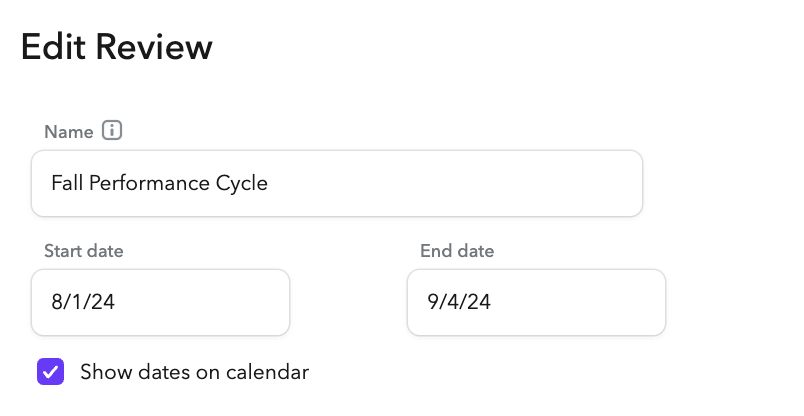
- Performance Reviews and Engagement Surveys: When you create a performance review or engagement survey, you can choose whether you want the dates to display on the calendar:
- Compensation Reviews → When a compensation review is launched, the “Review starts” and “Final approval due” dates will display on the calendar. Once the review is closed, those dates will continue to display historically in the calendar.
Calendar Visibility
Survey and task dates
Calendar | Visibility |
|---|---|
Performance Reviews | Org public |
Engagement Surveys Dates | Org public |
Comp Reviews | Visible to participants in cycle |
Tasks | Visible to person assigned to task |
Employee Dates
Each calendar below respects field or job visibility. The default settings for these fields are below. Follow these steps if you’d like to change the visibility of these dates.
Calendar | Visibility |
|---|---|
Anniversary | Org Public |
Birthday | Org public |
Start Date | Org public once the job exists and announced |
End Date | Org public on announce date |
Holiday Calendars
To create a holiday calendar:
- Can be done by users with Owner, Org Editor, or People Ops Admin access
- From the left sidebar, select Calendars
- Click “Create Calendar” button on the top right corner of the page
- Configure your calendar. See the configuration table below for descriptions.
Once you create a calendar, you can add as many events as needed. Once a holiday calendar is created and made "active", it will be visible to all employees.
A Holiday calendar is by default org public. Holiday calendars can be referenced by a time off policy. If a holiday calendar is attached to an active time off policy, it can not be deleted.
Recommended setup for Holiday Calendars
- Most organizations create a Holiday calendar for each country (ie. 🇺🇸US Holidays, 🇬🇧UK Holidays)
- Holiday calendars should span across years. (ie. You should use the same “🇺🇸US Holidays” calendar for Holidays in 2025, 2026 and beyond.)
Packages: Basic | HRIS | Headcount Planning | Compensation Reviews | Performance | Engagement
Using Holiday Calendars with Time Off
Any "Holiday Type" Calendar can be used in a time off policy.
- Create a holiday calendar
- Navigate to people ops tools
- Select "Time Off Policies"
- Click "Create policy" in the top corner
- Your holiday calendars will display in the dropdown menu

Custom Calendars
Customers using ChartHop’s HRIS module can also make custom calendars to display dates their teams need. Custom calendars are guided by the same share access.
To create a custom calendar:
- Can be done by users with Owner, Org Editor, or People Ops Admin access
- From the left sidebar, select Calendars
- Click “Create Calendar” button on the top right corner of the page
- Configure your calendar. See the configuration table below for descriptions.
Importing Calendar Events
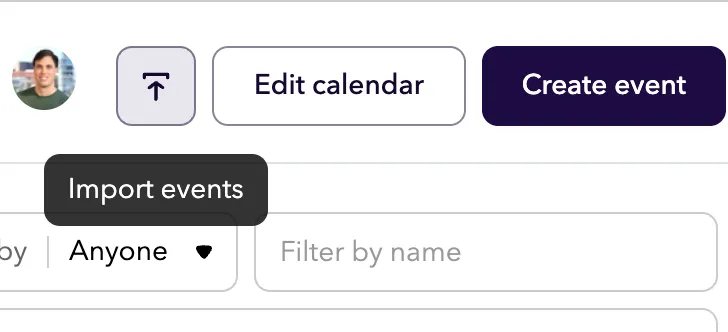
- Create a calendar
- Click the import button
- Download example template and fill in your events in a CSV
- You should be able to make over events from Google calendar or Outlook CSV imports
- Add in the file and import your events