
Signatures
Packages: Basic | HRIS | Headcount Planning | Compensation Reviews | Performance | Engagement
This is an overview for admins on how to request signatures and manage signature requests. See Signing a document for information on signing a document.
Request a signature
There are several ways that you can request a signature on a document depending on the workflow you are trying to support.
Currently the only built in user roles that have the ability to request signatures are:
- Owner
- Note that files containing compensation information should be categorized as part of the "Compensation" category in order for them to be blocked from users with this role.

Request via the profile
The simplest way to request a signature is to do so via a file stored on the person's profile.
To request a signature via the profile
- Navigate to the Files tab within the profile.
- Upload the document that you would like to have signed or select a document you previously uploaded.
- Within the document viewer, navigate to the Signatures tab on the right info panel
- Click Request signature
- Then select who you would like to request a signature from
- Select Send request. The person will then be notified and will have a task on the ChartHop home page.

Request via an Automated Action
The Send Document for Signature step within an automated action allows you to request a signature on either a generated template (such as a promotion letter) or a uploaded PDF (such as an employee handbook).
Prerequisites:
- Create a File field that the document will be stored to
- Create a Letter template with the document
- Link the File and the Letter template
- Select the template within the action.

Request a signature on a PDF
- Set up you Letter template as a template using the Document Type: Uploaded file option.
- Follow the instructions above for linking the File field and configuring the the Request a signature action step.
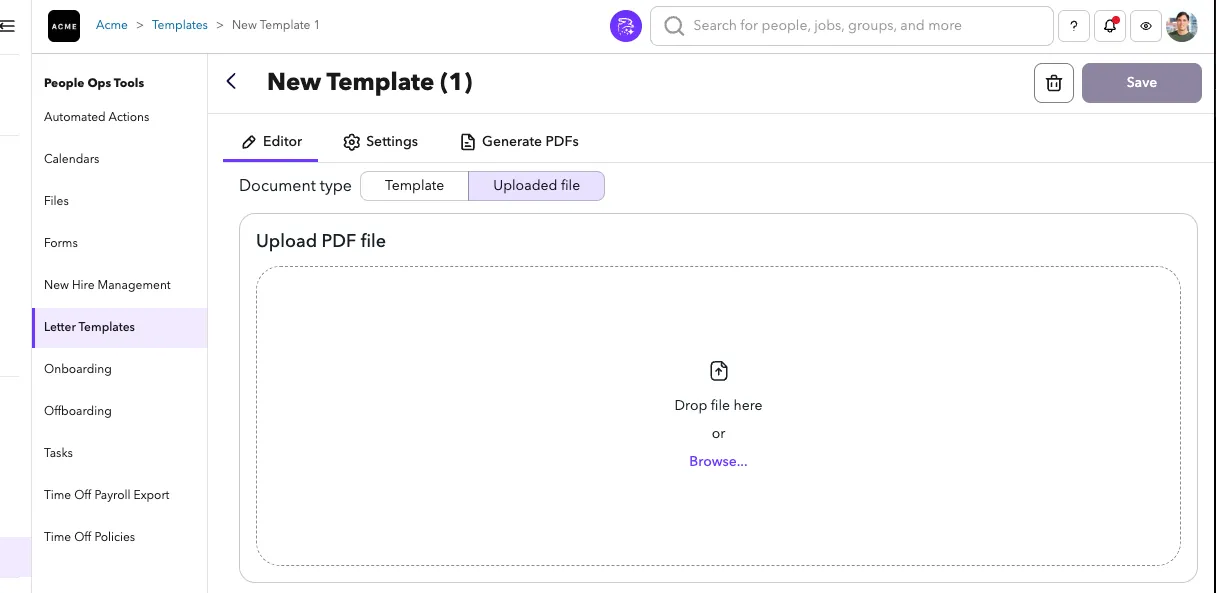
Request a signature on a Template
- Set up you Letter template as a template using carrot for variables and format the document as you would like.
- Follow the instructions above for linking the File field and configuring the the Request a signature action step.
Signing a document in ChartHop
For a guide on the signing expeience see: Signing a document
Canceling a signature request

If you need to make changes to the document or need to cancel the signature request for any reason, you may do so before it has been signed. Anyone with the ability to request signatures can also cancel signature requests.
To cancel a signature request:
- Navigate to the Files tab within the profile.
- Navigate to the document that is Awaiting signature.
- Within the document viewer, navigate to the Signatures tab on the right info panel
- Click the Cancel request button.
- Confirm that you would like to cancel the request by clicking Cancel request in the dialog.
FAQ
What files types are supported?
Currently, you can only request a signature on a PDF file.
How many people can sign the document?
Multiple people can sign the document. Just add the signatories when setting up the request. Currently the order of signing is not enforced, so all people will receive the request to sign at the same time.
Which name can users sign with?
The signee can sign with any case sensitive combination of their First Name or Preferred First Name and their Last Name or Preferred Last Name. See more information on ChartHop's Name fields.
Who can sign documents?
Current, documents can only be signed by people who currently can login to ChartHop.
Common documents to have signed in ChartHop
- Acknowledgement of Legal or Company Policies (Attendance, Anti-sexual harassment, etc.)
- Onboarding / Offboarding Paperwork
- Promotion Letters
- Compensation Letters
- Performance Improvement Plans (PIPs)
- Acknowledgement of having read Employee Handbook
- Offer Letters
- Separation Agreement
- PIIA or CIIA Document
- Sales Commission Plan
- Relocation/Transfer agreement
- Qualifications, Training or Acredidations