
Files & Document management
File Organization
In ChartHop, documents are organized using Fields and Categories.
Create a new field for each type of document that you would like to categorize and store. Use a Category to group and organize the fields.
To create a new type of document that you would like to store:
- Follow the instructions one Creating custom fields
- For the Data type, select File.
- Use the field Label to set the name of the document such as "Non-disclosure agreement"
- Use the Sensitivity to set who should have access to the document.
Organization Best Practice
- Create a fields for every “File type” or “Document type” — In other systems these may have been represented in folders or in the file name. Use a single field for the general file type then upload multiple files to that field. For example: ✅ Commission Agreement | ❌ Commission Agreement Q1 FY25
- Place all file fields in a Categories
- Note that the file category name will be visible to all viewers of the file.
- Only use “Miscellaneous” as a fallback
Uploading documents
Upload a single document:
- Navigate to the person's Profile who you would like to upload a document about.
- Navigate to the Files tab.
- Click the Upload button in the top right corner.
- Select the File type — This dropdown will list all of the file fields that you have access to as well as Miscellaneous which are file that are not linked to a specific field, but can still be uploaded to the person's profile.
- Drag & drop in your file or Browse to select it.
- Click Upload.
Migrate or bulk upload documents
Reach out the ChartHop team if you need to upload documents in migrate or bulk upload documents. We can work with you on the best solution for your organization.
Supported file types
ChartHop supports uploading of:
- Document files - PDF, docx, ppt
- Images - png, jpg, gif
All files must be under 100 MB.
Viewing documents
The files page on an employee's profile, if it is enabled at your organization, will display important employee document and files.
To view a file:
- Click the document name in the list of files.
- A modal with appear with the document.
- If it is a PDF, you will see a preview of the file.
- Otherwise you can download the file to view it..
- Additional document metadata can be view in the the right side such as when the document was uploaded.

Files page
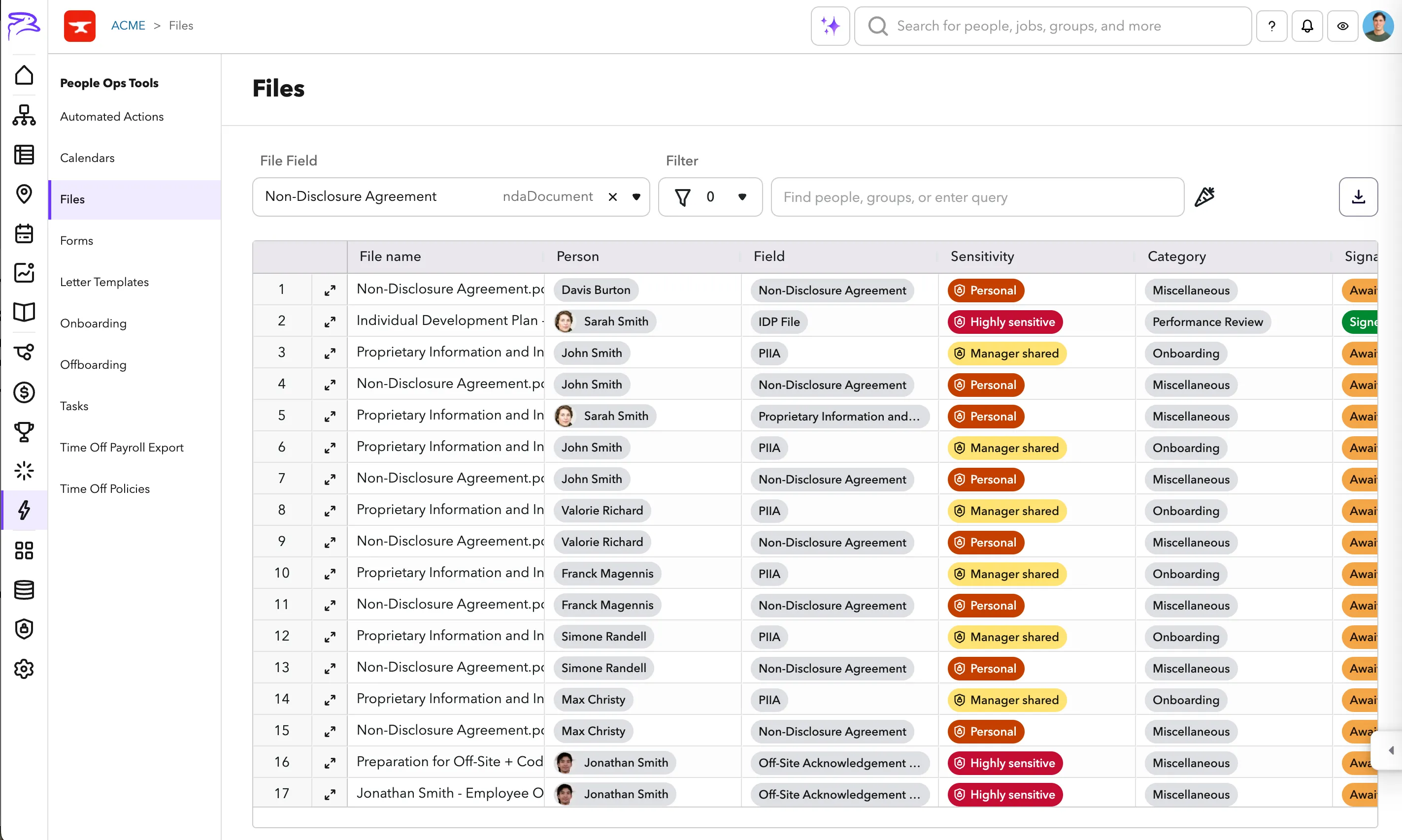
Located under People Ops Tools > Files and availible to Owners in ChartHop. This page allows you to view all of the files added to your ChartHop account.
Auditing documents
Use Case | Tool |
|---|---|
See who does and doesn't have a file of certain type. "See who has a Commission Agreement" | Add field as a column on the Data Sheet. |
View all files of a specific type "See all Commission Agreements" | Files page |
View all files for a certain person. "View all of Sarah Smith's files" | Profile Files tab or Files page for quick switching across people. |
The Data Sheet can also be used to view if a person does or does not have a file.
To setup this data sheet to do this audit:
- Add the file as a column to the data sheet.
- Add a filter to the data sheet:
- fieldCode:* — to display all people with the document
- fieldCode:!* — to display all people without the document

Editing document information
Once you are viewing a document, you can edit the document's name and associated field.
To edit a document's information:
- Click on the file name in the File tab of the profile
- Click the ✏️ Edit button in the top right corner.
- Edit the metadata such as name, linked field or access level.
Collecting documents from employees
To collect documents from employees you can use the same methods as you use to collect fields: Forms or Edit Person Modal.
Exporting documents
Docuents can be downloaded as a zip file from the Files tab on the profile.
Documents can also be downloaded using the Files page.
To export documents from the Files page:
- Navigate to People Ops Tools > Files
- Filter to the view of the files you would like
- Click the download icon in the top right corner.
- Select either Export CSV or Export Files as Zip
- Export CSV - Will export a csv of all of the info about the files in ChartHop, but not the files themselves.
- Export Files as Zip - Will export a zip file of all of the files in the view.