Navigating ChartHop

Top Utility Bar

Top Utility Bar
- Organization - the org you are currently viewing
- Navigational Breadcrumbs - Help you locate where you are in the app and go back to previous pages

Top Navigation

Search Bar
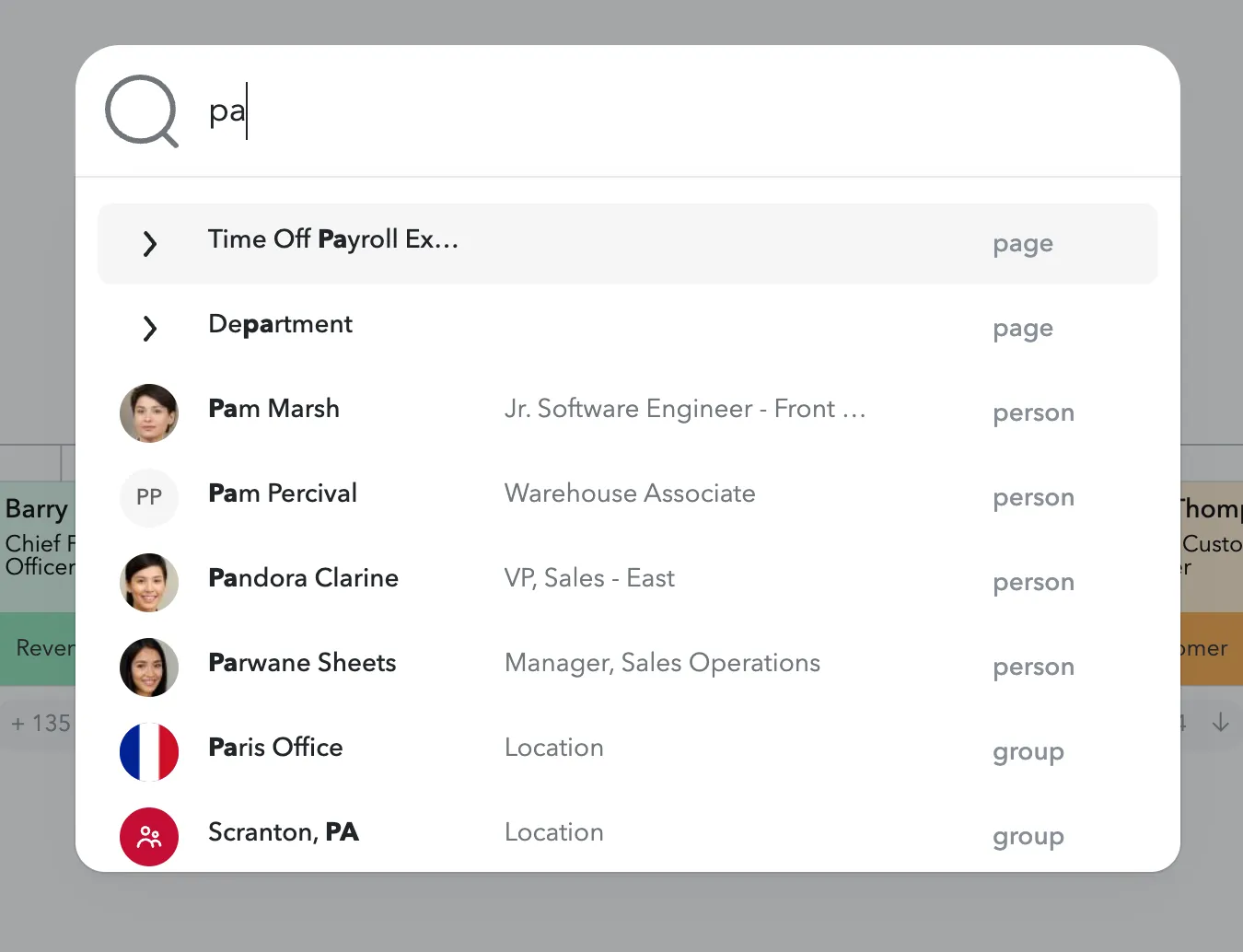
- Search - Find people, jobs, groups, scenarios, reports, and pages (Ctrl/Cmd+K)
- Help - Search docs, watch videos, ask AI or contact support
- Notifications - Alerts about your account
- Sensitive Data - Hide or Show sensitive data. This can be useful when screen sharing or using ChartHop in a public setting.
- Profile Menu - click the profile picture
- My Profile - quickly go to your profile
- Edit your user settingsEdit your user settings - change your picture, password or other settings
- Sign out
Left Sidebar
Left and sub-nav options will not look the same for everyone and will depend on: 🔐 Access role and permissions ⚙️ Account configuration 💼 Modules your organization subscribes to

Left Sidebar
- Collapse Menu - Toggle between showing and hiding the menu item names
- Home pageHome page - View announcements, tasks, and other relevant information
- My Profile - Quickly go to your profile to complete forms or view profile tabs
- Org ChartOrg Chart - Explore your organization's hierarchy
- Data SheetData Sheet - View people and job data in a customizable table format
- MapMap - View people's work location on a map
- DashboardsDashboards - View aggregated charts (formerly known as Reports)

Left Sidebar
- PlanningPlanning - Model scenarios and submit proposed org changes for approval (formerly known as Scenarios)
- Compensation reviewsCompensation reviews - Participate in or set up a compensation review
- Performance reviewsPerformance reviews - Configure and distribute performance reviews
- Engagement surveysEngagement surveys - Configure and distribute engagement surveys
- People Ops Tools - Executing a variety of operational processes using these tools

Left Sidebar
- Apps & IntegrationsApps & Integrations - Manage integrations and add or remove bundled templates
- Data Model - Configure field, groups, and job architecture
- User access controlsUser access controls - Configure and control who has access to what data
- Admin - Configure your settings and other admin tools
Sub-Menu
People Ops Tools
- Automated Actions
- Forms
- New hire managementNew hire management
- Letter templatesLetter templates
- Managing tasksManaging tasks

People Ops Tools
Apps & Bundles
- Apps & IntegrationsApps & Integrations
- BundlesBundles

Apps & Bundles
Data Model
- Fields
- Creating custom fieldsCreating custom fields
- CategoriesCategories
- Managing groupsManaging groups
- DepartmentsDepartments
- TeamsTeams
- LocationsLocations
- Job Architecture
- Compensation bandsCompensation bands
- Job codesJob codes

Data Model
Access
- User managementUser management
- Built-in RolesBuilt-in Roles
- Defining a custom permissionDefining a custom permission
- Access Settings

Access
Admin
- Admin
- Configuring financial settingsConfiguring financial settings
- Financial - Set custom currency ratesSet custom currency rates and Setting up Stock valuationsSetting up Stock valuations
- Enabling approvalsEnabling approvals
- History
- Org Changes History pageOrg Changes History page
- Sync historySync history
- Configuration
- Configuring the Home pageConfiguring the Home page
- Add content to custom profile tabsAdd content to custom profile tabs
- Import Data
- Importing spreadsheet dataImporting spreadsheet data

Admin
Additional Navigation Options
- View as another userView as another user - Allows you to preview ChartHop as another person sees it.
- Top Bar -> Profile Menu
- Org Switcher - If you have a sandbox or multiple organizations
- Location: Top Bar -> Org Logo
Global Search (⌘K / Ctrl+K)
Use global search to find almost anything in ChartHop and jump straight to it. Open it by clicking the search box in the top bar, or press ⌘ + K on a Mac / Ctrl + K on a PC from anywhere in the app.
Start typing to search across:
- People, jobs, and groups
- Dashboards, reports, and scenarios
- Goals, resources, and comp reviews
- Pages. Type the name of a page (for example "Org Chart", "Data Sheet", "Data Model", or "Access") and jump directly there instead of clicking through the left navigation.
Select any result to go straight to it. You'll only see people, pages, and items you have permission to access, so results match your role and configuration.